
When to use it
- You run the same channels with staff or coworkers.
- You want to decide who can change what.
- You want different people to handle different channels.
How it works
Invite members
Press your name to open Settings, then go to Members. Your member count and limit are at the top.
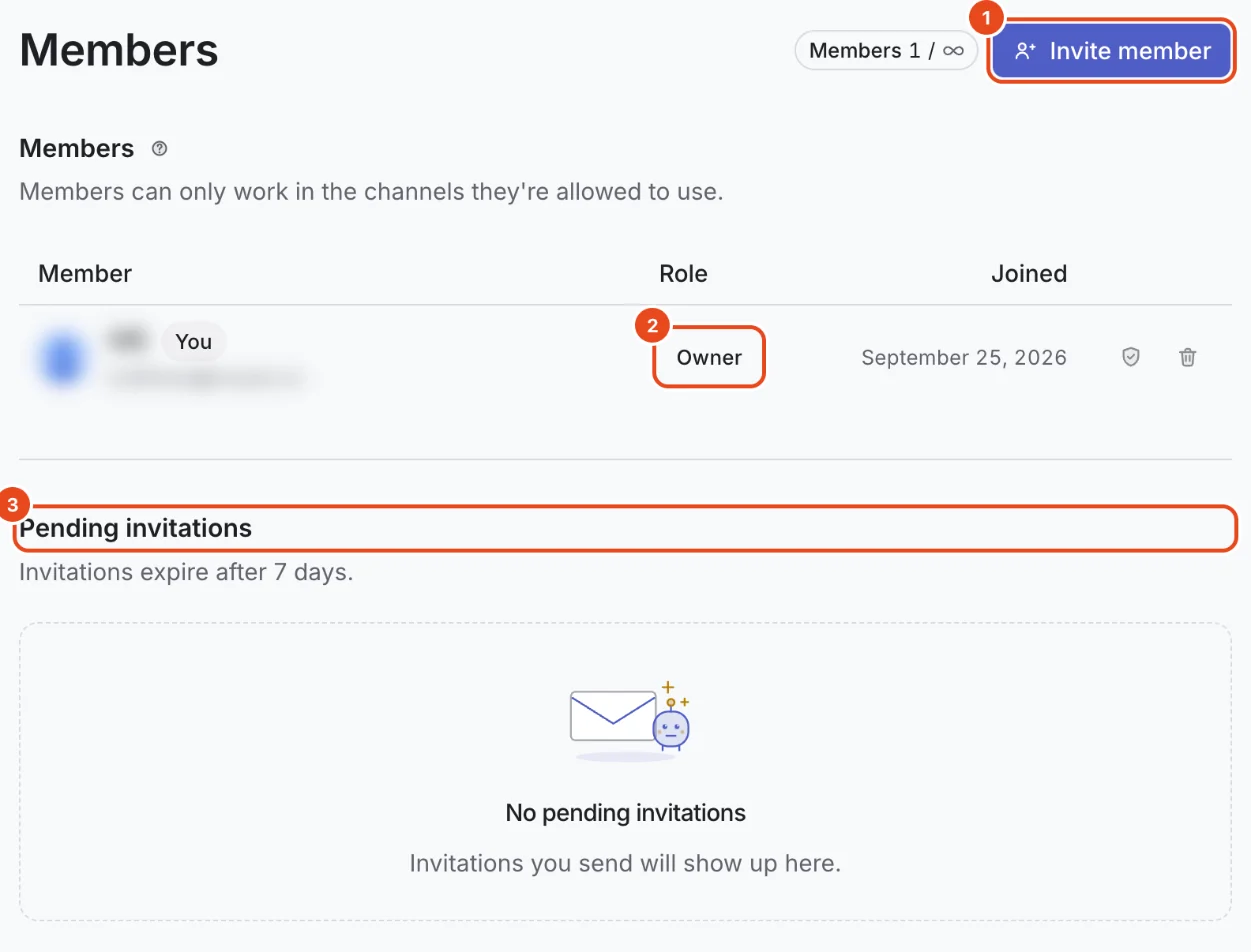
Press Invite member, enter the person's Email, pick a Role and press Send invitation.
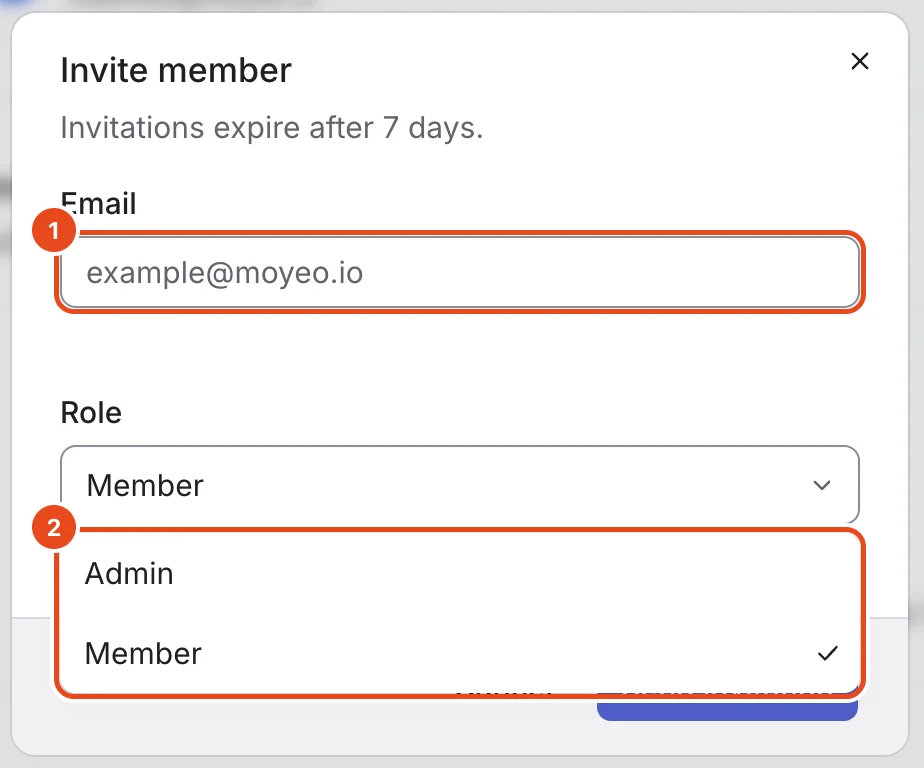
Invitations stay open for 7 days. The invitee opens the link in the email and accepts to join right away. They need to log in with the invited email address.
Invitations that haven't been accepted stay under Pending invitations. Press Resend if the email didn't arrive, or Revoke if you sent it by mistake.

Change a role
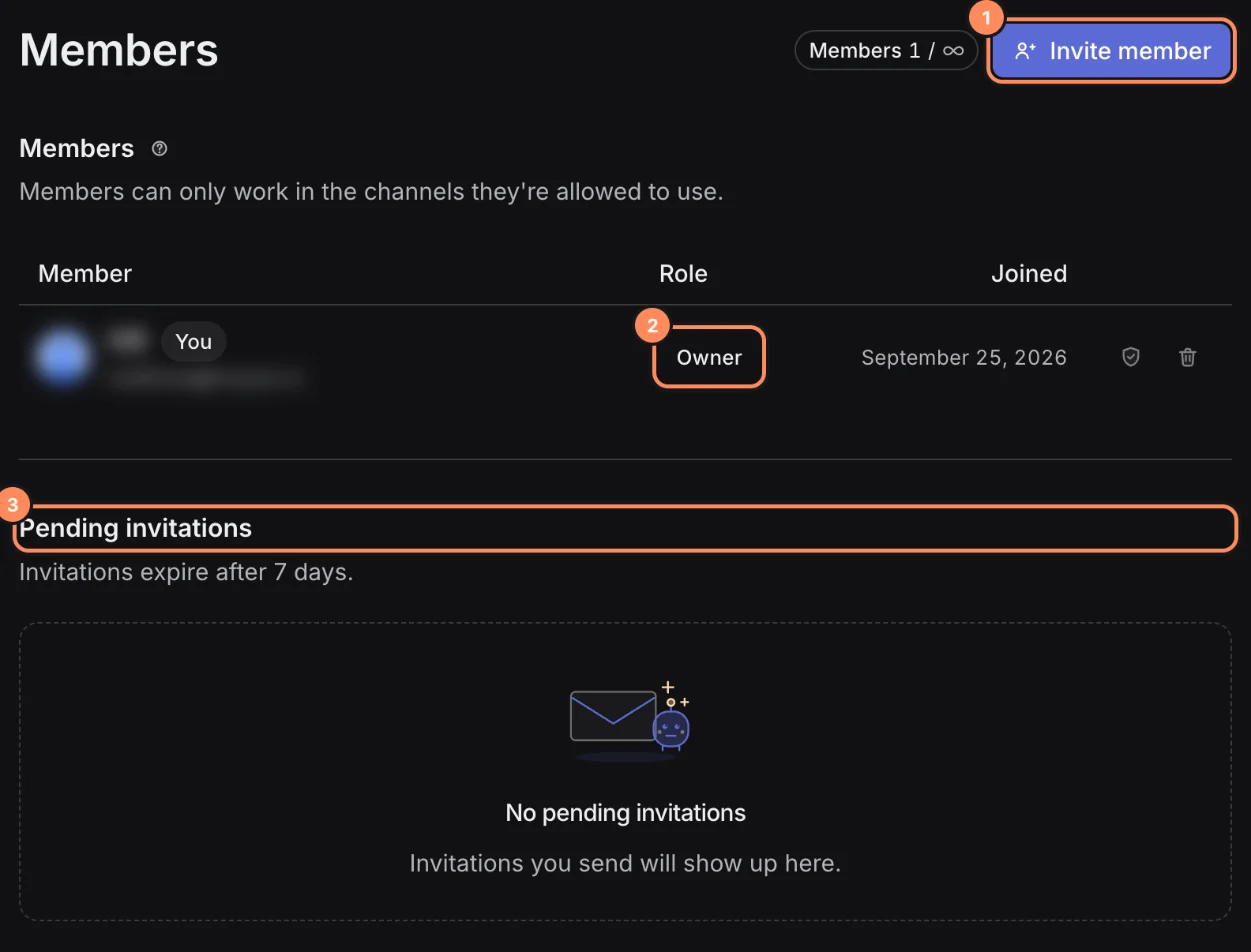
Press the member's role in the Role column.
In Change role, pick Admin or Member and save.
You can't change the owner here. To hand it over, use Transfer ownership in General settings and pick one of your admins.
Split access by channel
Press the shield button at the end of a member's row to open Member channel access.
For each channel, choose Publishing access and Comment access. Changes save right away.
If publishing access is Approval required, that member's posts need approval before they're scheduled. Get approval before posting covers the approval flow.
Remove a member
Press the trash button at the end of the member's row and confirm.
Removed members can't get into the workspace anymore. Invite them again to bring them back.
Options at a glance
Roles
| Role | What they can do |
|---|---|
| Owner | Everything. Only the owner manages plans and billing, transfers ownership and deletes the workspace. |
| Admin | Invites members and changes roles, connects channels, sets channel access and workspace settings. |
| Member | Writes posts and replies to comments on allowed channels. Can't change members or billing. |
Posting access
| Value | On that channel |
|---|---|
| Full access | Post right away, schedule, and change the posting schedule and order. |
| Approval required | Write and save drafts. Scheduling sends an approval request. |
| No access | Can't write or schedule posts. |
Comment access
| Value | On that channel |
|---|---|
| Full access | Reply, mark as done, and turn auto-replies on and off. |
| View only | See comments and auto-replies only. |
| No access | Can't see comments. |
Free and paid plans
| Item | Free | Pro | Team |
|---|---|---|---|
| Members | 1 | 3 | 100 |
| Channel access per member | Not included | Not included | Included |
| Approval before posting | Not included | Not included | Included |
The member count includes the owner.
Good to know
- One person can be a member of several workspaces and switch between them at the top of the sidebar.
- Everyone logs in with their own account. Sharing one account runs into the device limit and hides who did what.
- Channel access changes show up in that member's sidebar and screens right away.
- Removing a member doesn't remove the posts or schedules they made. Those stay in the workspace.
Frequently asked questions
The invite email never arrived.
Ask them to check their spam folder first. If it's not there, press Resend under Pending invitations.
Can members leave a workspace on their own?
No. The owner or an admin has to remove them from the Members page.
Can admins see every channel?
Admins follow channel access settings too. Only the owner always has full access to every channel.
What happens to members if I downgrade?
Members over the limit stay. You just can't invite new ones. Channels set to Approval required schedule without approval, and your settings come back if you return to the Team plan.