
When to use it
- You're tired of opening each app to check Instagram, Threads and YouTube results.
- You want to know which channel and which posts did best.
- You want to decide when to post next.
- You want to check how quickly you're replying to comments.
How it works
Pick a period and channels, then read the summary
Press Analytics in the sidebar to see all connected channels together. For one channel only, expand it under Channels and press Analytics.
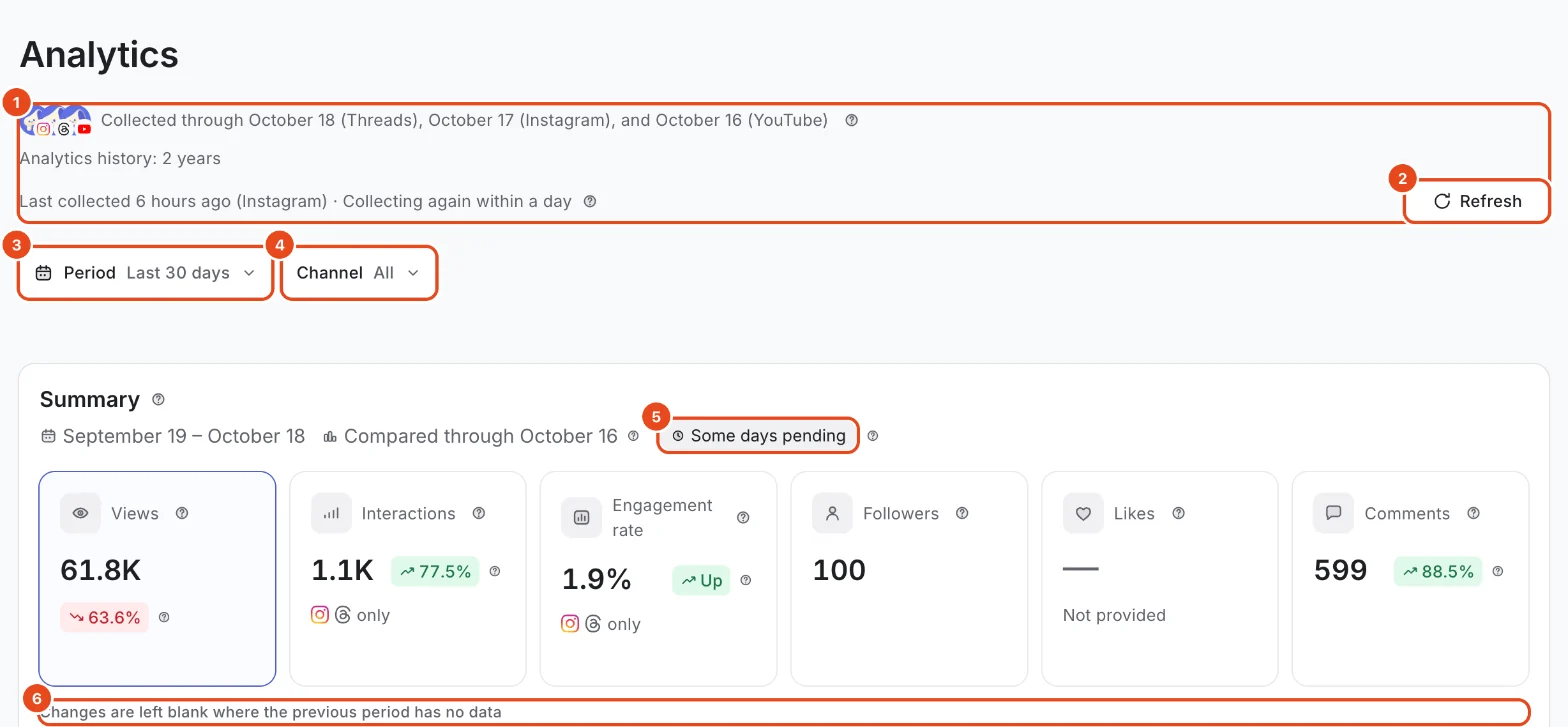
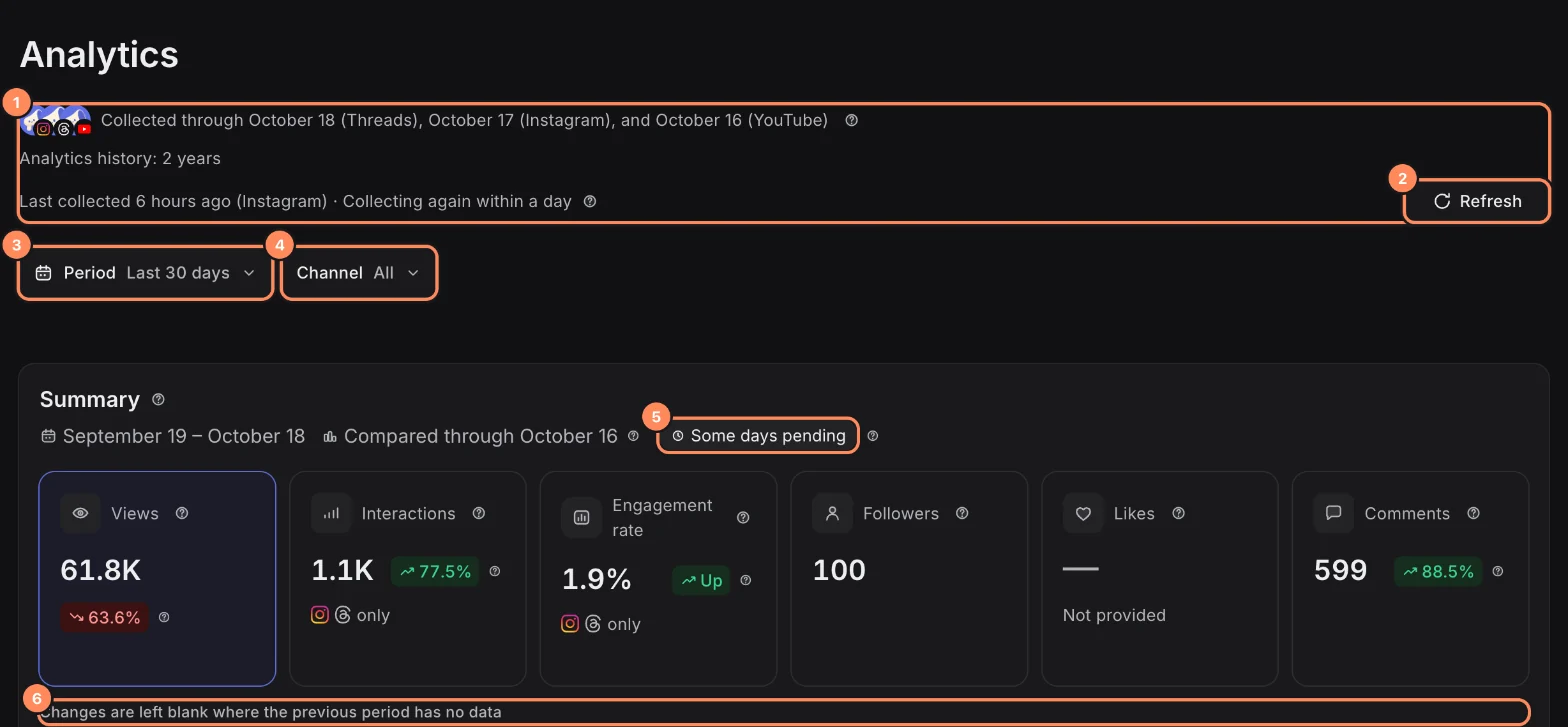
The top shows how far each channel has been collected, when it was last collected and when the next collection runs. Press Refresh to collect again now.
Under Period, choose Last 7 days, Last 30 days, Last 90 days, This month or Custom. Use Channel to narrow it down.
Summary shows Views, Interactions, Engagement rate, Followers, Likes and Comments. The change under each number compares with the previous period of the same length. Press a card to see it day by day.
Compare channels
Compare channels shows how much of the metric you picked in the summary comes from each channel.
The table compares Posts published, Interactions, Comments and Engagement rate by channel, with changes. Use Sort and Columns, or press a column name to sort.
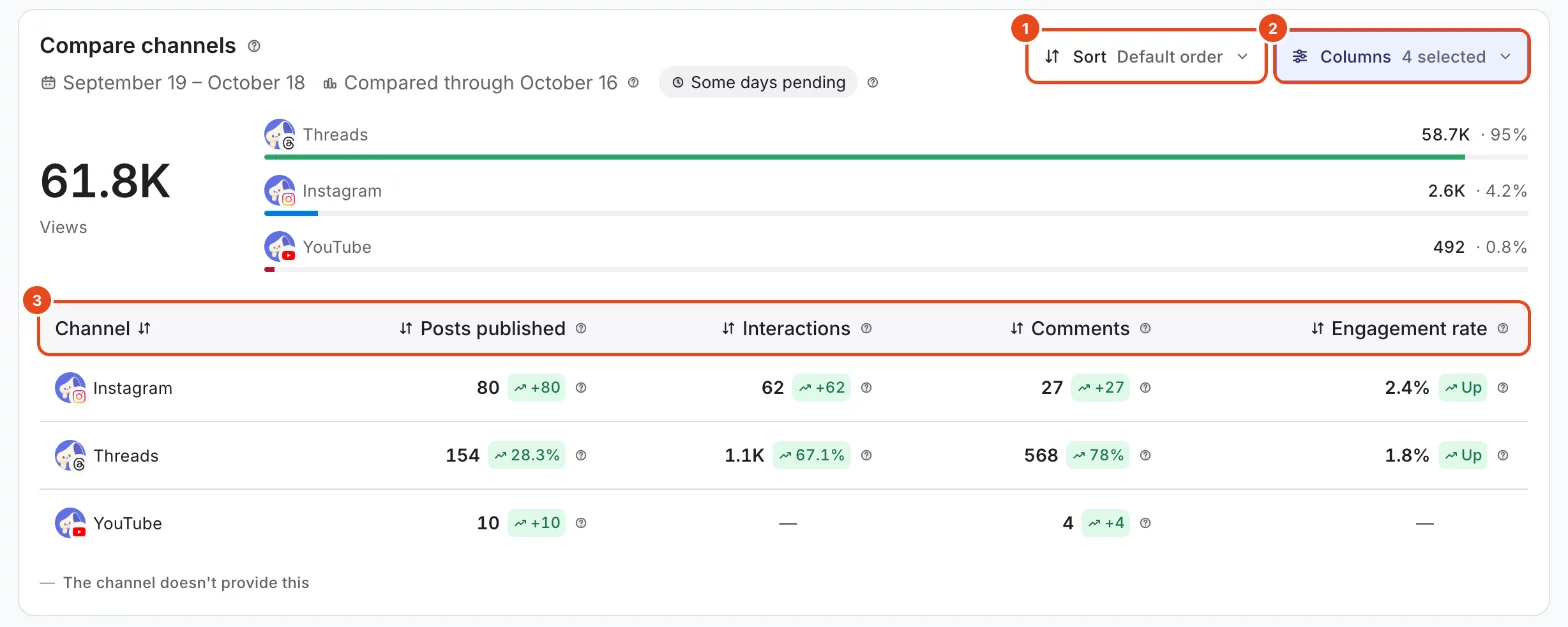
A — means the channel doesn't provide that value. Channels without data aren't counted as 0 and are left out of totals and shares.

Find your top posts
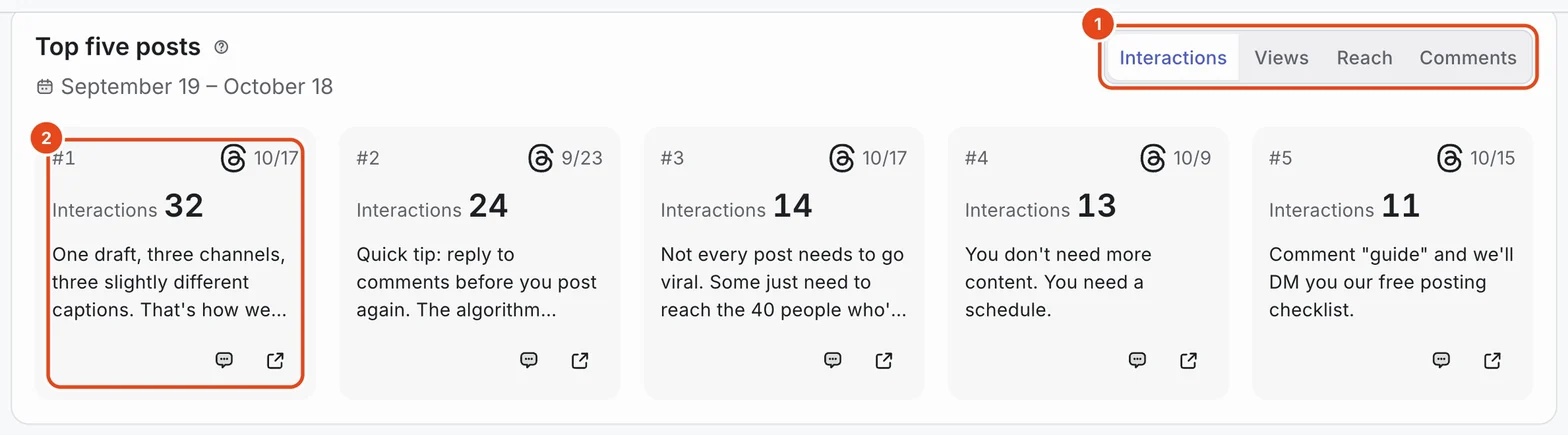
In Top five posts, rank by Interactions, Views, Reach or Comments.
Use the buttons on a card to see its comments or open the original post.

See the trend over time
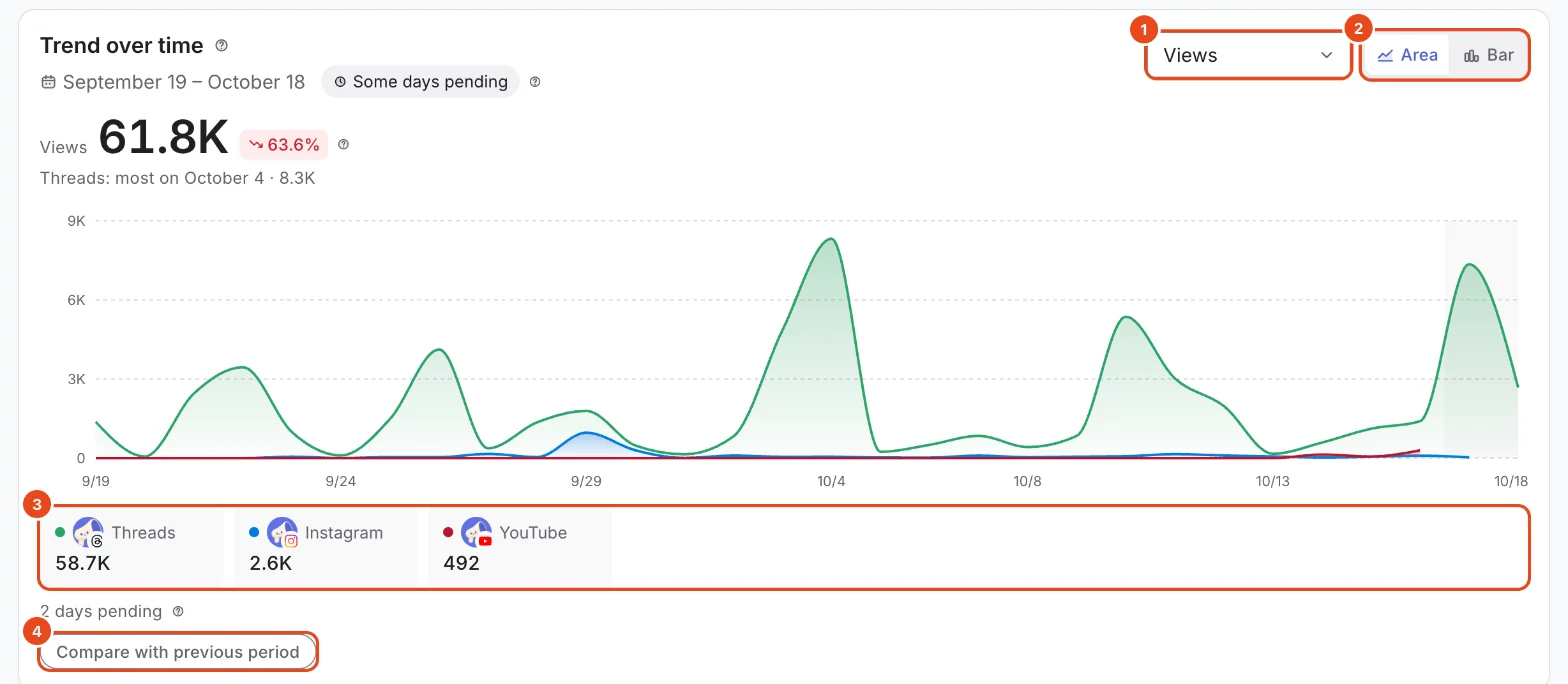
In Trend over time, pick a metric and switch between Area and Bar.
Press a channel name below the chart to hide or show it. Turn on Compare with previous period to draw the previous period too.
Faded days at the end of the chart don't have data yet. They aren't counted as 0 and fill in once the channel finalizes them.

Followers and posts published
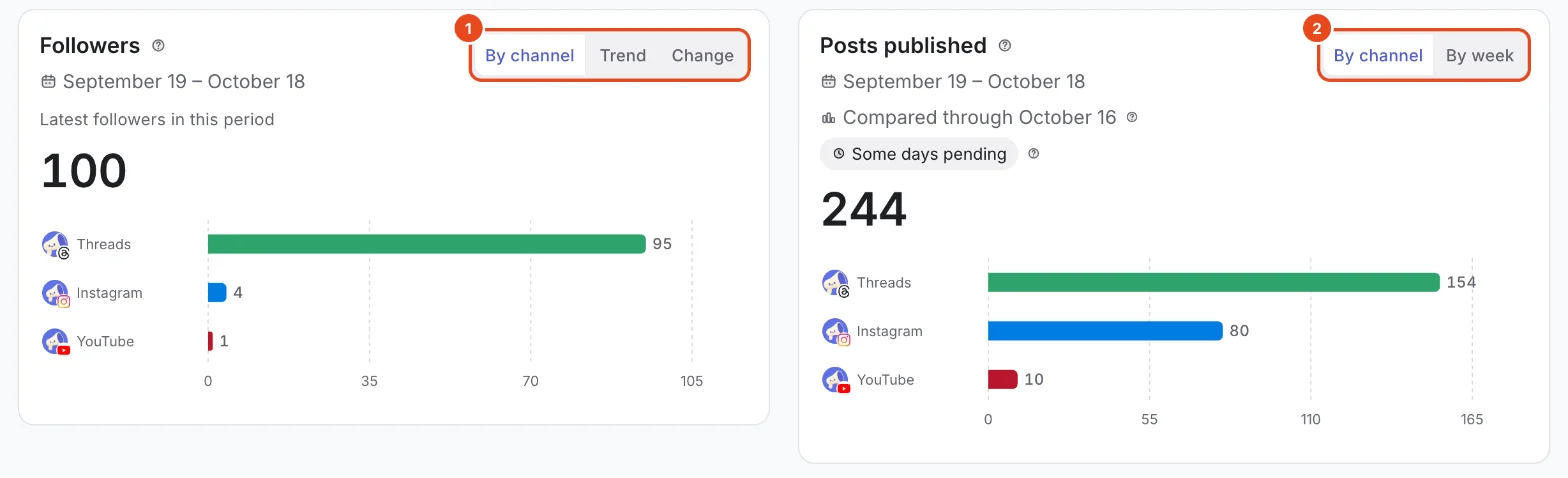
Followers shows the latest follower count in the period. Switch between By channel, Trend and Change. For YouTube, this is subscribers.
Posts published shows how many posts went out in the period, By channel or By week. Weeks start on Monday.

Details by channel
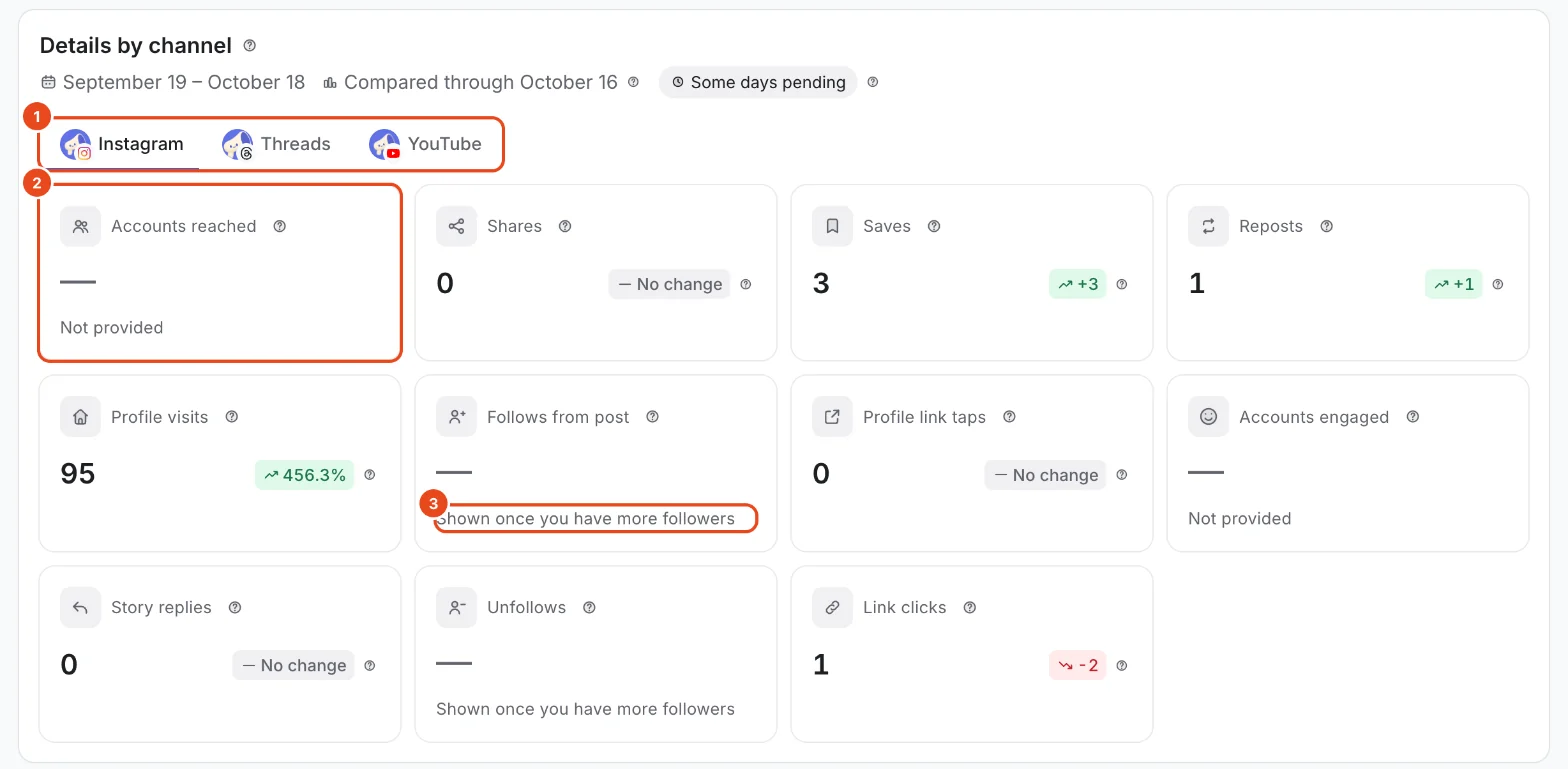
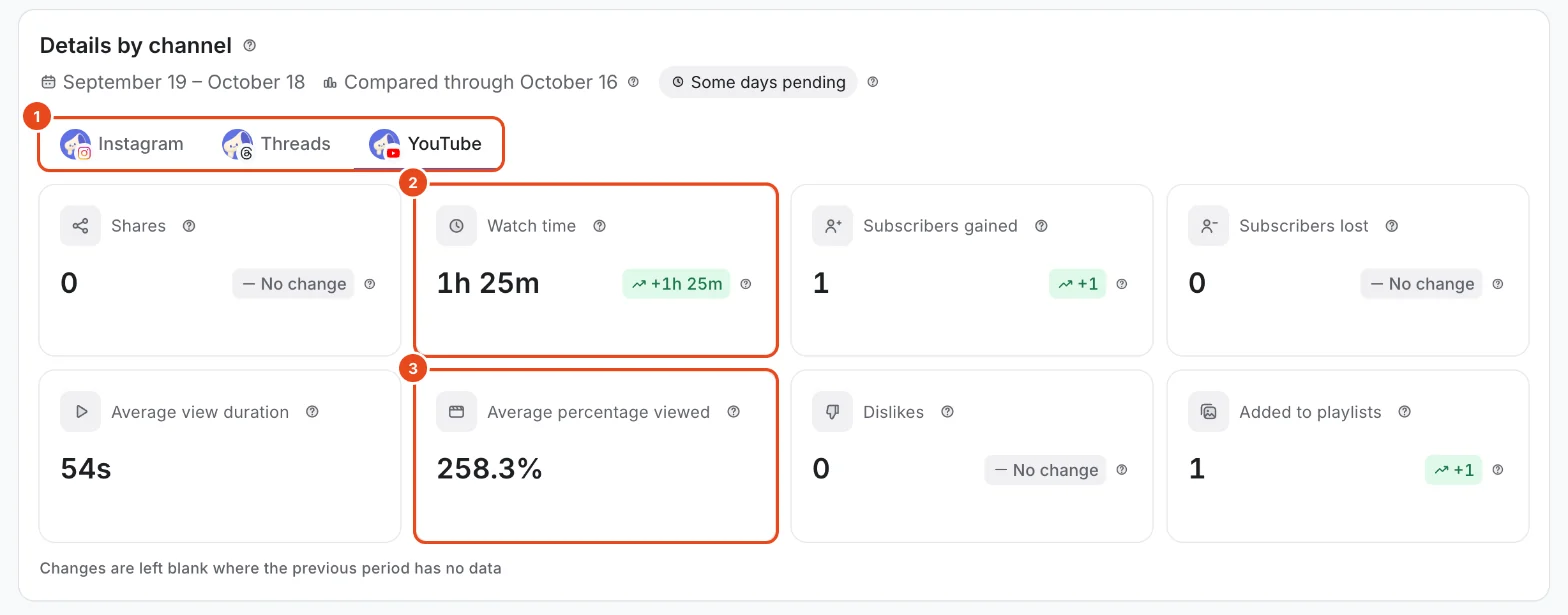
In Details by channel, pick a channel tab to see metrics that aren't in the summary and only that channel provides.
Instagram provides Accounts reached, Shares, Saves, Reposts, Profile visits, Follows from post, Profile link taps, Accounts engaged, Story replies, Unfollows and Link clicks.
Threads provides Shares, Reposts, Quotes and Link clicks.
YouTube provides Shares, Watch time, Subscribers gained, Subscribers lost, Average view duration, Average percentage viewed, Dislikes and Added to playlists.


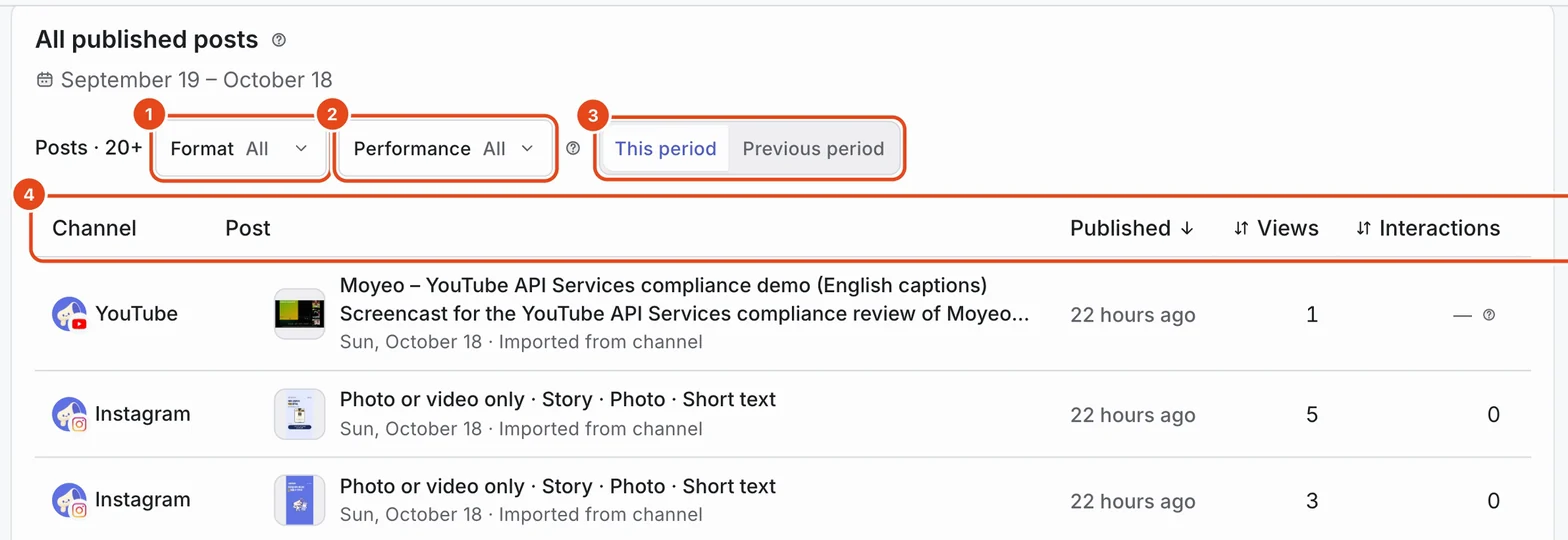
All published posts
All published posts lists every post from the period, including posts imported from your channels.
Filter by Format and Performance, and switch between This period and Previous period.
Press a column name to sort by views, interactions, likes, comments, reach or engagement rate. Post numbers are totals since the post went live.

Best times to post
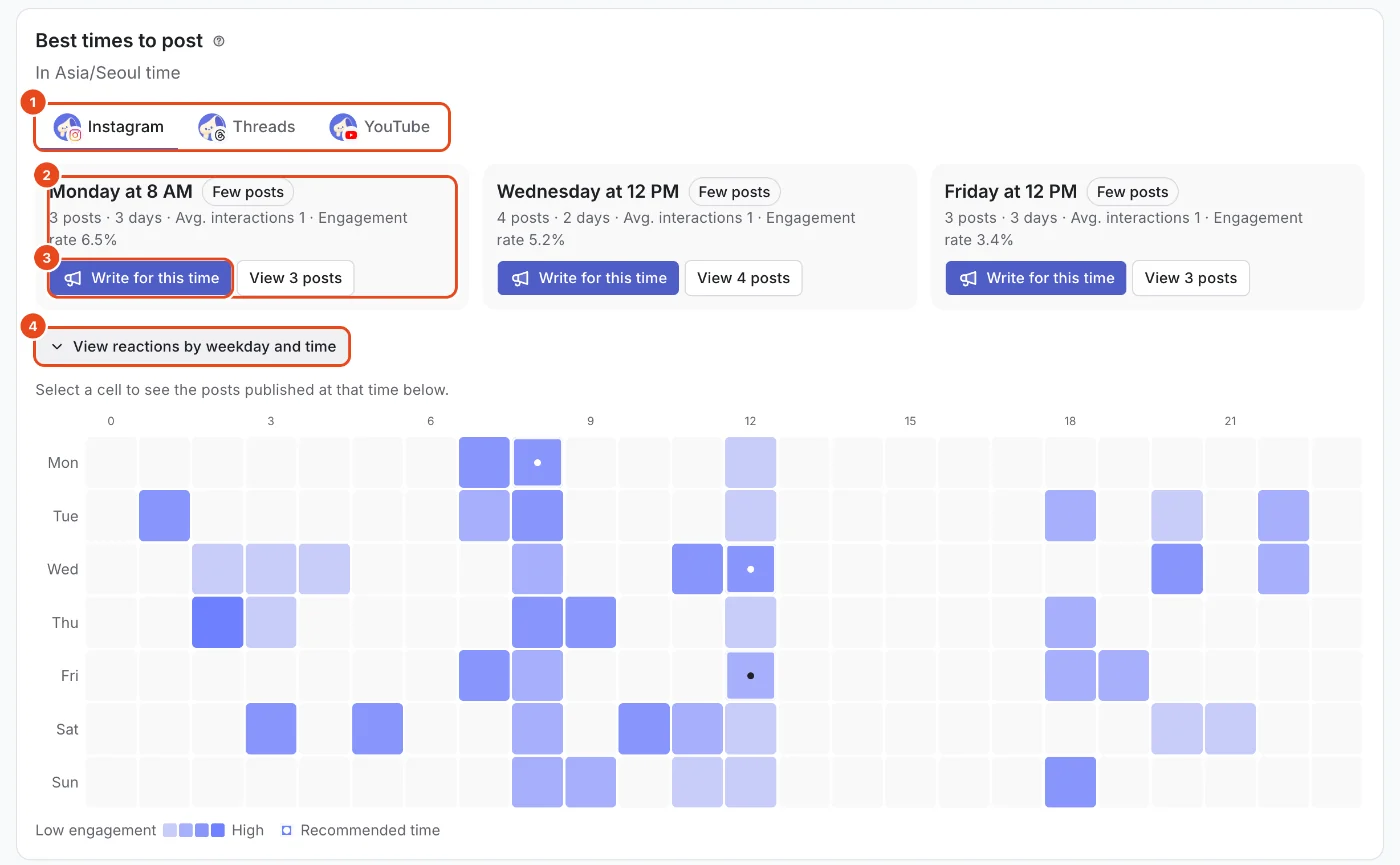
Pick a channel at the top of Best times to post. Times follow the workspace time zone.
Up to three weekday-and-time slots with the best results appear. Press Write for this time to open a new post scheduled for that time.
Expand View reactions by weekday and time to see engagement rate by color for each slot. Select a cell to see the posts published at that time below.

Check your comment replies
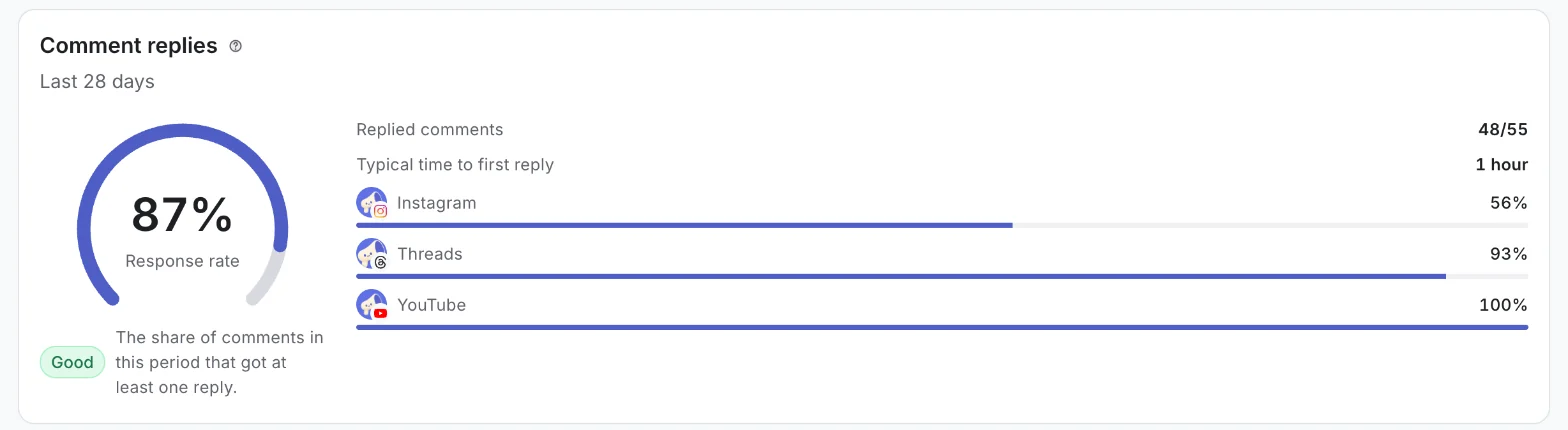
Comment replies shows the share of comments from the last 28 days that got at least one reply.
You'll also see Replied comments, Typical time to first reply and the response rate for each channel.

This week
This week gathers only what you can do today: comments waiting for a reply, your top post this period and this week's schedule.
Jump straight in with Reply, View comments or New post. If you don't need it, press Collapse.


Audience and link clicks
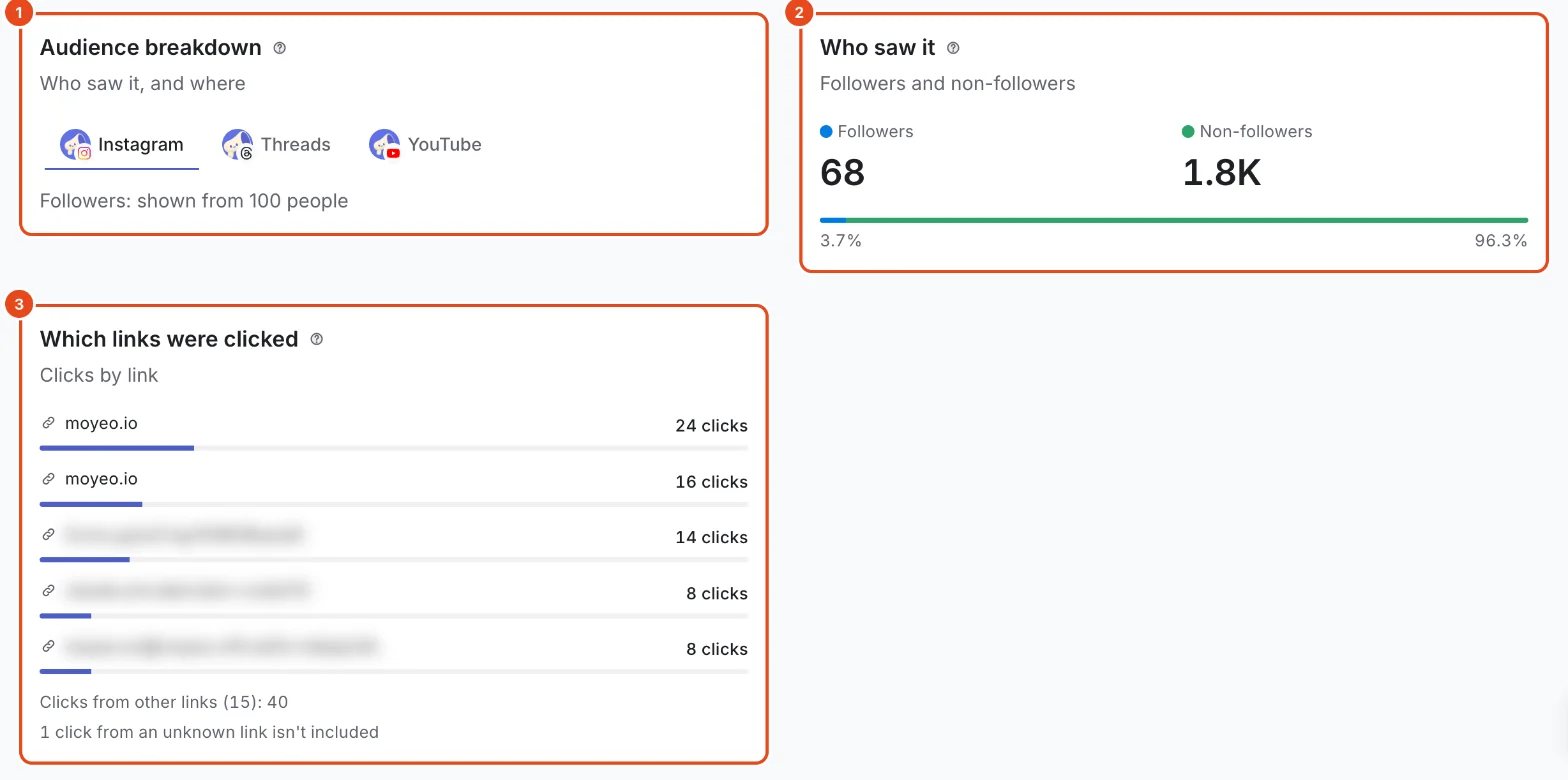
Audience breakdown shows age, gender, country and city. It's a recent snapshot from the platform regardless of the period, and shows as Viewers when only YouTube is selected. It appears once you reach the platform's follower minimum, and the minimum is shown on screen.
Who saw it splits accounts reached into followers and non-followers. Only Instagram provides this.
Which links were clicked splits clicks on links in your posts and profile by link, totaled over the period. Only Threads provides this.

Metrics at a glance
| Metric | What it means | Good to know |
|---|---|---|
| Views | How many times your post was shown. | Repeat views by the same person each count. |
| Reach | Accounts that saw it at least once in the period. | Days and channels aren't added up, since the same account can appear in several. |
| Interactions | Reactions on your posts, added together. | Instagram adds likes, comments, shares and saves. Threads adds likes, replies, reposts and quotes. |
| Engagement rate | Interactions divided by views. | Not available for YouTube. |
| Followers | Followers on the last day of the period. | Subscribers on YouTube. |
| Comments | Comments and replies on your posts, added together. | Every channel provides this. |
| Performance | Whether a post's engagement rate is high for its platform. | Shows Not enough to compare when there aren't enough posts to compare. |
YouTube's API policy doesn't allow combining its values into new metrics, so YouTube has no interactions or engagement rate. YouTube results show values as YouTube provides them, like views, likes, comments and watch time.
| If you see | It means |
|---|---|
| Not provided, — | The channel doesn't provide this value. Waiting won't change it. |
| Some days pending | The channel hasn't finalized recent days yet. They fill in within a day or two. |
| Shown once you have more followers | You're below the platform's follower minimum, so it doesn't share the value. |
| Not available on your current plan | The value is older than your plan's analytics viewing period. |
| Reconnect the channel to see this | A permission is missing. Reconnect the channel to collect it again. |
Free and paid plans
| Item | Free | Pro | Team |
|---|---|---|---|
| Viewing period (days) | 7 | 730 | 730 |
| Custom date range | Not included | Included | Included |
| Minutes between refreshes | 60 | 10 | 5 |
Periods longer than your viewing period show a lock, and This month is trimmed to your viewing period. Comparisons with the previous period only show when both periods fall within your viewing period.
Good to know
- Periods are split by the workspace time zone, so day boundaries can differ slightly from the apps.
- Totals show once every channel has data. If one channel is late, view by channel to see the data that did arrive.
- Post numbers are totals since the post went live, while summary numbers are what built up in the period, so the two can differ.
- Bio page visits have their own Analytics tab, covered in Share your bio page.
Frequently asked questions
Yesterday's post has no numbers yet.
Platforms finalize the last few days late. Moyeo collects again every day, so check back in a day or two.
The numbers are a little different from the app.
Moyeo adds up values collected once a day for your period. The apps show live numbers, so they can differ slightly.
I just connected a channel. Will I see past results?
Yes. When you connect, Moyeo collects as much history as the platform provides within your plan's history period. Instagram account metrics go back a shorter time.
What happens to analytics if I disconnect?
That channel's analytics history is deleted. If you reconnect, it's collected again for your plan's history period.
Why are interactions and engagement rate empty only for YouTube?
YouTube's API policy doesn't allow combining its values into new metrics. You can still see likes, comments, shares and watch time.