
When to use it
- You want to upload the photos and videos you use often ahead of time.
- You want to reuse a photo from an earlier post.
- You want to check how much storage is left and clear out files you don't use.
How it works
Upload and browse files
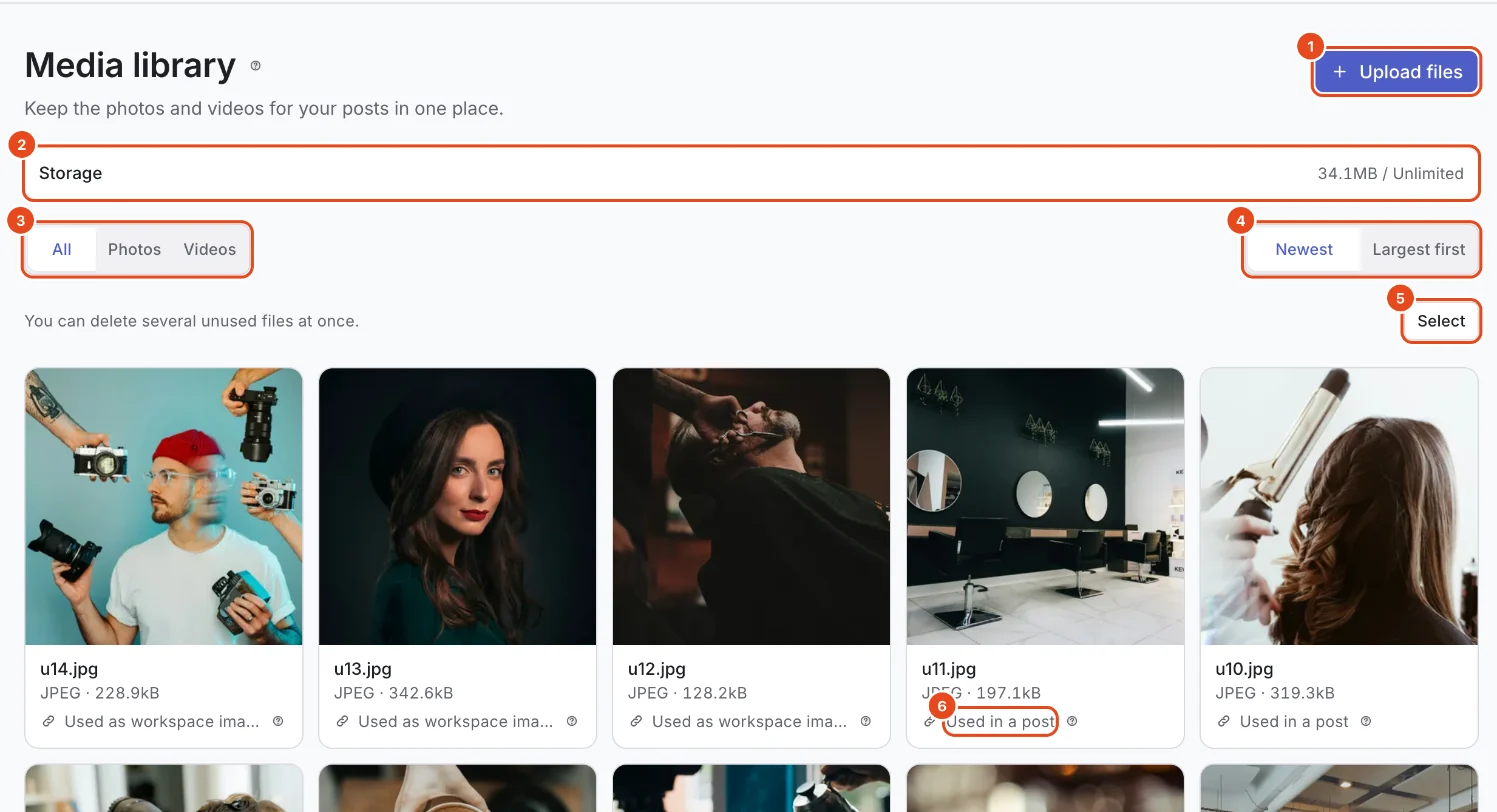
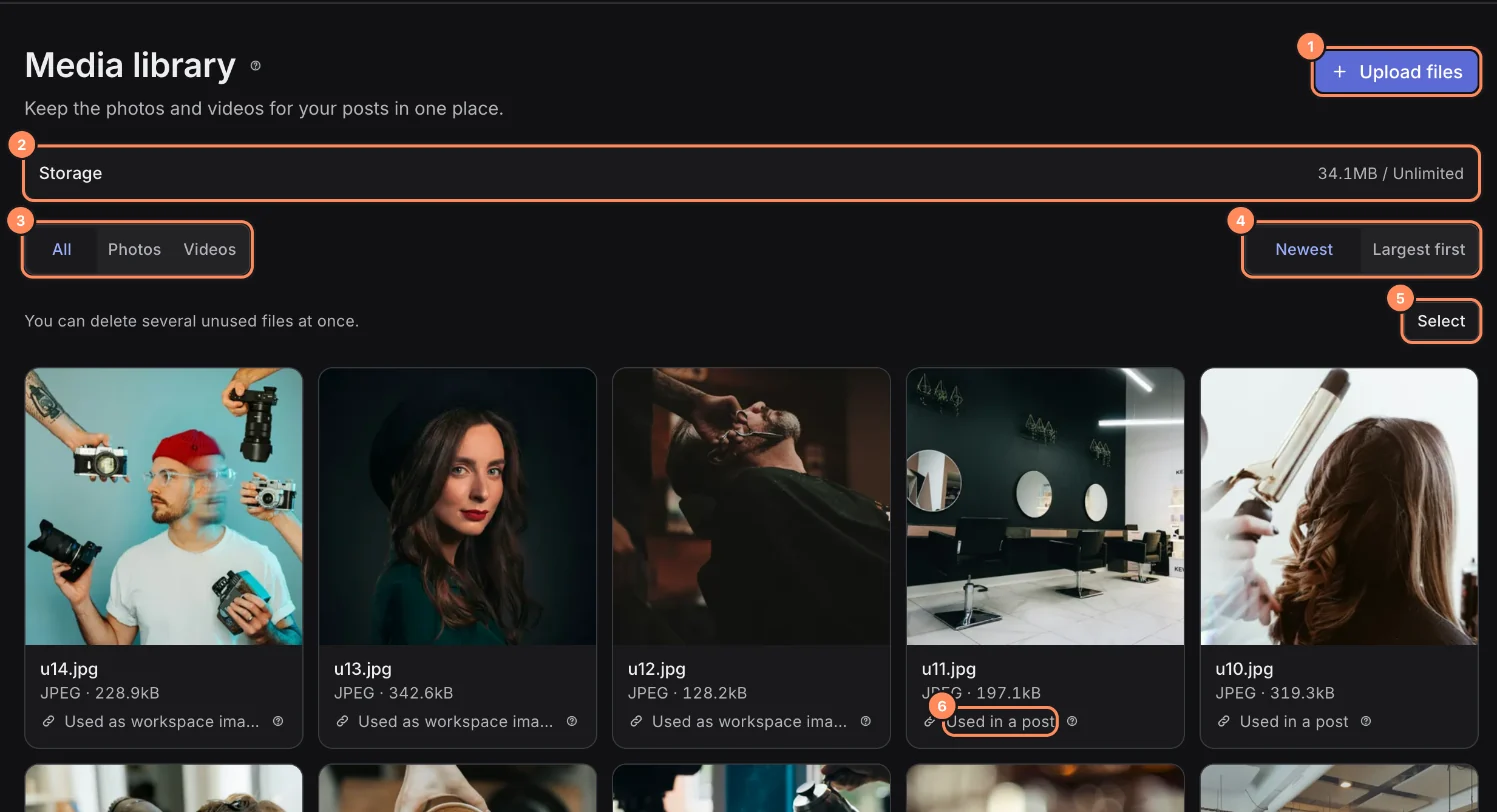
Open Media library in the sidebar.
Press Upload files and pick photos or videos. Files you upload in the New post window show up here too.
The bar at the top shows storage used and your limit. What counts toward storage explains what's included.
Filter by All, Photos or Videos, and sort by Newest or Largest first.
Each file shows where it's used, like Used in a post or Used as workspace image, and how long it's kept.
Attach uploaded files to a new post
In the New post window, press Media library under Photos and videos.
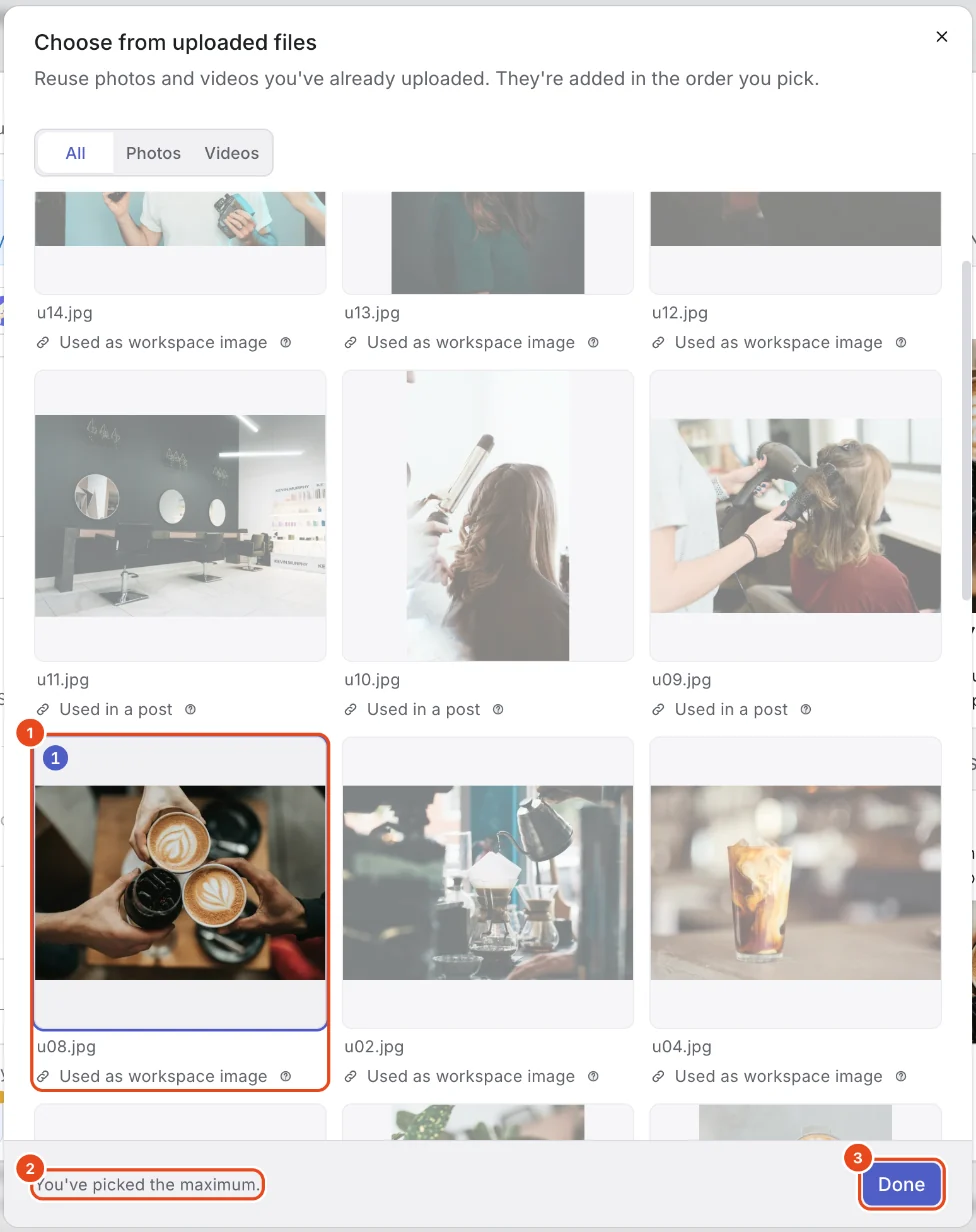
In Choose from uploaded files, press the files you want in order. Each gets a number, and they're added to the post in that order.
When you reach the number the selected channels allow, you'll see You've picked the maximum. Press Done to attach them.

Clear out files you don't use
Sort by Largest first to see the files taking up the most storage.
Press Select, pick the files and delete them together. Only files that aren't used anywhere can be deleted in bulk.
You can also open a file and press Delete to remove it on its own.
Options at a glance
| Label | What it means |
|---|---|
| Used in a post | Attached to a post. Files on scheduled or draft posts are kept. |
| Used as workspace image | Used as the workspace image. |
| Kept | Kept with no end date. |
| Original kept until (date) | The original of a published post is kept until then. After that only the preview stays. |
| Deletes on (date) | Not used anywhere, so it's deleted on that date. Use it before then to keep it. |
| Original deleted | You can still see the preview, but you need to upload it again to attach it. |
Free and paid plans
| Item | Free | Pro | Team |
|---|---|---|---|
| Storage | 2GB | 10GB | 20GB |
| Originals kept after publishing (days) | 30 | 90 | 180 |
Good to know
- Storage counts the originals of uploaded photos, videos and PDFs.
- When storage is full, scheduled posts still go out. You just can't upload new files.
- Originals of published posts are deleted after the retention period, and only the preview stays. Upload the file again to reuse it.
- The largest video you can upload depends on your plan. You'll see a message if a file is too big.
Frequently asked questions
If I delete a file, does the post on my channel disappear too?
No. Posts already on your channels stay as they are. The file only disappears from Moyeo.
What happens to scheduled posts when storage is full?
They still go out. To upload new files, delete files you don't use or change your plan.
It says I can't delete a file.
Files used in scheduled or draft posts, a bio page or the workspace image can't be deleted. Remove them from where they're used first.