
When to use it
- You want to share the same news on Instagram, Threads and YouTube at once.
- You want to set the posting time ahead.
- You want a bio page link on every post to see where visitors come from.
- You want to pick up a half-written post later.
How it works
Get to know the composer
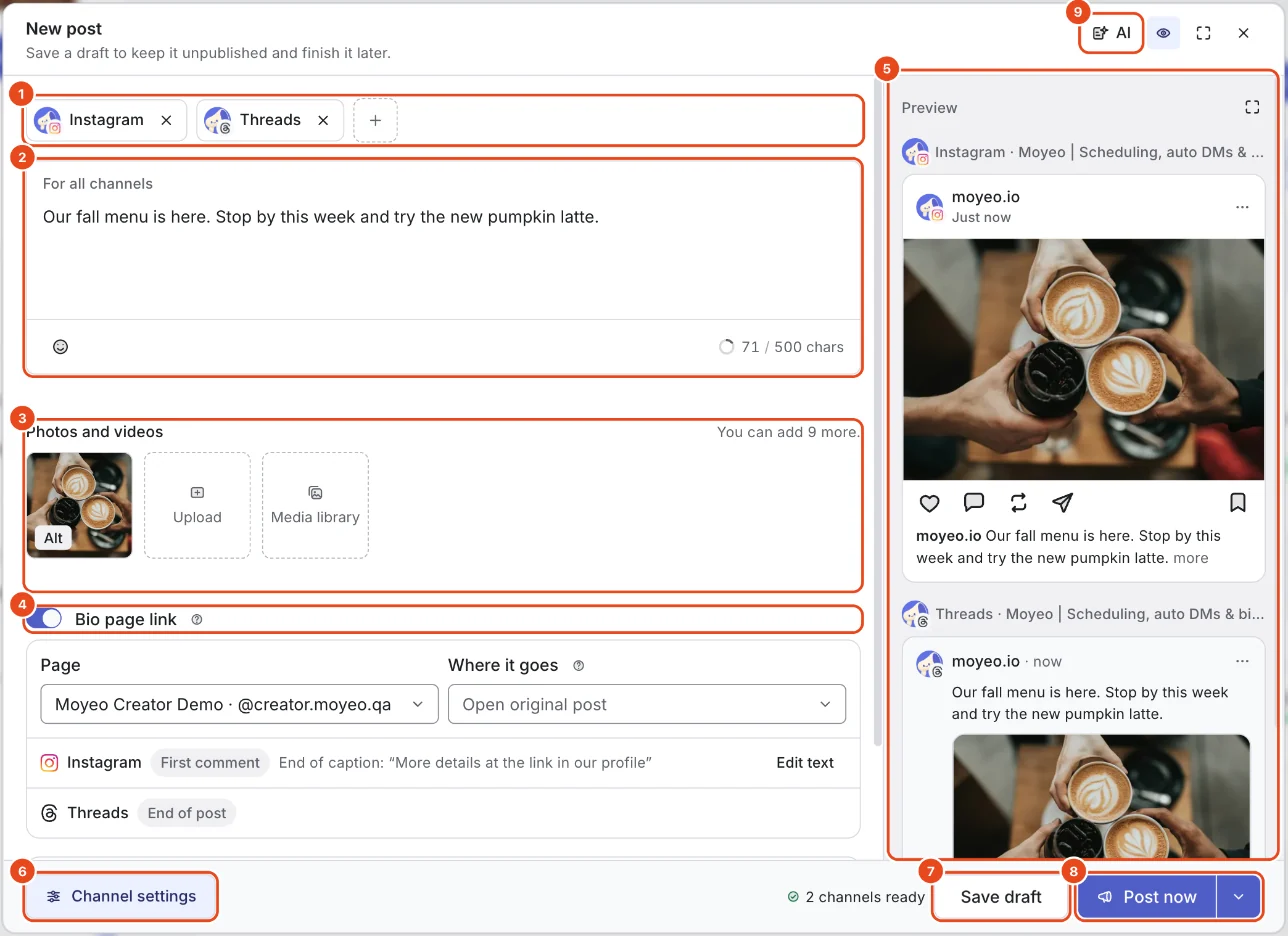
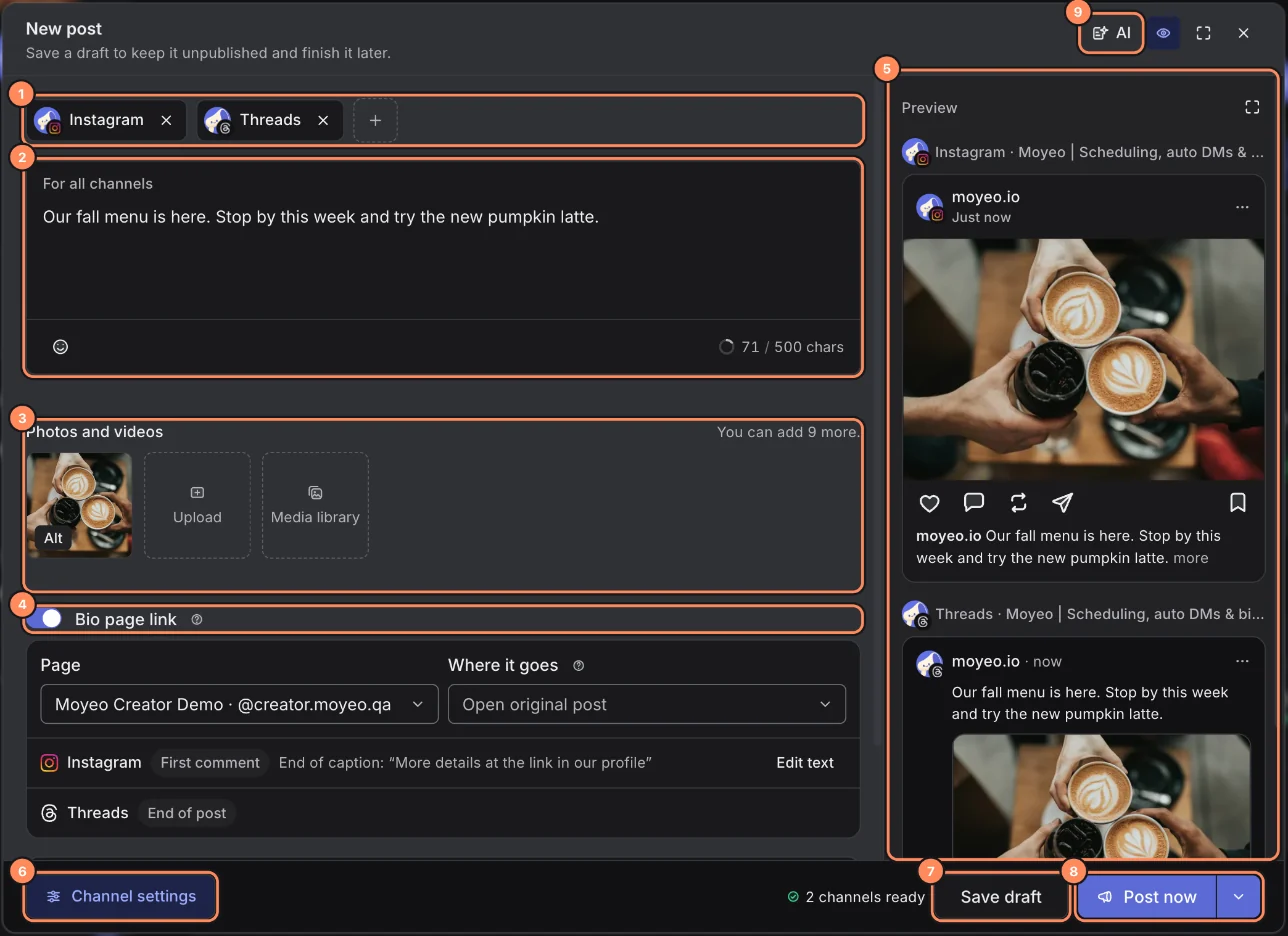
Press New post at the top of the sidebar. It works from Home, Posts, Calendar or anywhere else.
Check the channel chips at the top. With two or more channels, the text box becomes For all channels, and the character limit follows the shortest limit among them.
Add files under Photos and videos with Upload or Media library. The composer tells you how many more you can add for the channels you picked.
Preview on the right shows how the post will look on each channel. Press the expand button at its top right to see it at phone size.
The bottom bar has Channel settings, Save draft and the post button. AI at the top writes a draft for you.
Pick channels
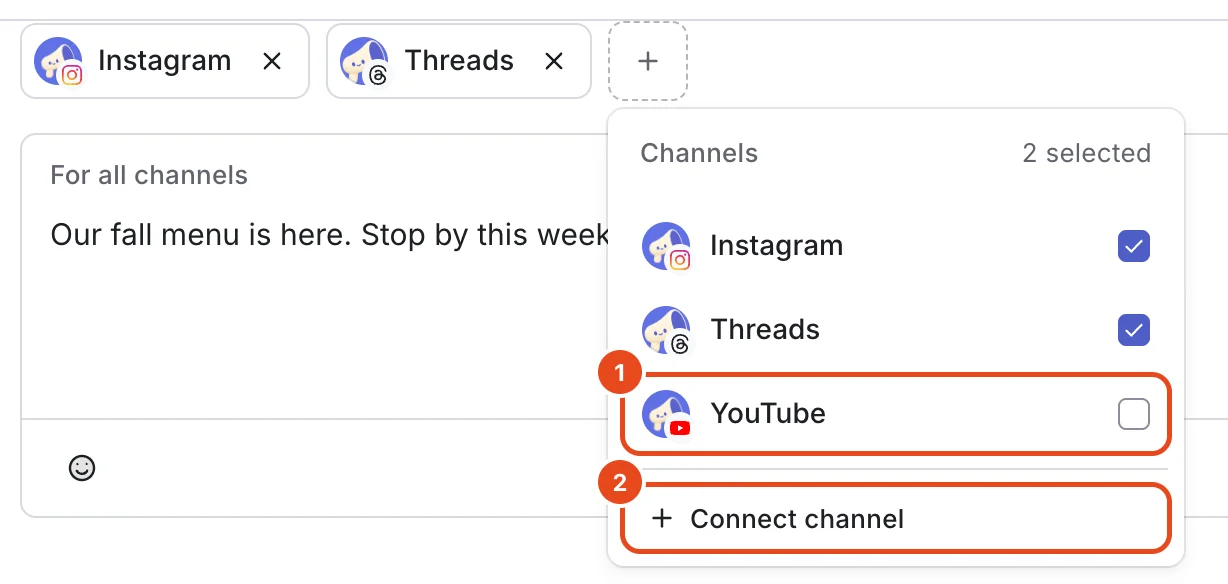
Press + at the end of the channel chips to open your connected channels, then check or uncheck them.
You can also press × on a chip to remove it. Connect channel at the bottom of the list connects a new one right away.

Add your bio page link
Turn on Bio page link and pick a Page. When the post goes out, Moyeo adds a share link to each post, so bio page analytics show which post brought visitors in.
Use Where it goes to choose what the link opens.
Where the link lands depends on the channel. Instagram captions can't hold clickable links, so it goes in the first comment with a note at the end of the caption, written in the bio page's language. Change the note with Edit text. On Threads it goes at the end of the post, and on YouTube at the end of the description.
Post now or schedule
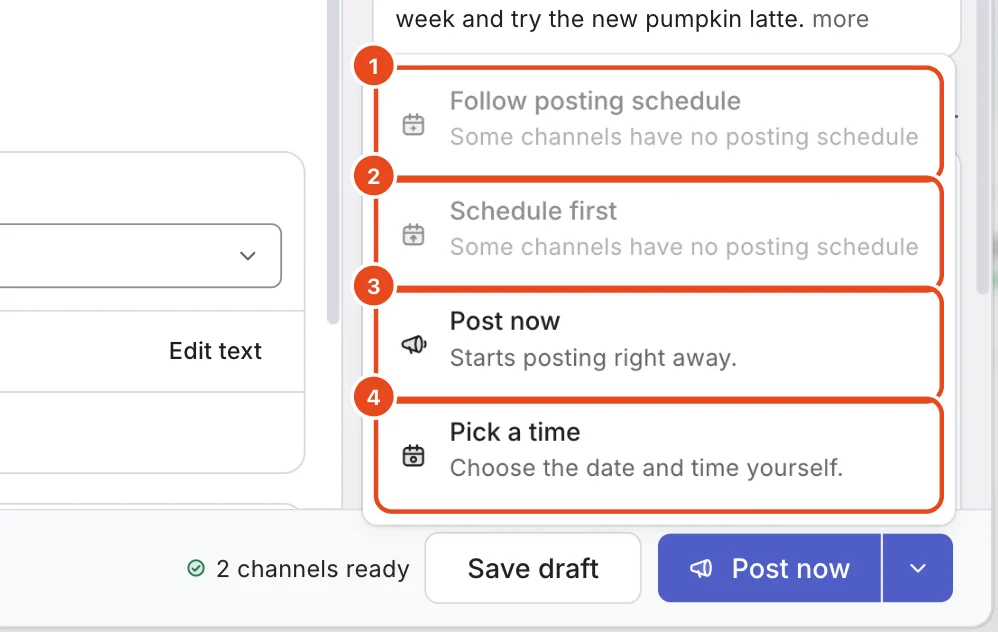
Press the arrow next to the post button and choose when it goes out.
Follow posting schedule puts the post in the channel's next open slot, and Schedule first puts it in the earliest slot. If a channel has no posting schedule, you can't pick these.
Post now starts posting right away. Pick a time lets you choose the date and time yourself.
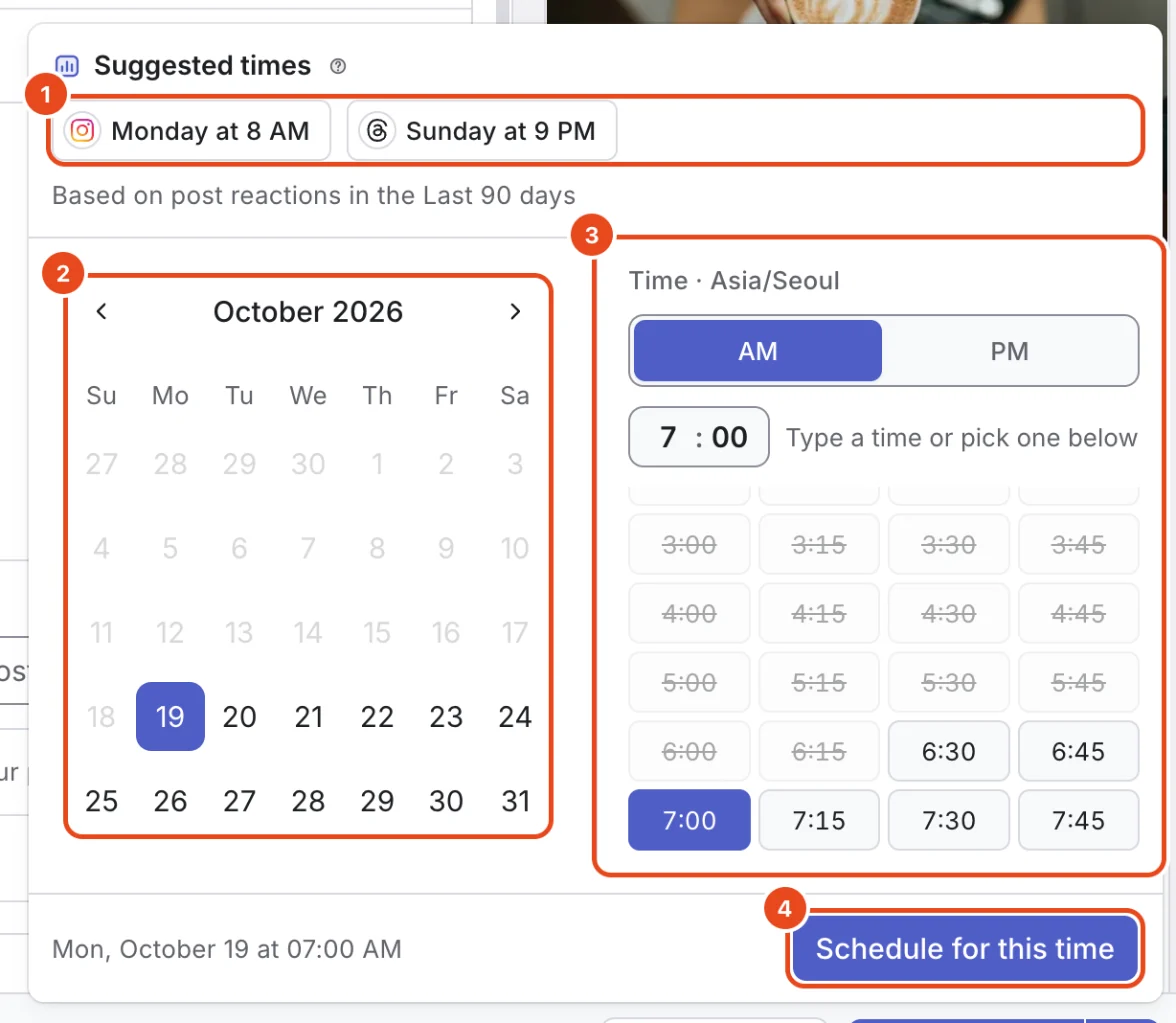
Pick a time opens a calendar. Press a time under Suggested times to fill it in. Suggestions come from how your posts performed, not from AI.
Pick a date, type a time or choose one from the 15-minute list, then press Schedule for this time. Times use the workspace time zone.


Save a draft and pick up later
Save draft keeps the post in Moyeo without publishing. Later, open Posts › Moyeo posts, filter by Draft, open the post and press Edit.
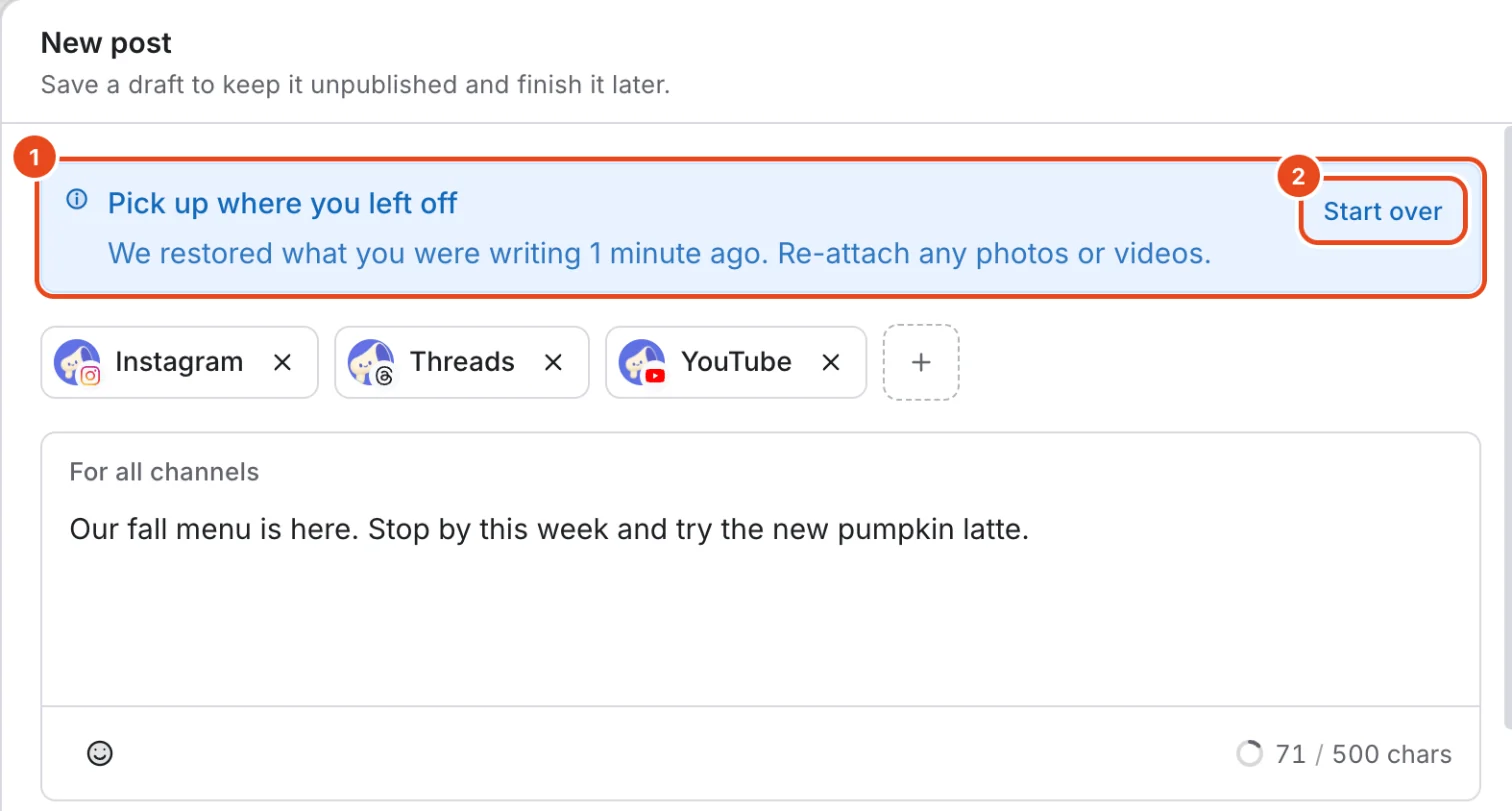
If you close the window without saving, what you wrote stays on this device for 24 hours. Open New post again to see Pick up where you left off, or press Start over for a blank post.

Options at a glance
| Option | What it does | Good to know |
|---|---|---|
| Channels | Pick several places to post. | Only connected channels appear. |
| Text | Goes out to every selected channel. | Follows the shortest limit among them: 500 characters on Threads, 2,200 on Instagram. |
| Photos and videos | Upload new files or pick from the media library. | You can't post while files are still uploading. |
| Bio page link | Adds a share link to each post. | You need a published bio page. |
| Preview | Shows how the post looks on each channel. | Text size and line breaks can differ a little from the real app. |
| Timing | Follow posting schedule, Schedule first, Post now or Pick a time. | Follow posting schedule needs a posting schedule on the channel. |
| Save draft | Saves the post in Moyeo without publishing. | Photos and videos are saved too. |
Free and paid plans
| Item | Free | Pro | Team |
|---|---|---|---|
| Scheduled posts per channel | 10 | 2,000 | 5,000 |
| Schedule first | Not included | Included | Included |
| Scheduled first comment | Included | Included | Included |
| Approval before posting | Not included | Not included | Included |
A channel at its scheduling limit shows Schedule full. Space frees up when scheduled posts go out or are canceled.
Good to know
- Moyeo's servers publish scheduled posts at the set time. You can close your browser or turn off your computer.
- If a channel switches to Reconnect needed, its scheduled posts don't go out. They continue once you reconnect.
- What's kept on this device doesn't include photos or videos. To continue on another device, press Save draft.
- If you pick a channel that needs approval, the post button becomes a request for approval and Post now isn't available.
Frequently asked questions
Does my computer need to be on at the scheduled time?
No. Moyeo sends the post to the channel at the set time, even if your window is closed or your computer is off.
I closed the window. Is my post still there?
Yes. Even without saving a draft, what you wrote stays on this device for a day. Photos and videos aren't kept, so add them again.
What happens when I hit the scheduling limit?
The channel shows Schedule full and you can't schedule more. Space frees up as scheduled posts go out or are canceled.
How are suggested times chosen?
From how your posts on that channel performed at each day and hour. It's calculated from your own results, not AI, and no suggestion shows when there aren't enough posts.