
When to use it
- You're trying Moyeo for the first time.
- You want a quick tour of where everything lives.
- You want to switch the language, turn on dark mode or set the time zone your posts follow.
How it works
Sign up and create a workspace
Press Start free on the Moyeo home page.
On Sign up, press Continue with Google or Continue with Kakao, or enter your email, open the link in the verification email and set your name and password.
A short setup follows. Add your name in Set up your profile, then name your workspace and pick a time zone in Create your workspace. Scheduled times follow this time zone.
You can skip What would you like to promote? and Invite your teammates and come back to them in settings later.
On You're all set, press Go to workspace to open Home.
Find your way around Home
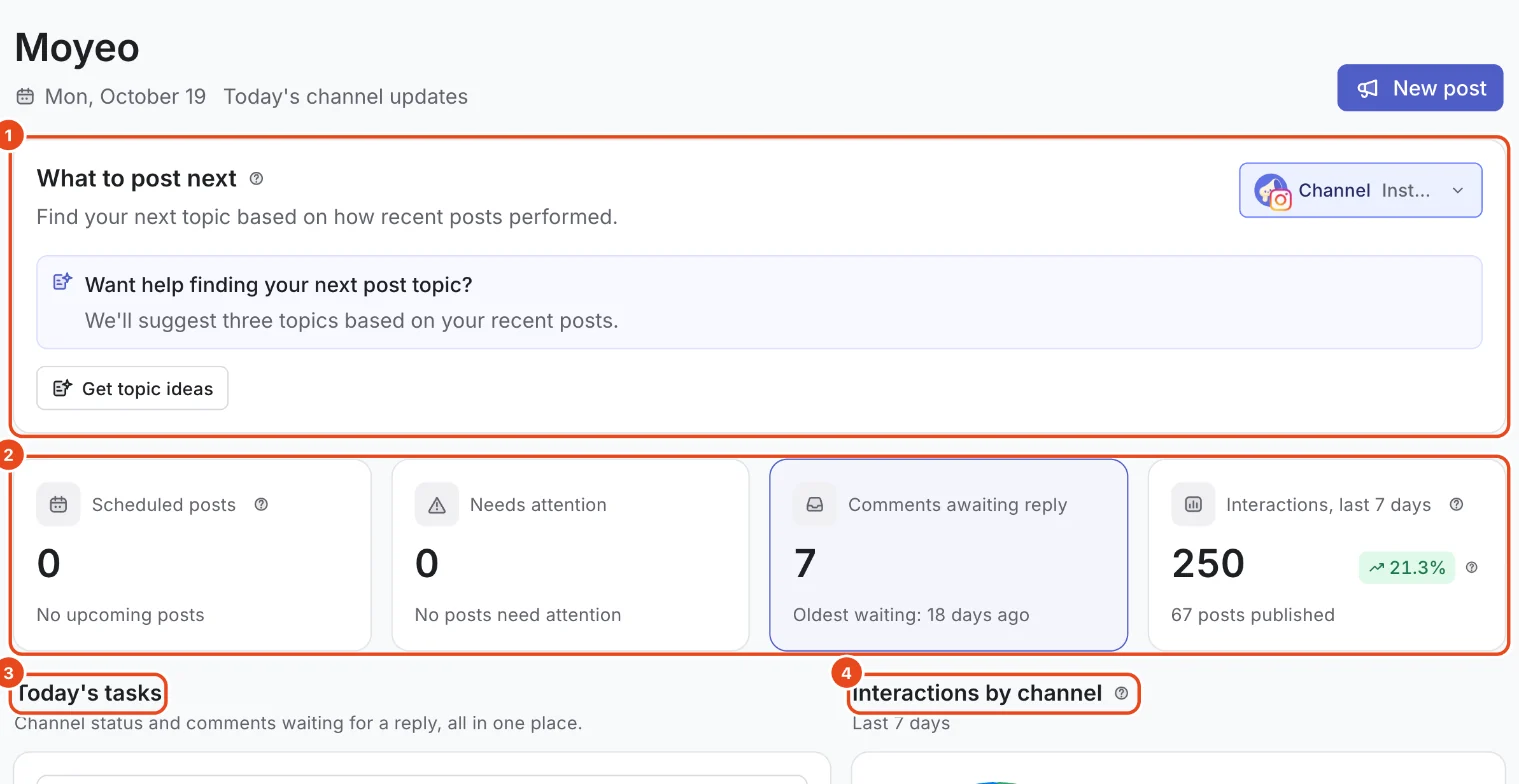
Home pulls today's work into one screen. At first, Get started with Moyeo at the top walks you through three steps: connect a channel, write your first post and publish your bio page. Once they're done, you can close it.
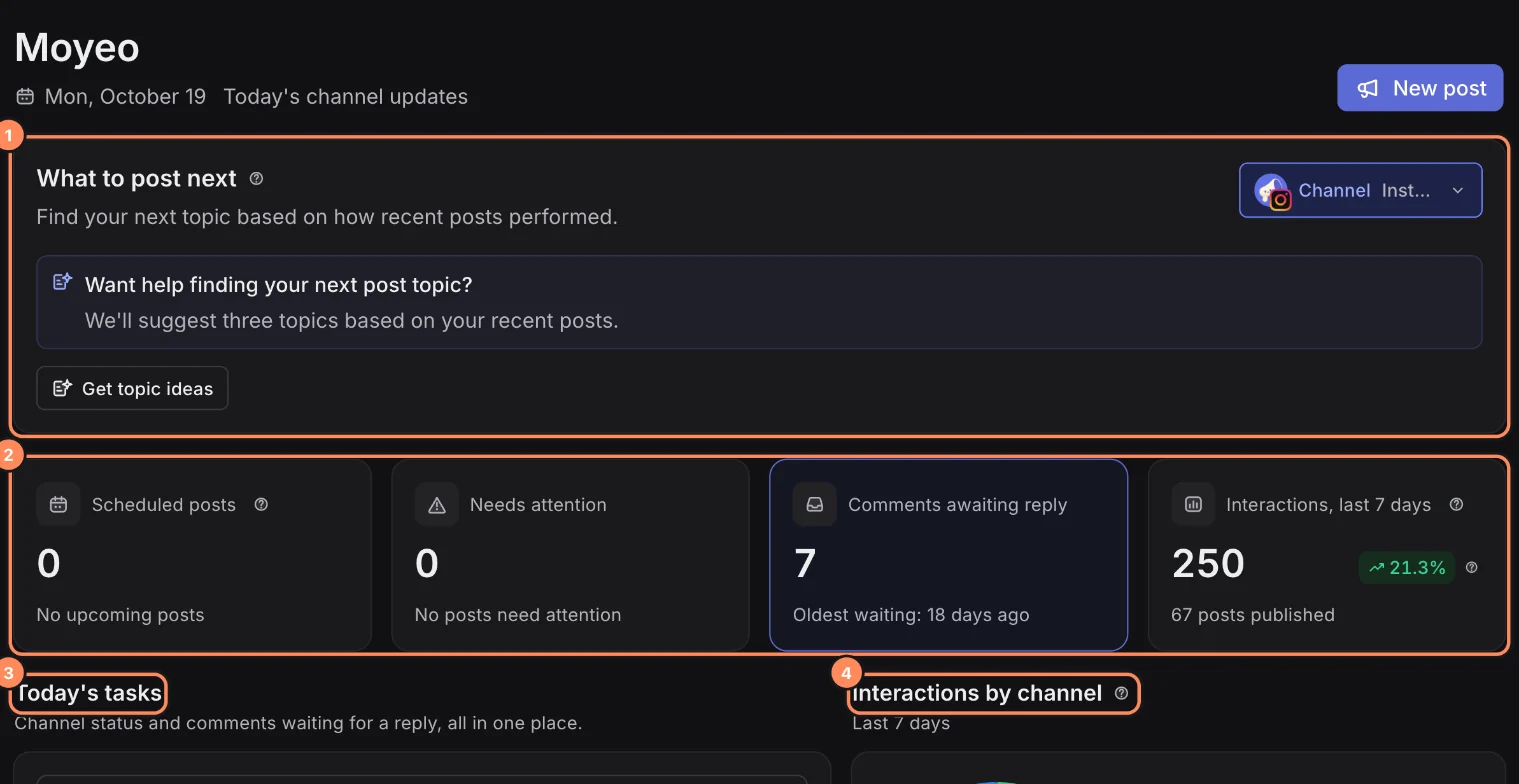
In What to post next, pick a channel to get post ideas based on how your recent posts did.
The number cards show Scheduled posts, Needs attention, Comments awaiting reply and interactions over the last 7 days. Press a card to jump to that screen.
Today's tasks collects what needs you right now, like a failed post or a channel to reconnect.
Find your way around the sidebar
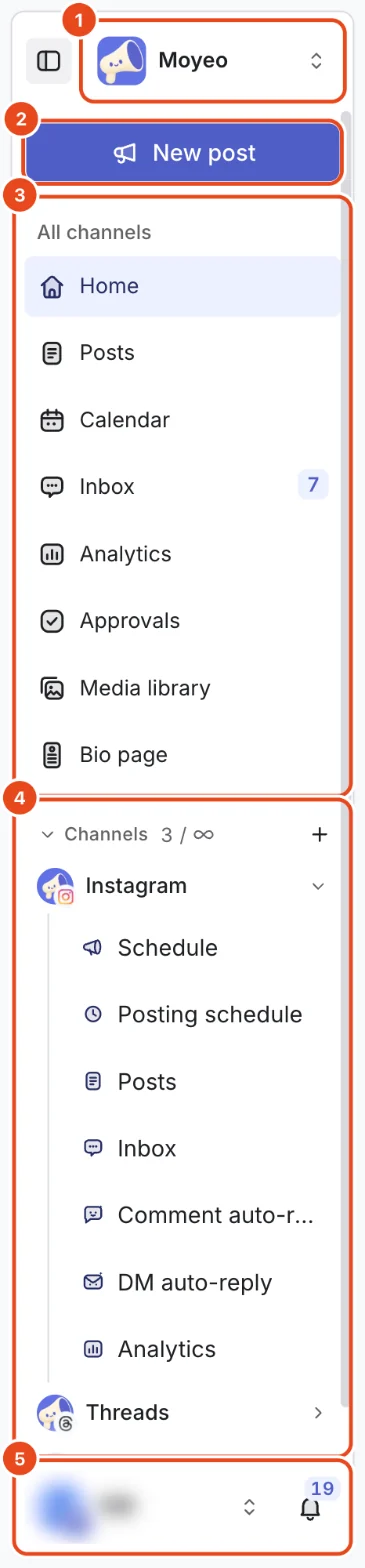
Press the workspace name at the top to switch to another workspace or create a new one.
New post opens the composer from any screen.
The All channels group holds Home, Posts, Calendar, Inbox, Analytics, Approvals, Media library and Bio page, across every channel.
Channels below lists each connected channel, with your channel count and limit. Expand one to jump to its own Schedule, Posting schedule, Posts, Inbox, Comment auto-reply, DM auto-reply and Analytics.
At the bottom, press your name to open the profile menu, or the bell to see notifications.

Change the language and theme
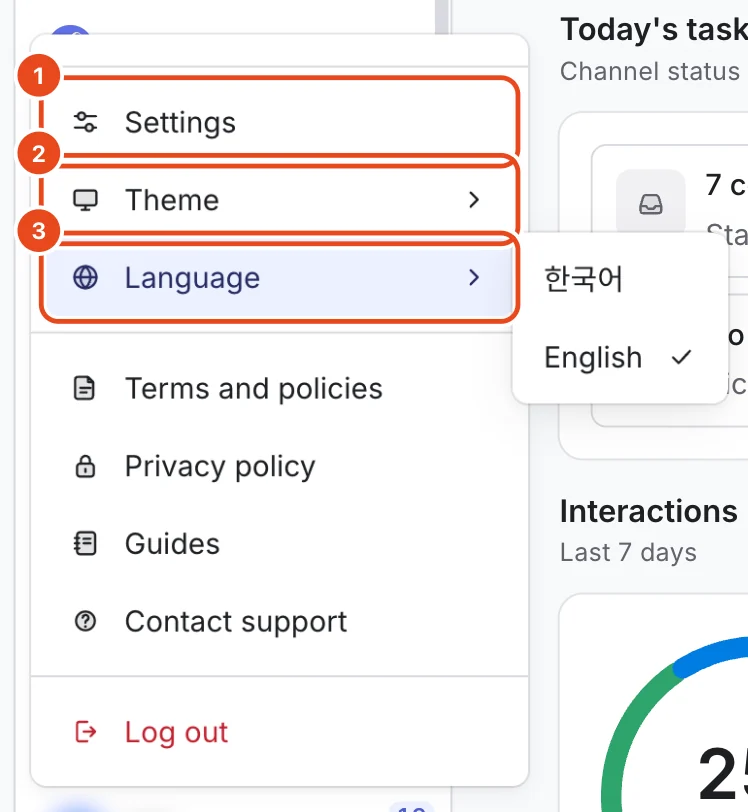
Press your name at the bottom of the sidebar to open the profile menu.
Under Theme, pick Light, System or Dark. System follows your device setting.
Under Language, pick English or 한국어. The app text, date and number formats, notifications and emails all switch together.

Set your display preferences and time zone
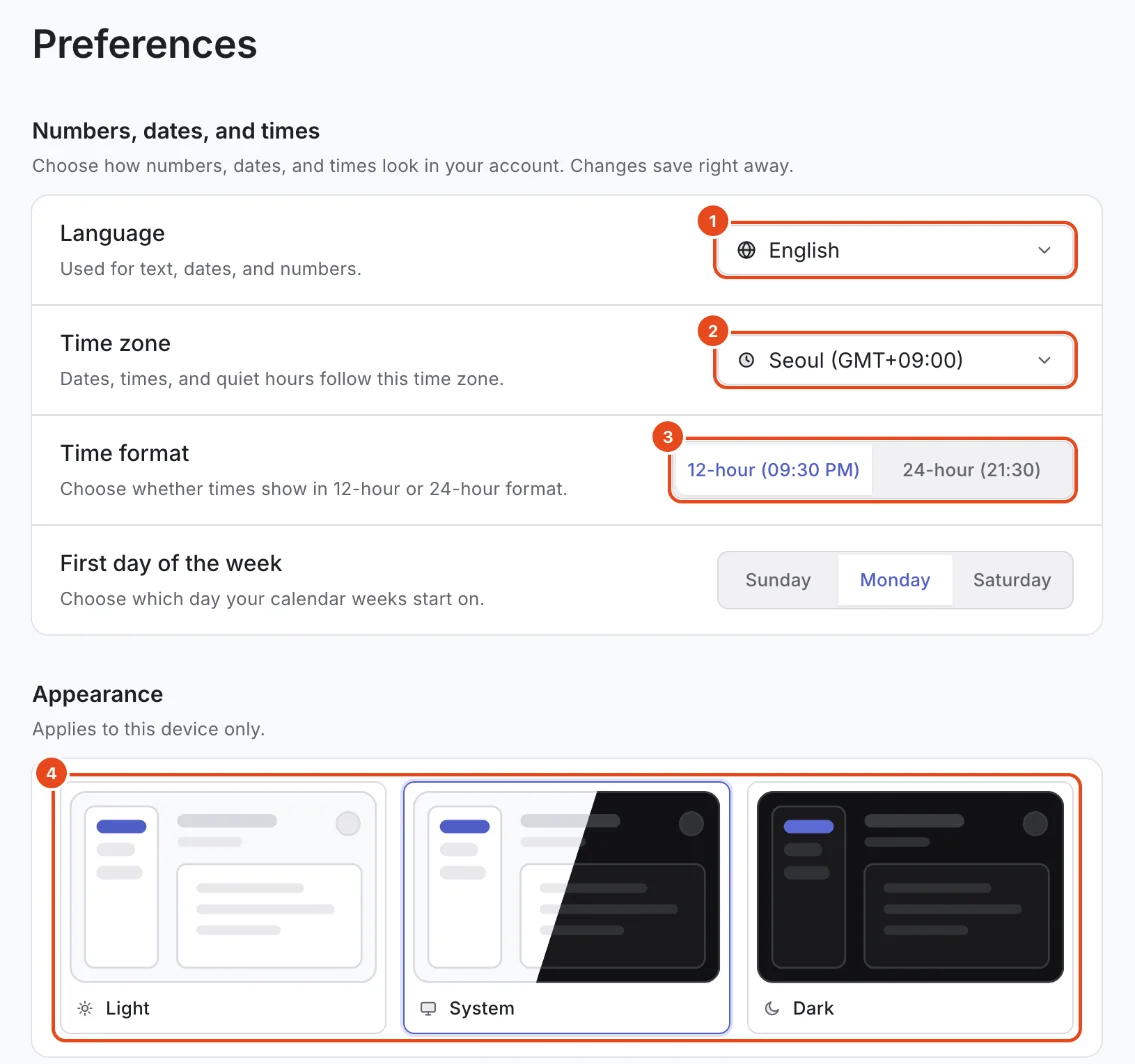
Open Settings from the profile menu, then Preferences.
Under Numbers, dates, and times, set your Language, Time zone, Time format (12-hour or 24-hour) and First day of the week. Changes save right away.
Light, System or Dark under Appearance applies to this device only.

Name your workspace and set its scheduling time zone
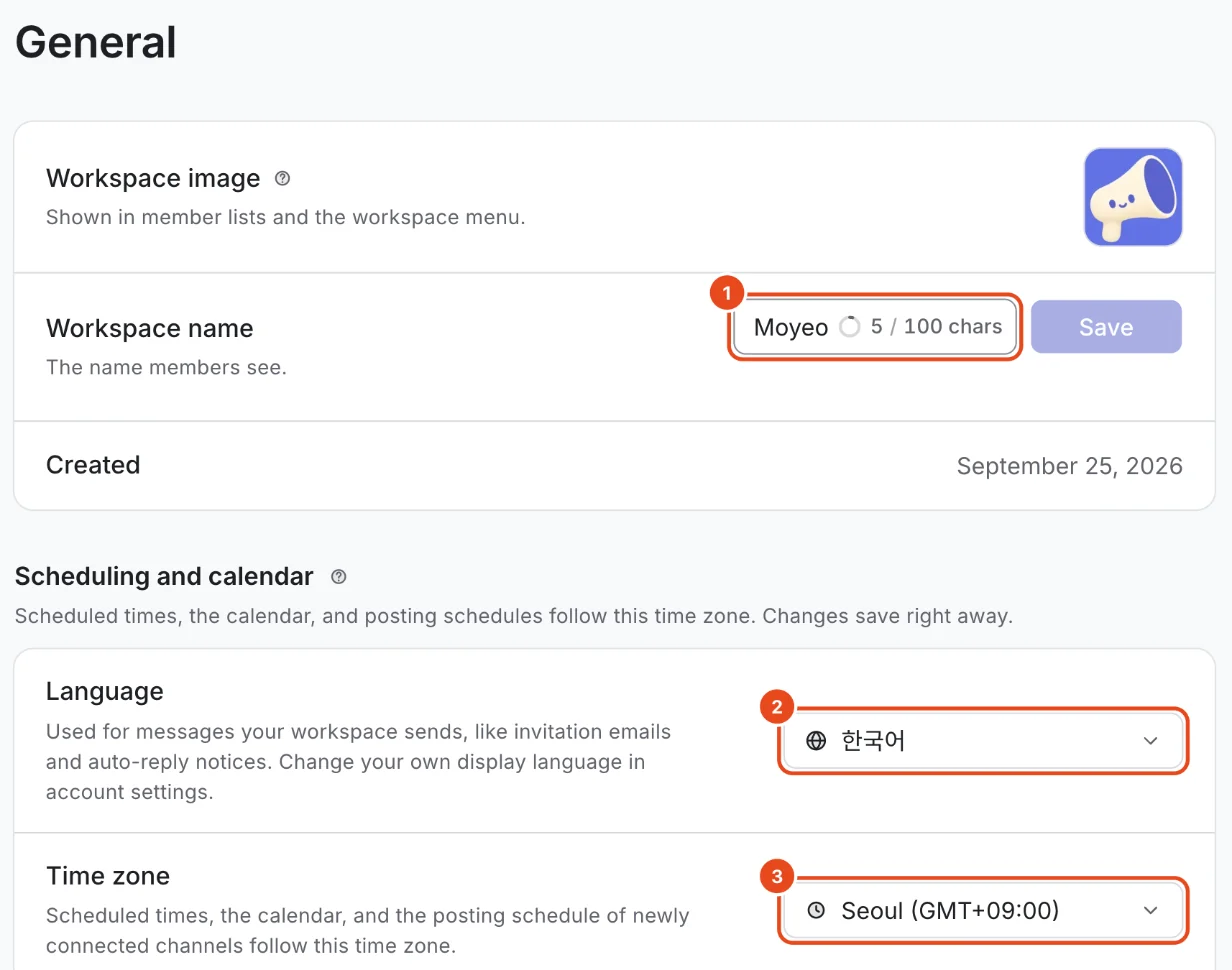
In Settings, open General to change the Workspace name and image that members see.
Time zone under Scheduling and calendar is what scheduled times, the calendar and the posting schedules of newly connected channels follow.
Language in the same section sets the language of lists we load from your channels, like YouTube categories.
Fill in Business info (industry, team size and goals) to get post ideas and benchmarks that fit your business better.

Options at a glance
| Setting | Where | What it changes |
|---|---|---|
| Theme | Profile menu, Preferences | Light, System or Dark, on this device only |
| Language | Profile menu, Preferences | App text, date and number formats, notification and email language |
| Your time zone | Settings › Preferences | How dates and times are shown to you |
| Time format | Settings › Preferences | Whether you see 9:30 PM or 21:30 |
| Workspace timezone | Settings › General | Scheduled times, the calendar and new channels' posting schedules |
| Business info | Settings › General | Post ideas and benchmarks |
Free and paid plans
| Item | Free | Pro | Team |
|---|---|---|---|
| Workspaces you can own | 1 | 3 | No limit |
| Connected channels | 3 | 10 | 100 |
| Members | 1 | 3 | 100 |
Each workspace has its own plan. Features you've hit a limit on show a lock. Press it to see which plan unlocks them.
Good to know
- A workspace holds your channels, posts and members. If you run several shops or brands, give each its own workspace.
- The theme is remembered per device, not per account, so pick it again on a new device.
- Screens with keyboard shortcuts have a Shortcuts button that lists them all.
- Stuck? Use Contact support in the profile menu. The screen you were on is sent along with your message.
Frequently asked questions
I signed up with email. Can I log in with Google too?
Yes. Connect Google or Kakao in Settings › Security, and you can log in either way.
What happens to scheduled posts if I change the workspace time zone?
Posts you've already scheduled still go out at the moment you set. After the change, the times you pick and the calendar follow the new time zone.
If I switch to English, do my posts change too?
No. Only the app text changes. Your posts, comments and bio page stay as you wrote them.
Can I have more than one workspace?
Yes. Press the workspace name at the top of the sidebar to create another one. How many you can own depends on your plan.