When to use it
- You want failed-post or new-comment alerts on your phone or by email.
- You don't want notifications at night.
- You want to add a password or log in with Google or Kakao too.
- You left your account logged in on another device.
- You want to contact Moyeo or delete your account.
How it works
Choose how you get notified
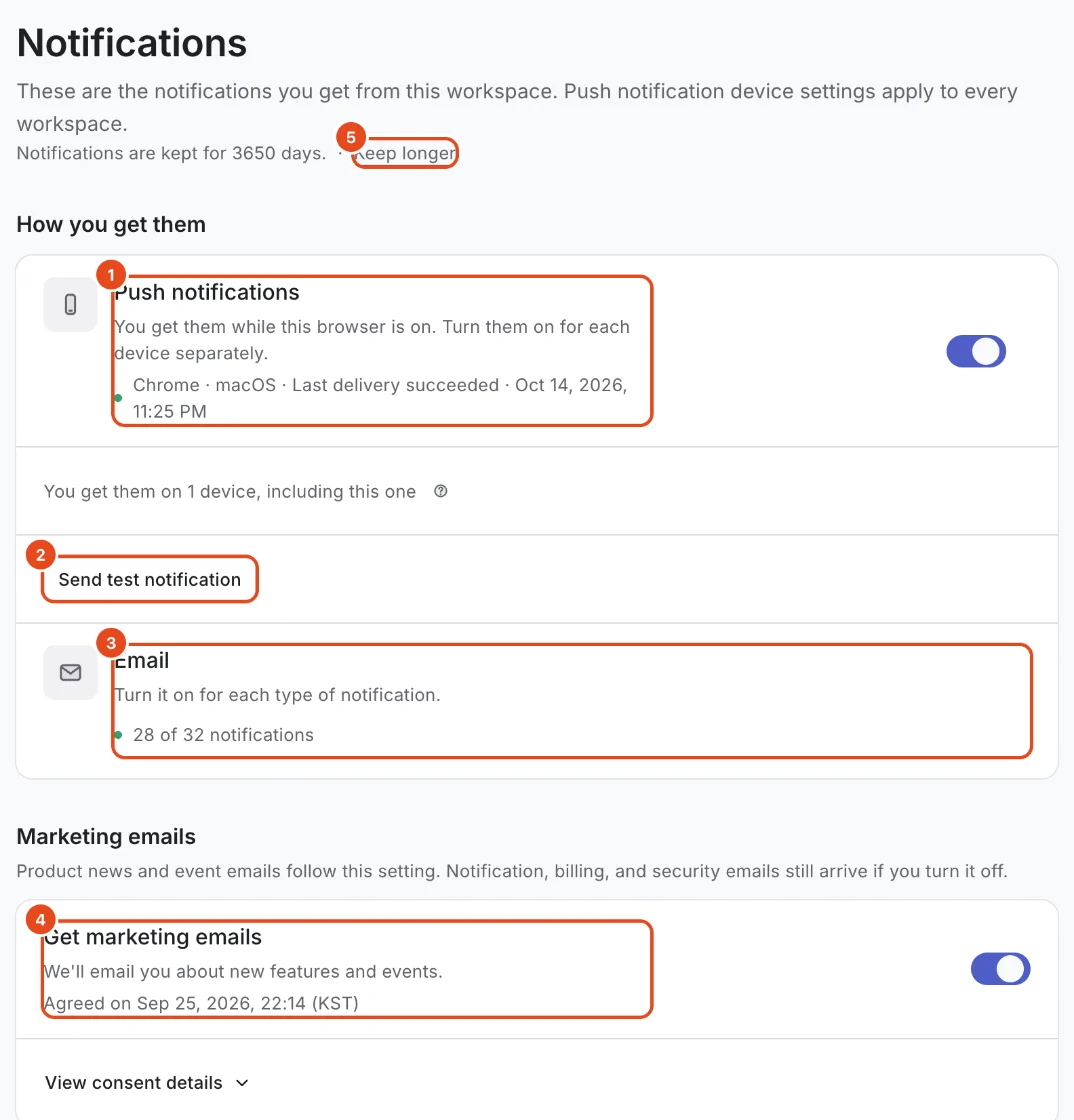
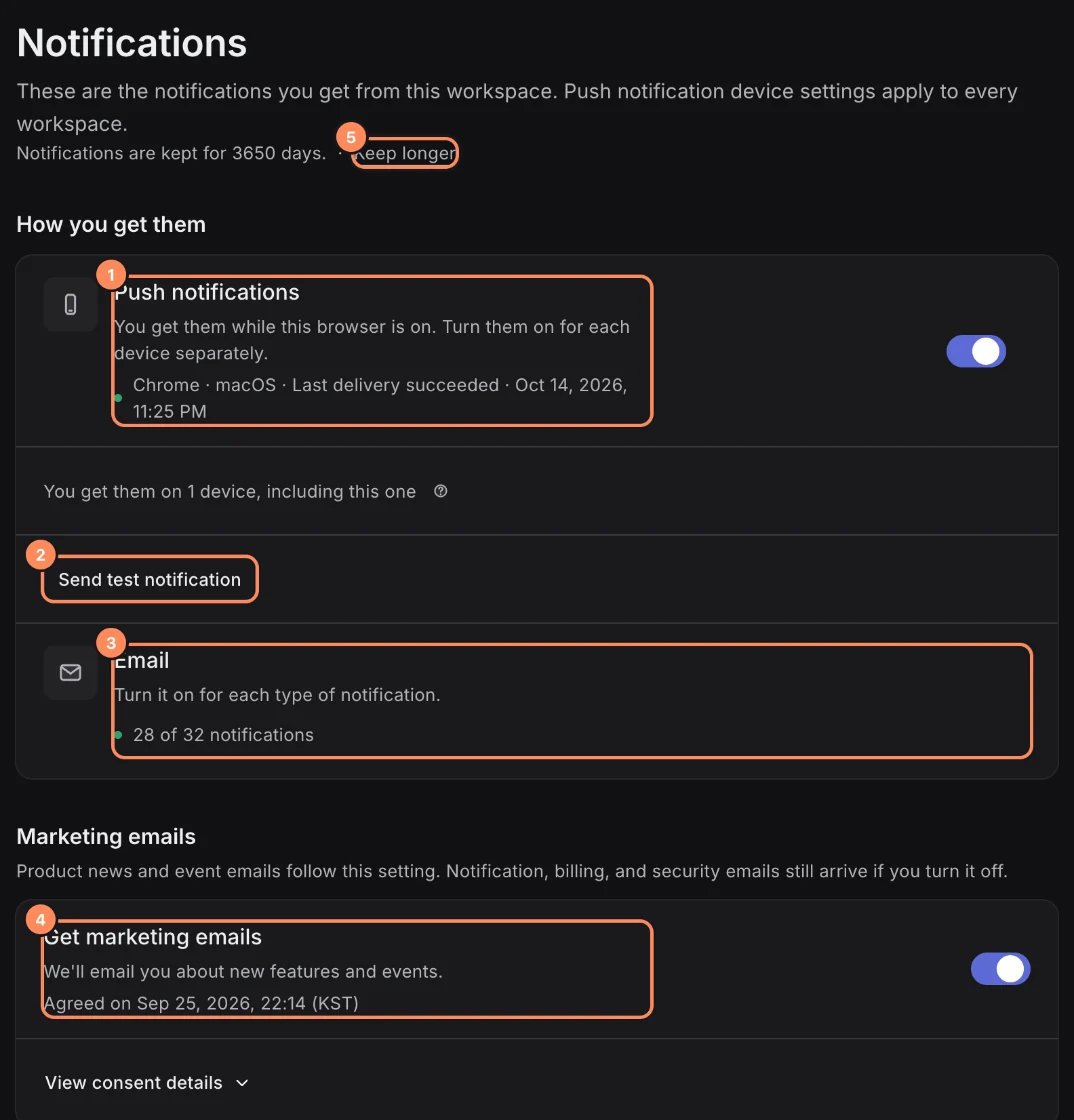
Open Settings from the profile menu, then Notifications. These are the notifications you get from this workspace.
Turn on Push notifications to get them while this browser is open. Turn them on per device, and press Send test notification to check they arrive.
Email is turned on per notification type, with a count of how many you get by email.
Marketing emails are product news and event emails. Turning them off doesn't stop notification, billing or security emails.
Pick notification types
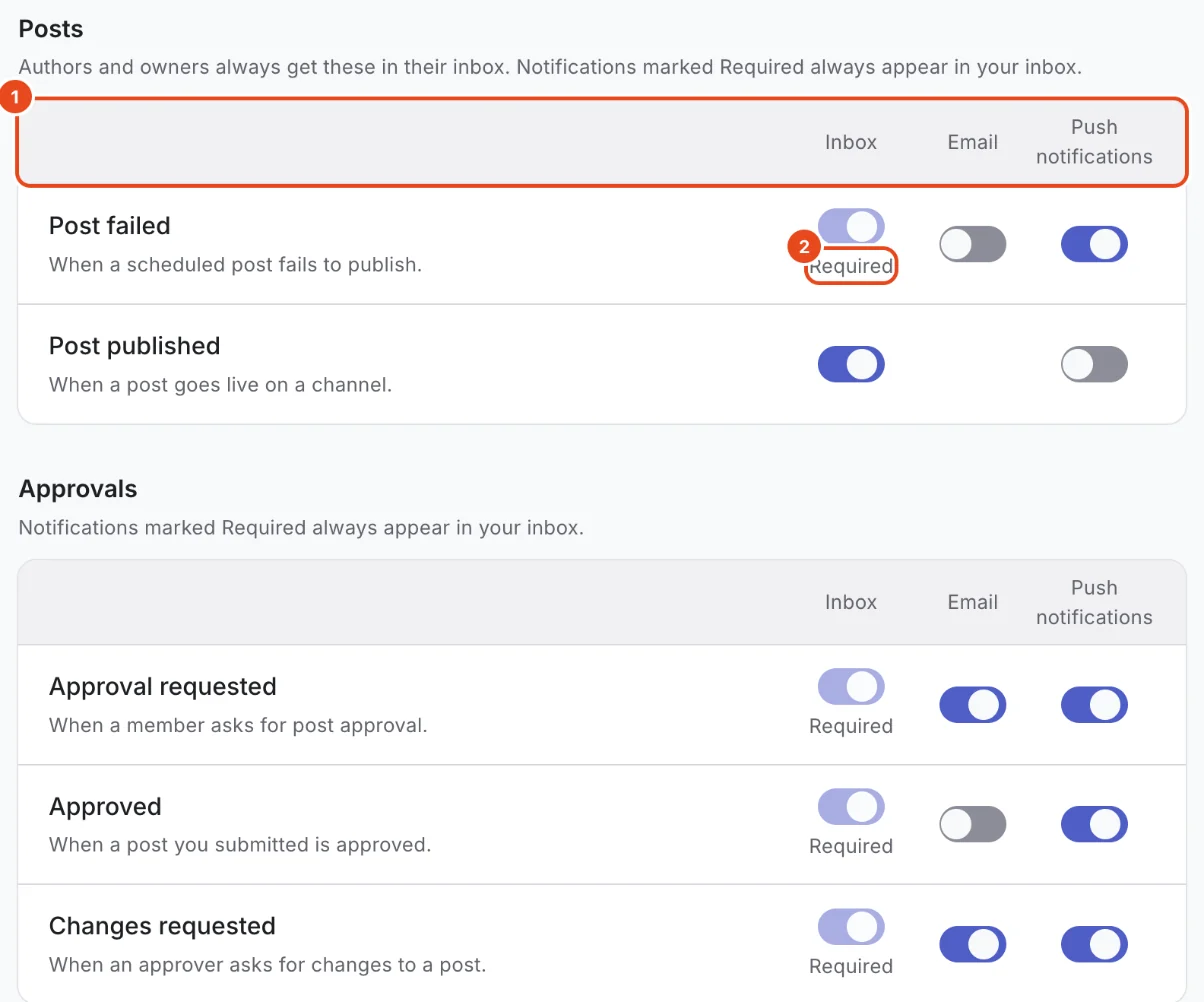
Notifications are grouped into Posts, Approvals, Channels, Comments, Members, Billing and Bio page.
Use the switches in the Inbox, Email and Push notifications columns to choose where each one goes.
Notifications marked Required always appear in your inbox because they're important. You can still turn off their email and push.

Set quiet hours
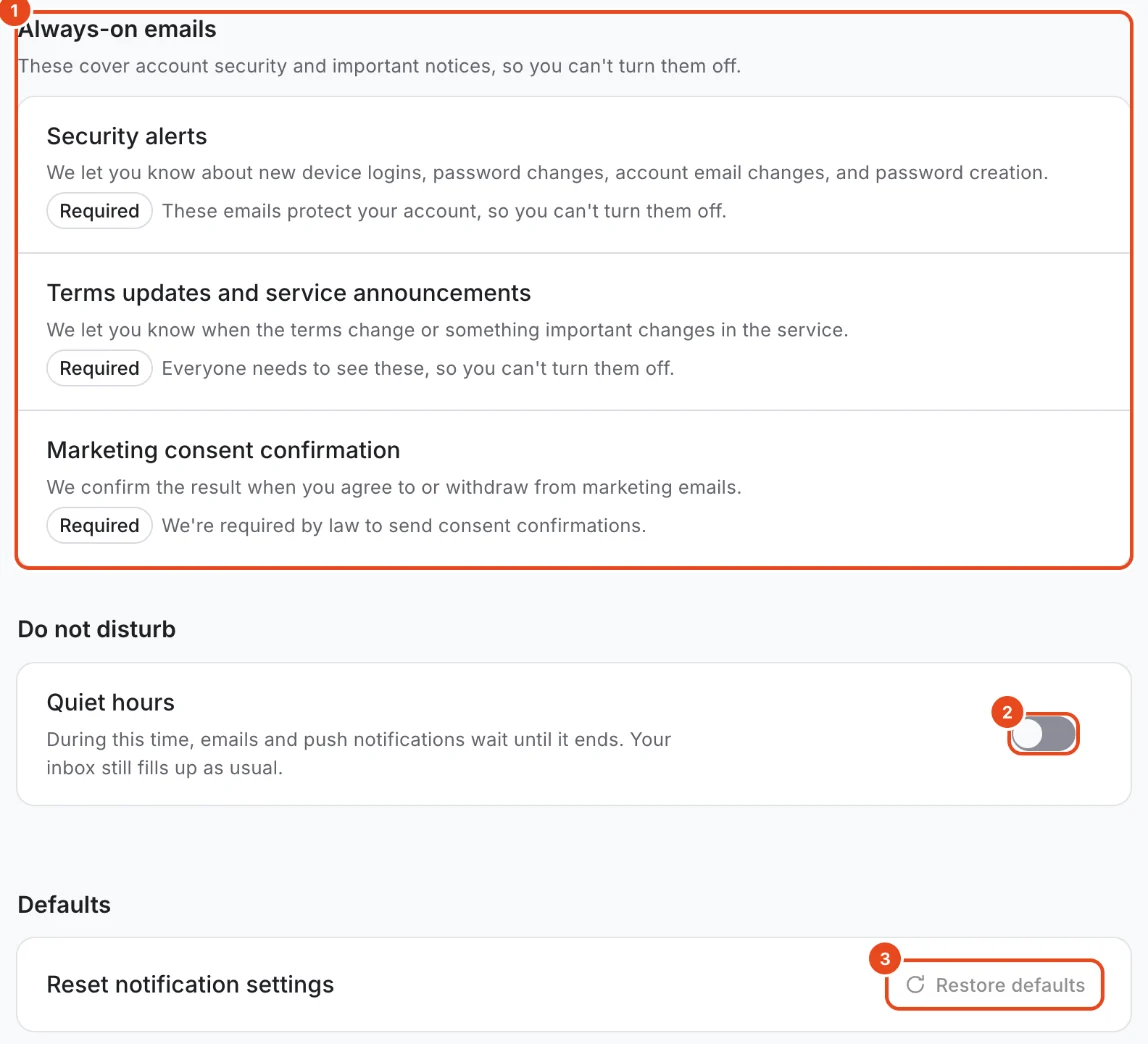
Under Do not disturb, turn on Quiet hours and set a start and end time.
During quiet hours, emails and push notifications wait until it ends. Your inbox still fills up as usual.
Always-on emails cover security alerts, terms updates and service announcements, and marketing consent confirmations. You can't turn them off.
To go back to the original settings, press Restore defaults.

Manage login methods and devices
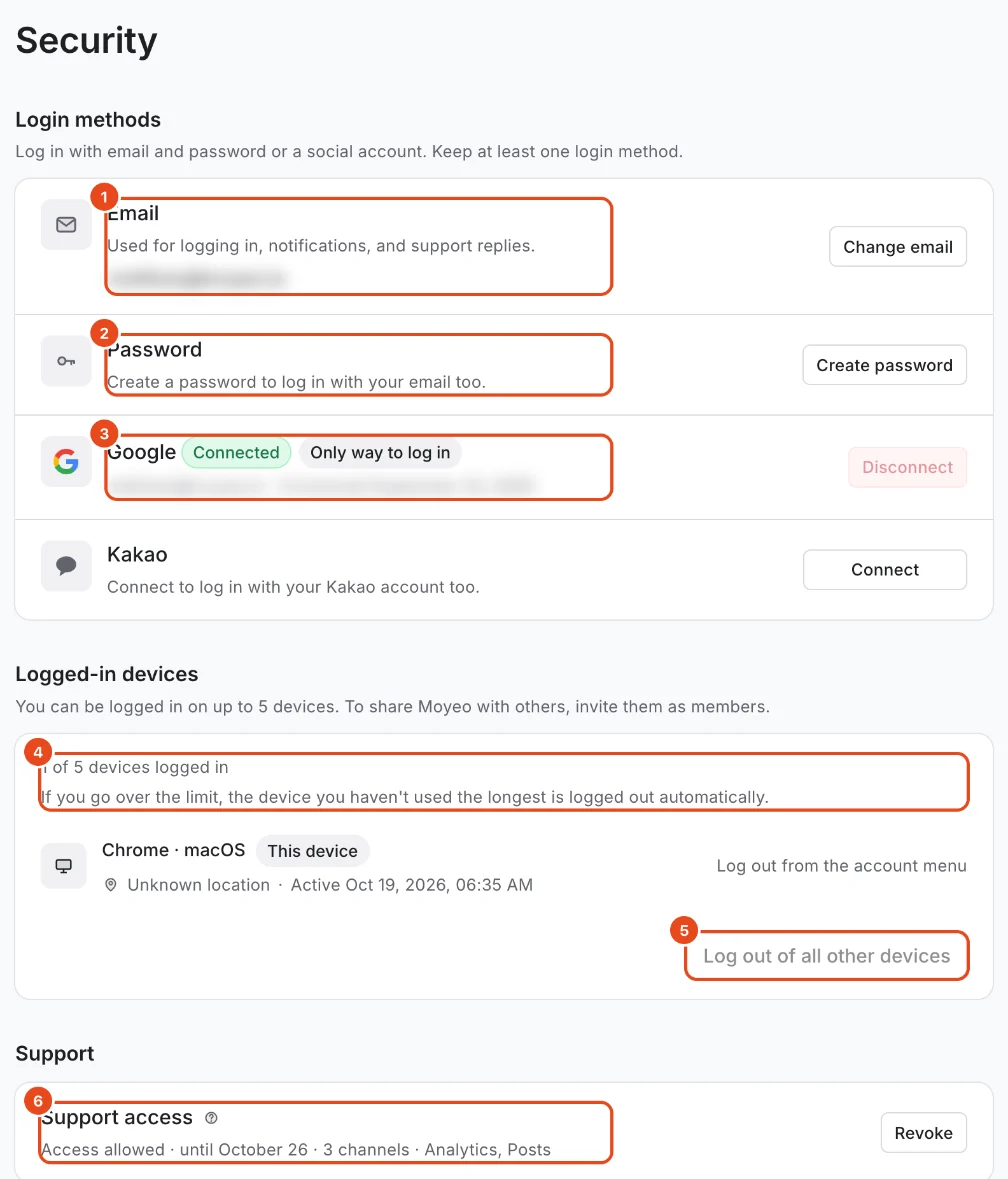
Open Settings › Security. You need to keep at least one login method.
Your Email is used for logging in, notifications and support replies. Change email sends a confirmation to the new address.
Create password lets you log in with your email too. If you already have one, you'll see Change password.
Connect Google or Kakao to log in with that account as well. The last remaining method shows Only way to log in and can't be removed.
Logged-in devices lists where you're logged in. If you left one logged in somewhere, press Log out of all other devices.

Contact Moyeo
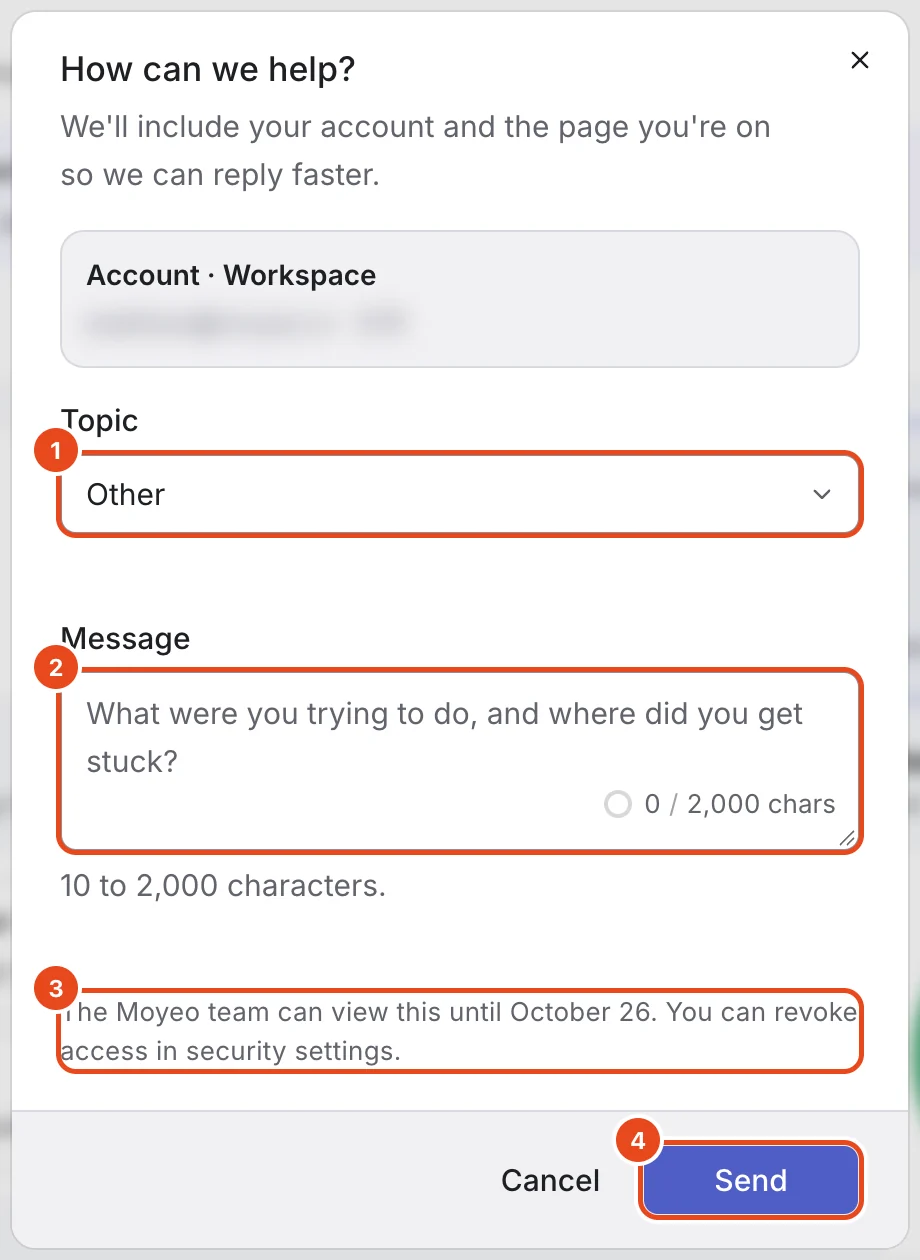
Press Contact support in the profile menu. Your account and the screen you were on are sent along so we can reply faster.
Pick a Topic and describe in Message what you were trying to do and where you got stuck. It needs at least 10 characters.
Press Send, and we'll reply to your account email. While we look into it, the Moyeo team can view your workspace until the date shown. Revoke it anytime under Support access in Security.

Delete your account
Press Request account deletion under Danger zone at the bottom of Security.
In Delete your account?, review What's deleted and What's kept.
Workspaces with other members can only be left after you transfer ownership. Workspaces only you use are deleted along with your account.
Type the confirmation word and press Delete account. Your account and data are deleted soon after, and this can't be undone.
Options at a glance
| Setting | Where | Good to know |
|---|---|---|
| Push notifications | Settings › Notifications | Turned on per browser or device, and applies to every workspace. |
| Settings › Notifications | Turned on or off per notification type. | |
| Quiet hours | Settings › Notifications | Only holds back email and push. The inbox fills up right away. |
| Marketing emails | Settings › Notifications | Shows when and to what you agreed. |
| Login methods | Settings › Security | Keep at least one. |
| Logged-in devices | Settings › Security | Over the limit, the device you haven't used longest is logged out. |
| Support access | Settings › Security | Granted when you contact us, and you can revoke it anytime. |
Free and paid plans
| Item | Free | Pro | Team |
|---|---|---|---|
| How long notifications are kept (days) | 30 | 90 | 180 |
Older notifications drop out of your inbox. Press Keep longer at the top of Notifications to see plans that keep them longer.
Good to know
- Notification settings are per workspace. Only the device setup for push notifications applies to every workspace.
- Push notifications need your browser's permission. Focus mode on a Mac or Do Not Disturb on Windows can also silence them.
- You can stay logged in on several devices at once, up to a limit. To work with others, invite them as members.
- Logging in on a new device or changing your password or email sends a security alert email. If it wasn't you, change your password right away.
Frequently asked questions
Push notifications aren't arriving.
Your browser may be blocking them. Allow notifications for Moyeo in your browser's site settings, then press Send test notification to check.
Where do I see notifications I missed during quiet hours?
They're waiting in your inbox. Emails and push notifications go out when quiet hours end. Quiet hours follow the time zone you set in Preferences.
Can I remove every login method?
No. You need at least one. Add another method first, then remove the old one.
Can the Moyeo team see my data when I contact support?
Only within the scope and time you allowed when you contacted us. Check it under Support access in Security, and revoke it anytime.