
When to use it
- You want to see what's going out this week and this month at a glance.
- You want to move a scheduled post to another day or time quickly.
- You want posts to go out on set days and times without picking a time each time.
How it works
Choose a view
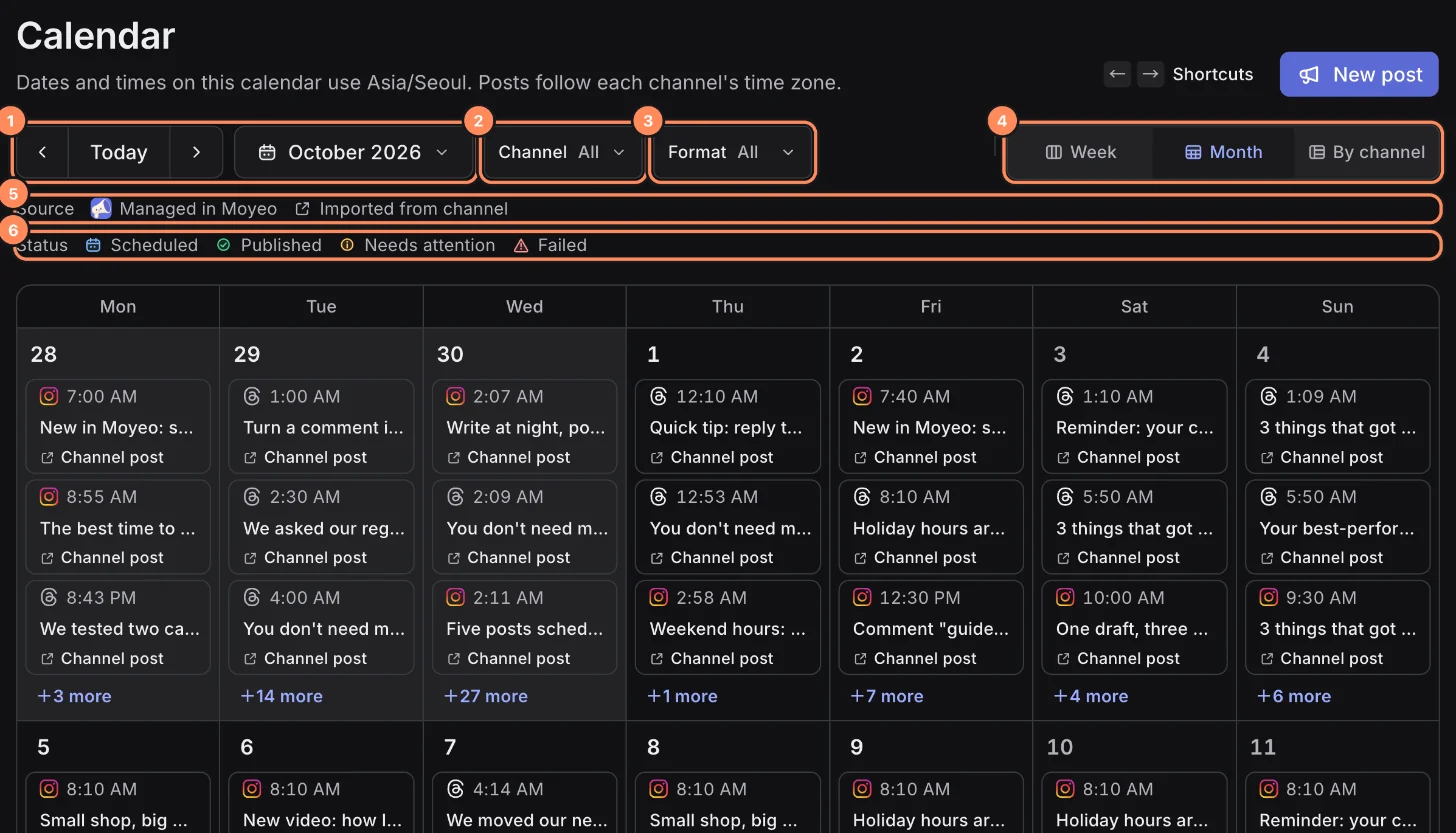
Open Calendar from the sidebar. Use the arrows and Today at the top left to move between periods, or press the month name to jump to another month.
Use the Channel and Format filters to show only the posts you want.
At the top right, choose Week, Month or By channel. Month shows the whole month as date cells. If a day has more posts than fit, press +N more to see them all.
In the Source legend, Managed in Moyeo marks posts scheduled or published through Moyeo, and Imported from channel marks posts made directly in the channel's app.
The Status legend tells Scheduled, Published, Needs attention and Failed apart.
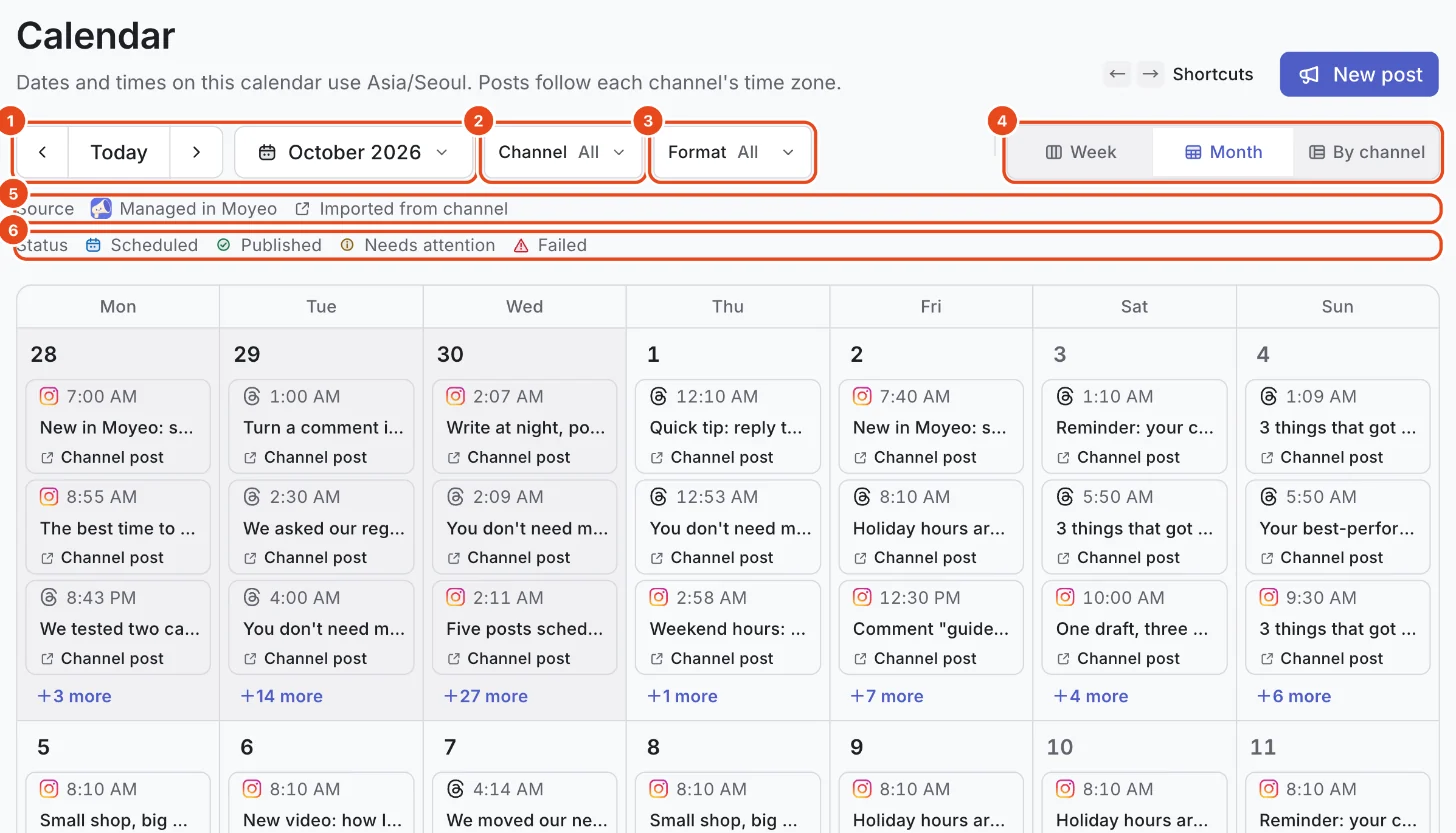
Week shows one week by day, and By channel puts each channel on its own row. In the By channel view, turn on Hide empty channels to hide channels with no posts.
Drag to change the time
Grab the handle on a scheduled post and drag it to another day. The time stays the same and only the date changes. Drop it on an open slot to take that slot's time.
When you let go, a Change time window opens. Nothing changes until you check the date and time and save.
If the post was scheduled with Follow posting schedule, the window is titled Change to fixed time instead. Once you save, the post leaves the posting schedule, and the next post moves up to fill the slot it left.
Create a posting schedule
Expand a channel in the sidebar and open Posting schedule.
The first time, pick a rhythm and press Start with this schedule. You can change the days and times freely afterward.
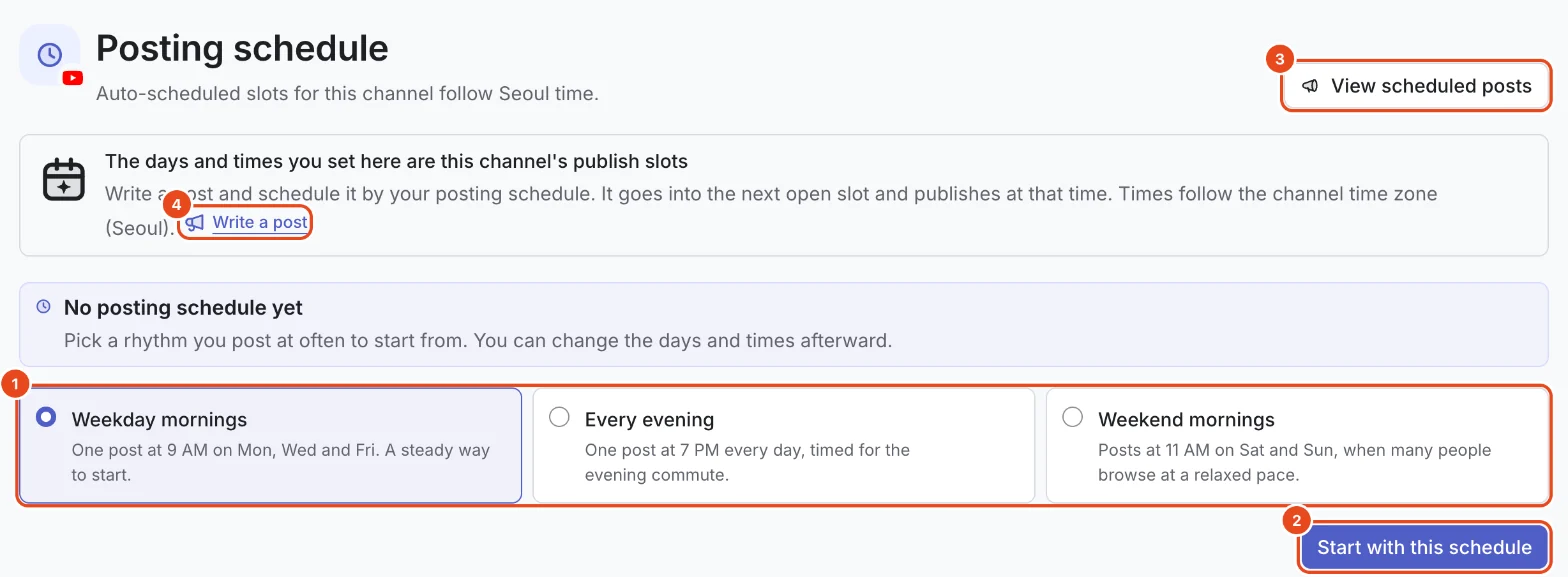
In the List view, press Time on any day to add a slot, and press × on a slot to remove it. To add the same time to several days, use Add to several days at once: pick a time and days, then press Add.
In the Week view, press + in any time band to add a slot.
Next slots previews the upcoming slots. When you're done, press Save schedule at the bottom. Before saving, Revert takes you back to where you started.
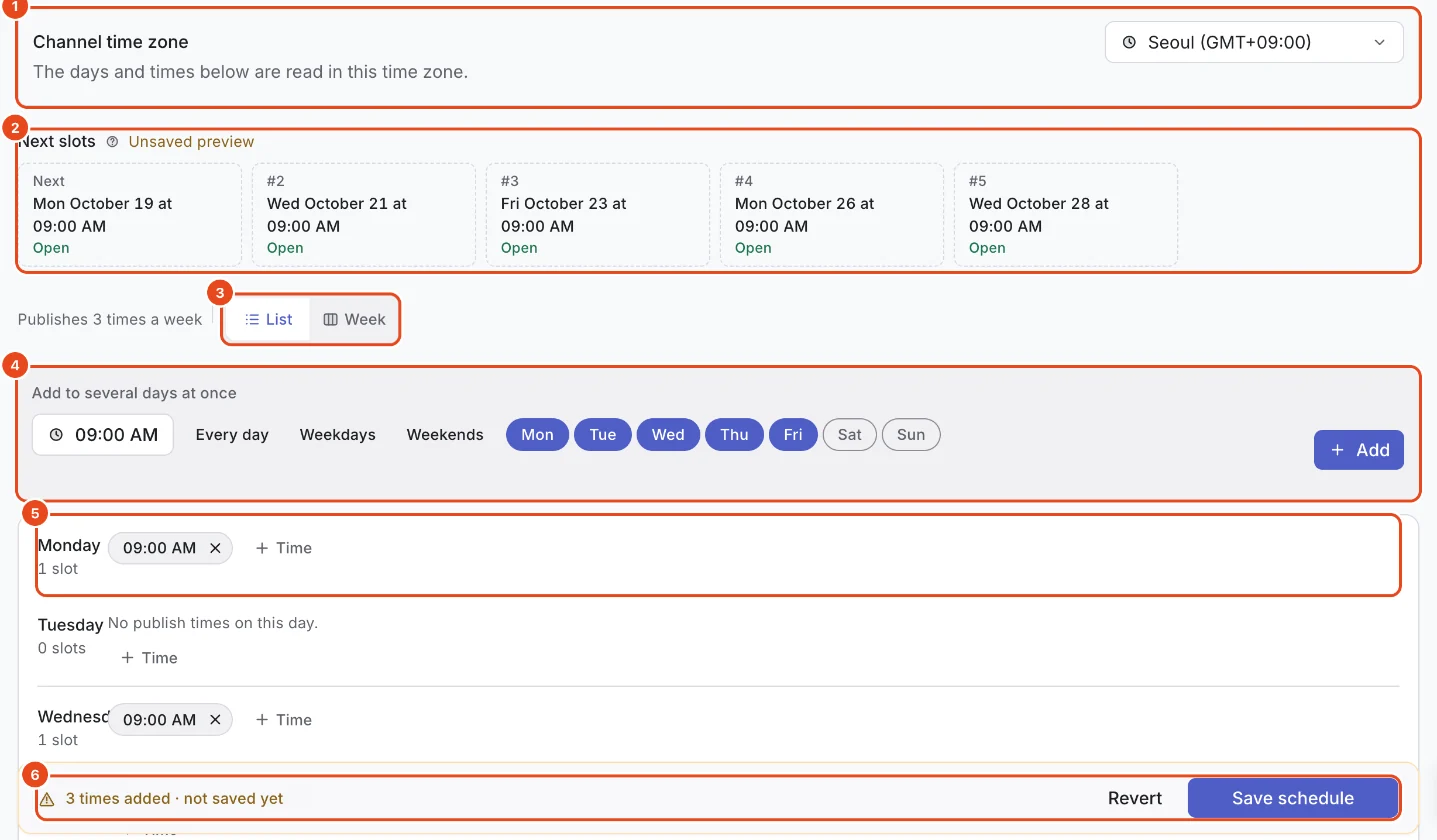


Channel time zone
The days and times in a posting schedule follow the Channel time zone. If a channel serves customers in another country, switch it to their time zone.
Dates and times in the calendar use your own time zone. Change it under Time zone in Settings › Preferences.
Options at a glance
| Option | What it does | Good to know |
|---|---|---|
| Week, Month, By channel | Changes how the calendar is laid out. | On narrow screens, Week and By channel show as a list. |
| Channel and format filters | Shows only the channels and formats you pick. | You can pick several of each. |
| Hide empty channels | Hides channel rows with no posts. | Only in the By channel view. |
| Drag to change the time | Changes the date and time of a scheduled post. | Posts that already went out can't be moved. |
| Posting schedule | Sets the days and times each channel posts. | Up to 100 slots per channel. |
| Channel time zone | The clock the posting schedule is read in. | Set separately from the calendar's display time zone. |
| Next slots | Shows upcoming slots and whether they're open. | Previews your changes even before you save. |
Free and paid plans
| Item | Free | Pro | Team |
|---|---|---|---|
| Scheduled posts per channel | 10 | 2,000 | 5,000 |
| Schedule first | Not included | Included | Included |
Schedule first lets a post take the earliest open slot ahead of the others.
Good to know
- The top of the calendar says which time zone it uses. Posts go out in each channel's own time zone.
- Each channel has its own posting schedule. Open it from Posting schedule under the channel in the sidebar.
- To reorder posts that follow the posting schedule, drag them on the channel's Schedule screen.
- Canceled schedules don't appear on the calendar.
- To change what a scheduled post says, open the post and edit it. See Edit a scheduled post.
- On narrow screens, the Week and By channel views turn into lists.
Frequently asked questions
When does a post scheduled to follow the schedule go out?
In the next open slot of that channel's posting schedule. Posts fill open slots in the order they were scheduled, and you can drag to reorder them on the channel's schedule screen.
I dragged a post, but it didn't move.
You need to save in the Change time window that opens after you drop it. Closing the window keeps the original time.
Do I need a posting schedule to schedule posts?
No. Choose Pick a time in the publish menu and set a date and time. Following the schedule only works on channels that have a posting schedule.
Do posts made directly in the channel show up too?
Yes. Posts imported from the channel appear as channel posts. You can't move them in the calendar, so edit them in the channel's app.