
When to use it
- You want to see what went out on each channel, with its results, in one list.
- You want to find and edit a draft or a scheduled post.
- You want to change what a scheduled post says or when it goes out.
- You got a failed-post notification and want to know what to do.
How it works
See channel posts
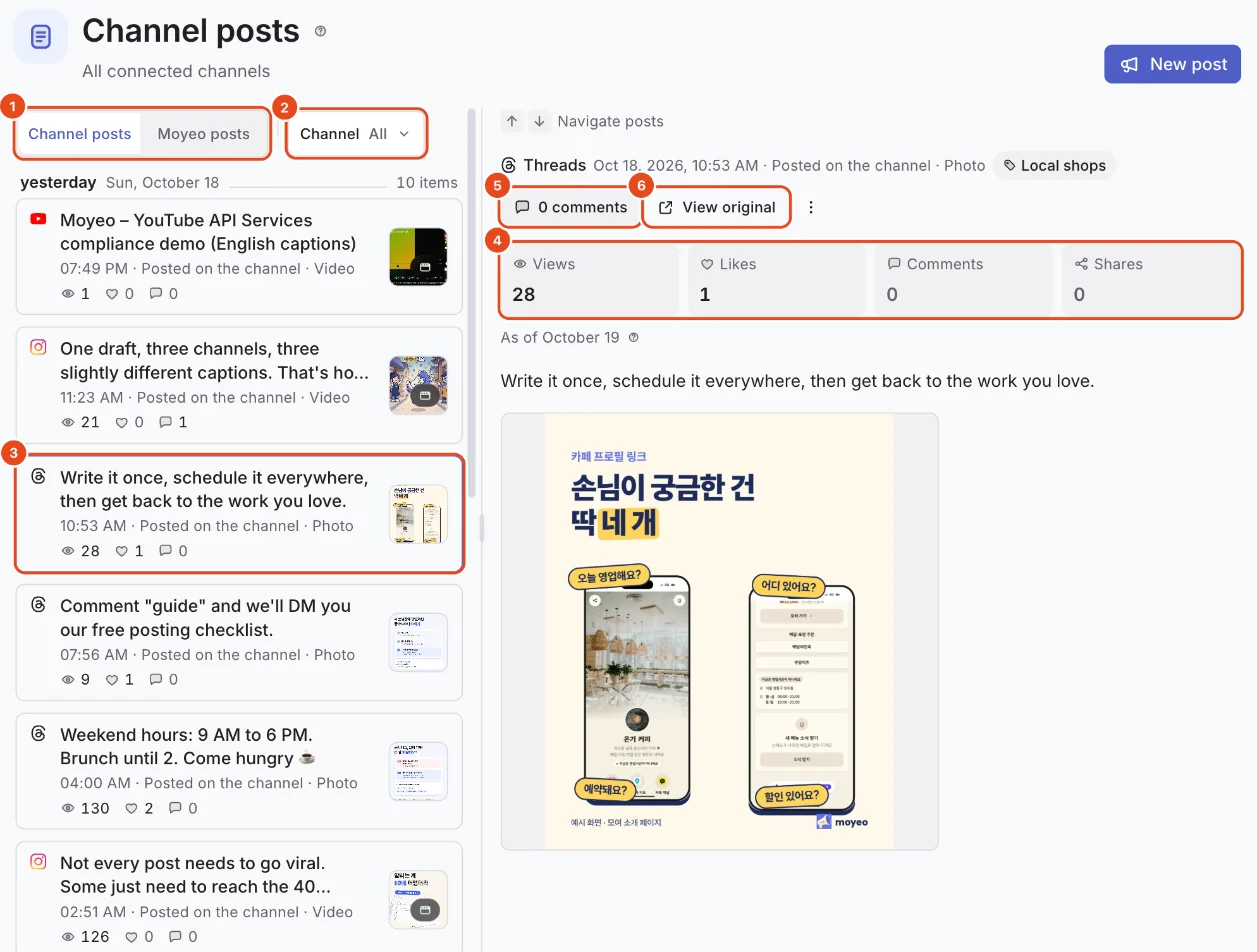
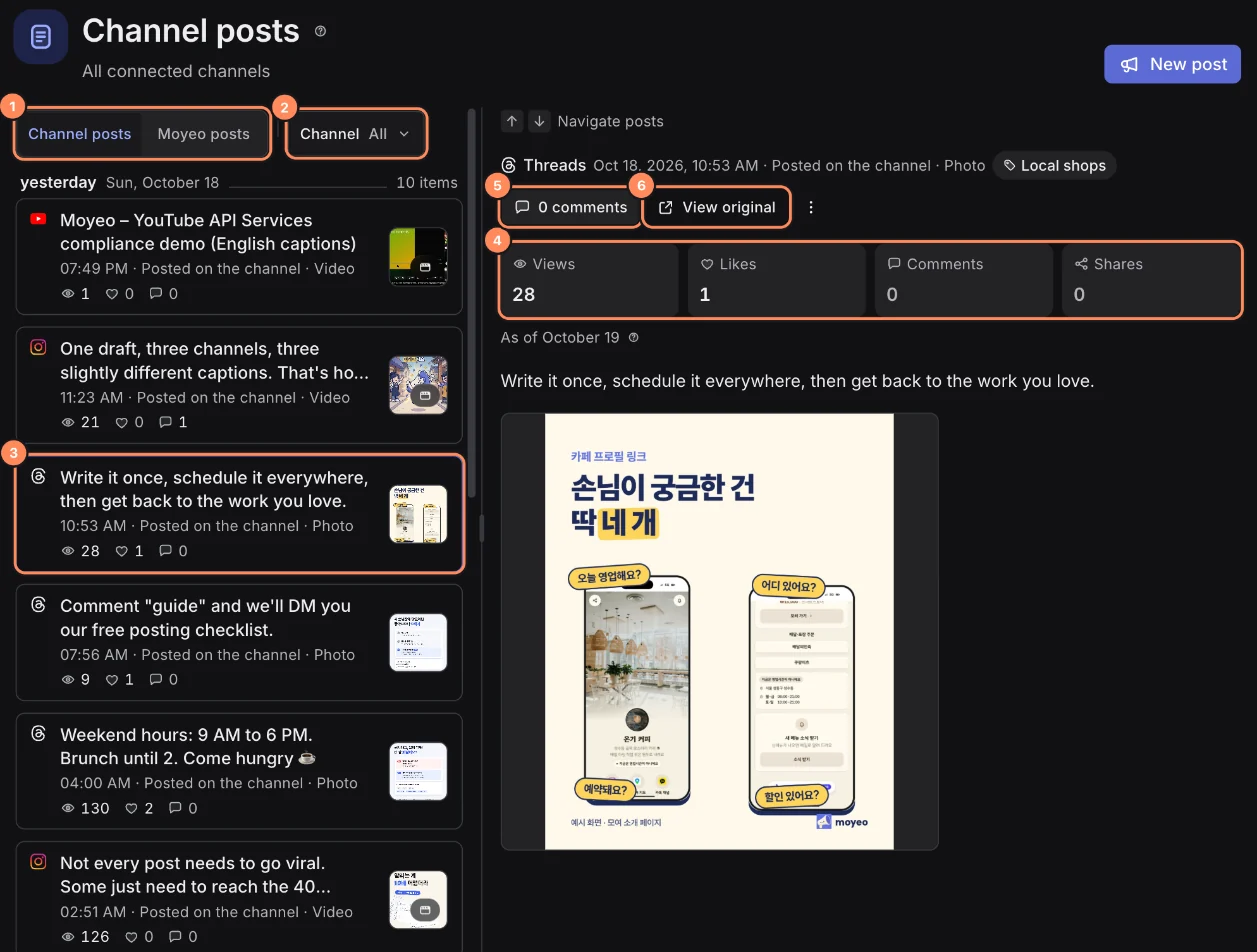
Open Posts from the sidebar. You start on Channel posts: everything on your connected channels, by date, including posts made outside Moyeo.
Use the Channel filter to show only the channels you want.
Press a post to open its text and results, like Views, Likes, Comments and Shares, on the right. The date under the numbers says when they were last updated. Use the arrows at the top or ↑ and ↓ on your keyboard to move between posts.
Press Comments to go to that post's comments, or View original to open it on the channel.
See Moyeo posts
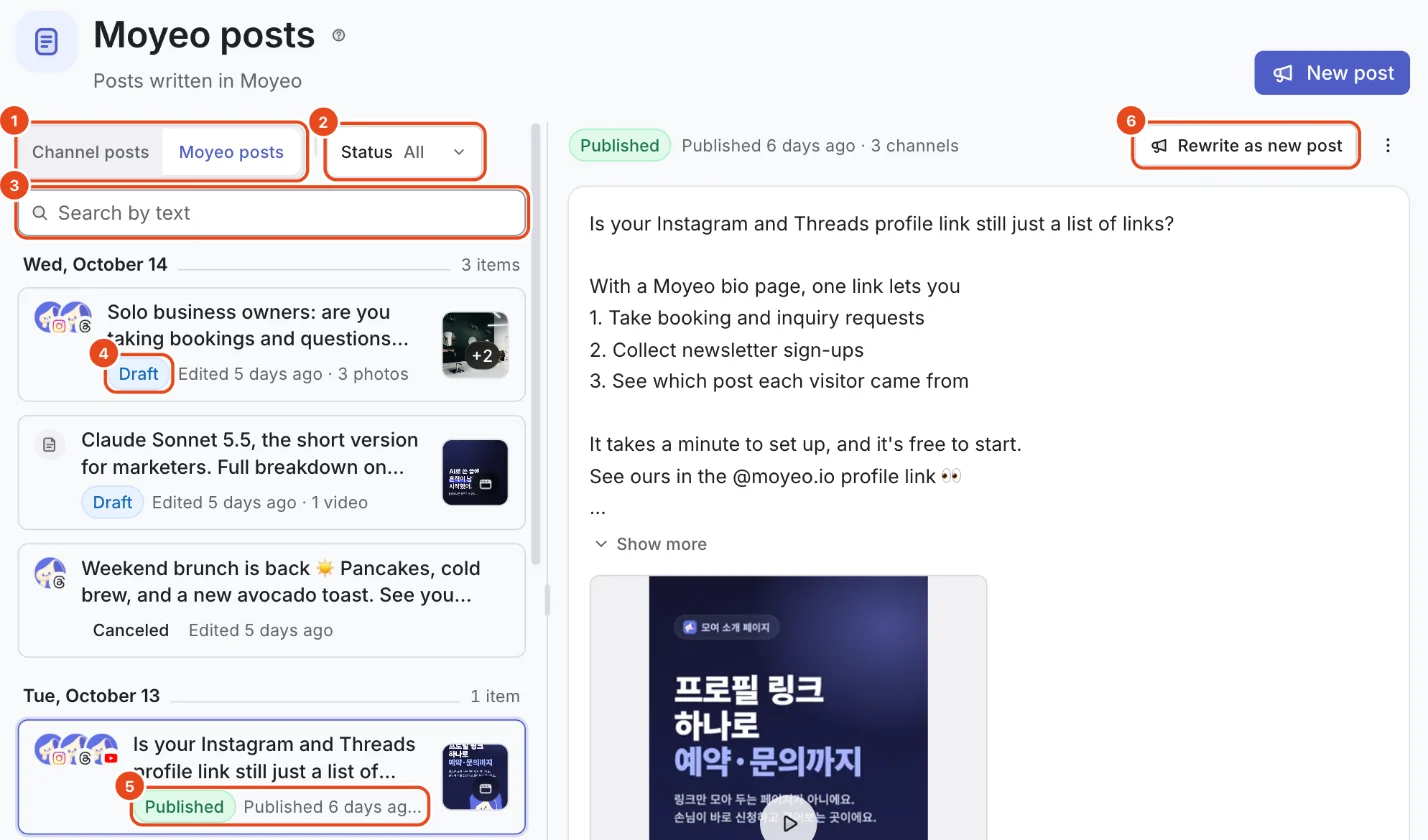
Switch to Moyeo posts at the top to see the posts you wrote in Moyeo, including drafts and scheduled posts.
Use the Status filter to choose Scheduled & posted, Draft, Pending approval or Archived. You can also type in Search by text. Press / on your keyboard to jump to search.
Badges in the list show each post's status, like Draft, Published or Canceled.
Open a post to find Rewrite as new post at the top right, and more actions like Edit or Archive in the ⋮ menu. What you see depends on the post's status.
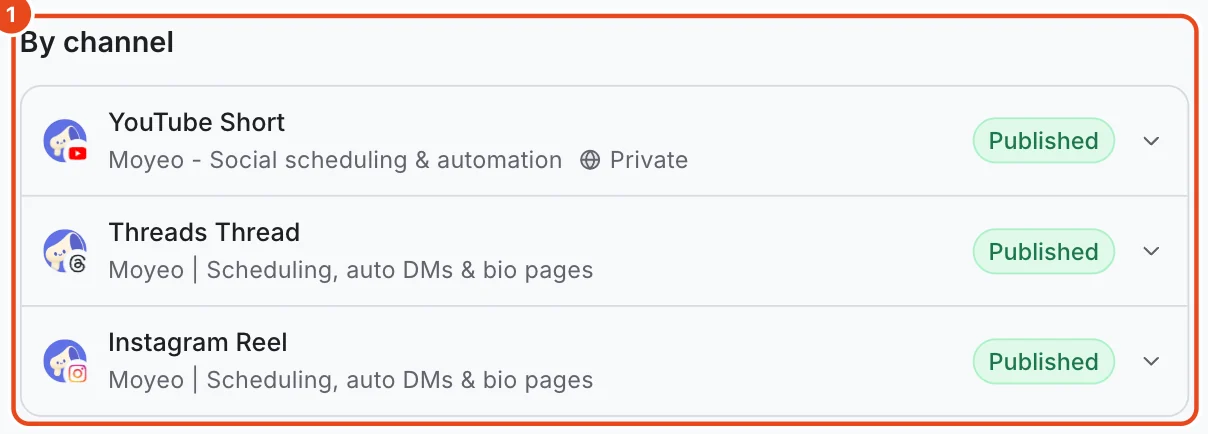
By channel below shows the format and status for each channel. Expand a row to see its attempts and what to do next.


Edit a scheduled post
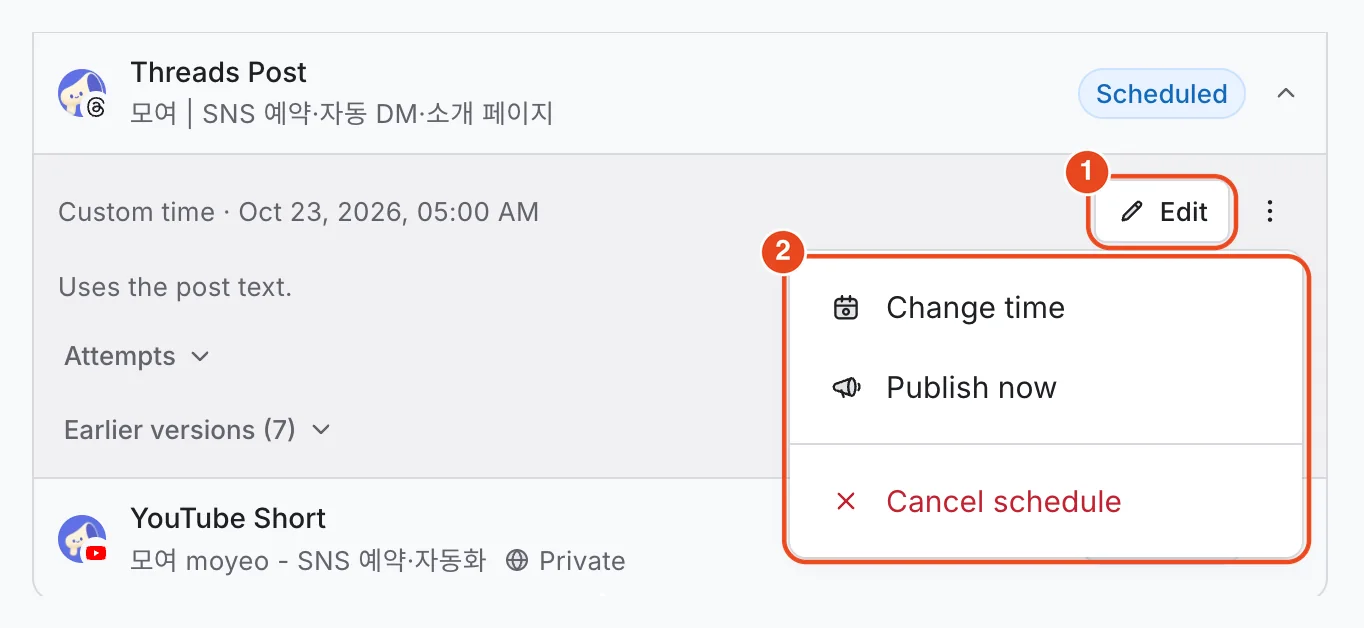
Open the post, and in By channel, press Edit on a scheduled channel's row to change only what goes out on that channel. The time and queue order stay the same.
To change several channels at once, press Edit post. In Apply to scheduled posts, pick the schedules to update, then save. The post and the schedules you picked change together. All schedules are picked to start with.

Use the ⋮ menu on a row to Change time, Publish now or Cancel schedule.


Handle a failed post
When a post fails, you get a notification, and it also shows up in Today's tasks on Home.
Open the post to see why each failed channel failed and what to do next. Expand Attempts to see where it stopped.
Press the button that fits the reason. Retry sends the original request again as is.
Reschedule schedules the same content for a new time, and Edit and publish sends a fixed version to the failed channel. The earlier failure stays in the history.
If it failed because the connection expired, reconnect the channel first, then retry.
Needs attention
If a channel doesn't report back whether a post went out, it's marked Needs attention. Moyeo doesn't resend it, so it isn't posted twice.
Check the channel's app first to see whether the post is there. Press Request result check to have Moyeo ask the channel again.
Failure reasons and what to do
| If you see | Do this |
|---|---|
| Couldn't post because the connection expired | Reconnect the channel, then retry. |
| No permission to post to this channel | Reconnect the channel and allow every permission. |
| The channel didn't accept this content | Fix the content with Edit and publish. |
| The channel didn't accept the attached photos or videos | Swap the photos or videos with Edit and publish. |
| Can't reach the channel right now, Hit the posting limit | Retry after a while. |
| Couldn't confirm the publish result | Check whether it's on the channel, then retry. |
| Didn't post because the scheduled time passed | Retry to post right away, or reschedule for another time. |
Options at a glance
| Option | What it does | Good to know |
|---|---|---|
| Channel posts | Shows posts on your channels with their results. | Includes posts made outside Moyeo. |
| Moyeo posts | Shows the posts you wrote in Moyeo and their status on each channel. | Drafts and scheduled posts are here too. |
| Edit post | Changes the post and the schedules you pick. | Times and queue order stay the same. |
| Change time | Changes the date and time of one schedule. | A post following the posting schedule switches to a fixed time. |
| Cancel schedule | Cancels the schedule for that channel only. | Canceled schedules don't appear on the calendar. |
| Archive | Archives the post and cancels any schedules that haven't gone out. | Posts that were sent to a channel get archived instead of deleted. |
| Delete | Deletes the post along with its remaining schedules. | Only posts never sent to a channel can be deleted, and it can't be undone. |
| Rewrite as new post | Starts a new post with the text, media and per-channel settings. | You pick a new publish time. |
| Retry | Sends the original request to the failed channel again. | Only failures from this publish can be retried. |
| Reschedule, Edit and publish | Requests the failed post again at a new time or with fixes. | The earlier failure stays in the history. |
| Request result check | Asks the channel again about a post that needs attention. | Moyeo doesn't resend automatically, to avoid posting twice. |
Free and paid plans
| Item | Free | Pro | Team |
|---|---|---|---|
| Scheduled posts per channel | 10 | 2,000 | 5,000 |
| Approvals | Not included | Not included | Included |
Good to know
- Results for channel posts are collected about once a day, so a brand-new post takes a while to show numbers.
- If you disconnect a channel, posts that went only to that channel become Archived or Draft.
- Failed posts also show up in notifications and in Today's tasks on Home.
- You can't edit or delete a live post from Moyeo. Edit it in the channel's app, or use Rewrite as new post to post it again.
Frequently asked questions
I can't delete a published post.
If a post was never sent to a channel, Delete it and its remaining schedules are canceled too (1). If it was sent to a channel, Archive it instead. To remove a post from a channel, delete it in the channel's app.

I edited the post, but the scheduled one hasn't changed.
Pick the schedules in Apply to scheduled posts when you use Edit post, and they get your changes too. If you already saved, press Edit on each row in By channel.
I retried, and it failed for the same reason.
If the content or media is the problem, retrying won't help. Fix it with Edit and publish and send it again.
It says Needs attention, but the post is on the channel.
Press Request result check. Once Moyeo finds the post on the channel, it changes to Published.