
When to use it
- You want to check posts from a new team member before they go out.
- You want a second look at posts where mistakes are costly, like prices or event details.
- Several people post to the same channel.
How it works
Choose which channels need approval
The owner or an admin opens Settings › Members and presses the shield button on a member's row to open Member channel access.
Set Publishing access to Approval required on the channels you want to review. Changes save right away.
Each channel is set separately. For example, Instagram can be Approval required while Threads stays Full access.
Send an approval request
Pick a channel that needs approval and write the post as usual.
The publish button now starts with Request approval. Pick a time and press it to send the request.
If any chosen channel needs approval, Post now isn't available, since the post has to be approved first.
Review and decide
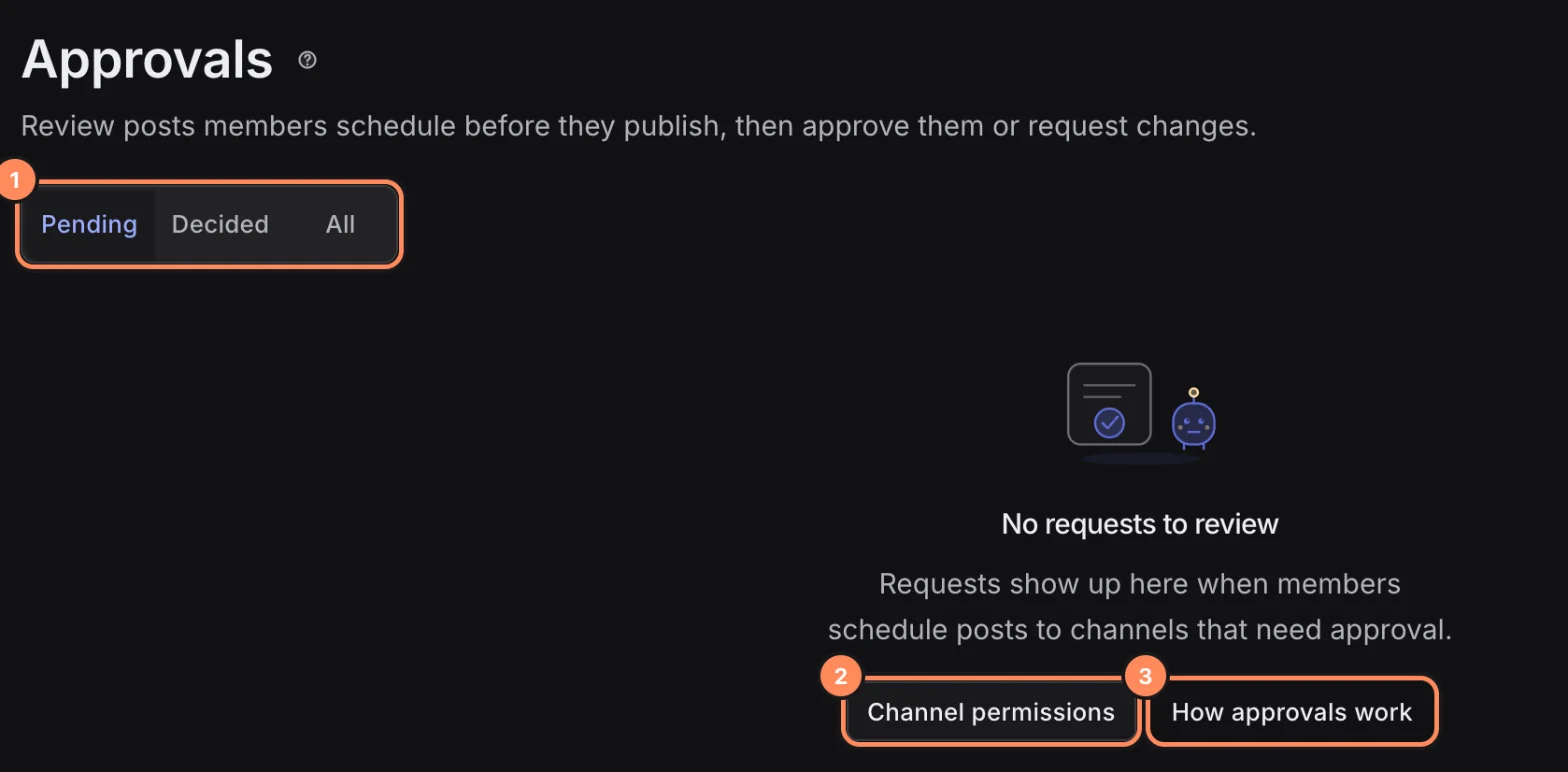
Approvals in the sidebar shows how many requests are waiting. Press it to open the Pending list. With no requests yet, use Channel permissions to choose which channels need approval.
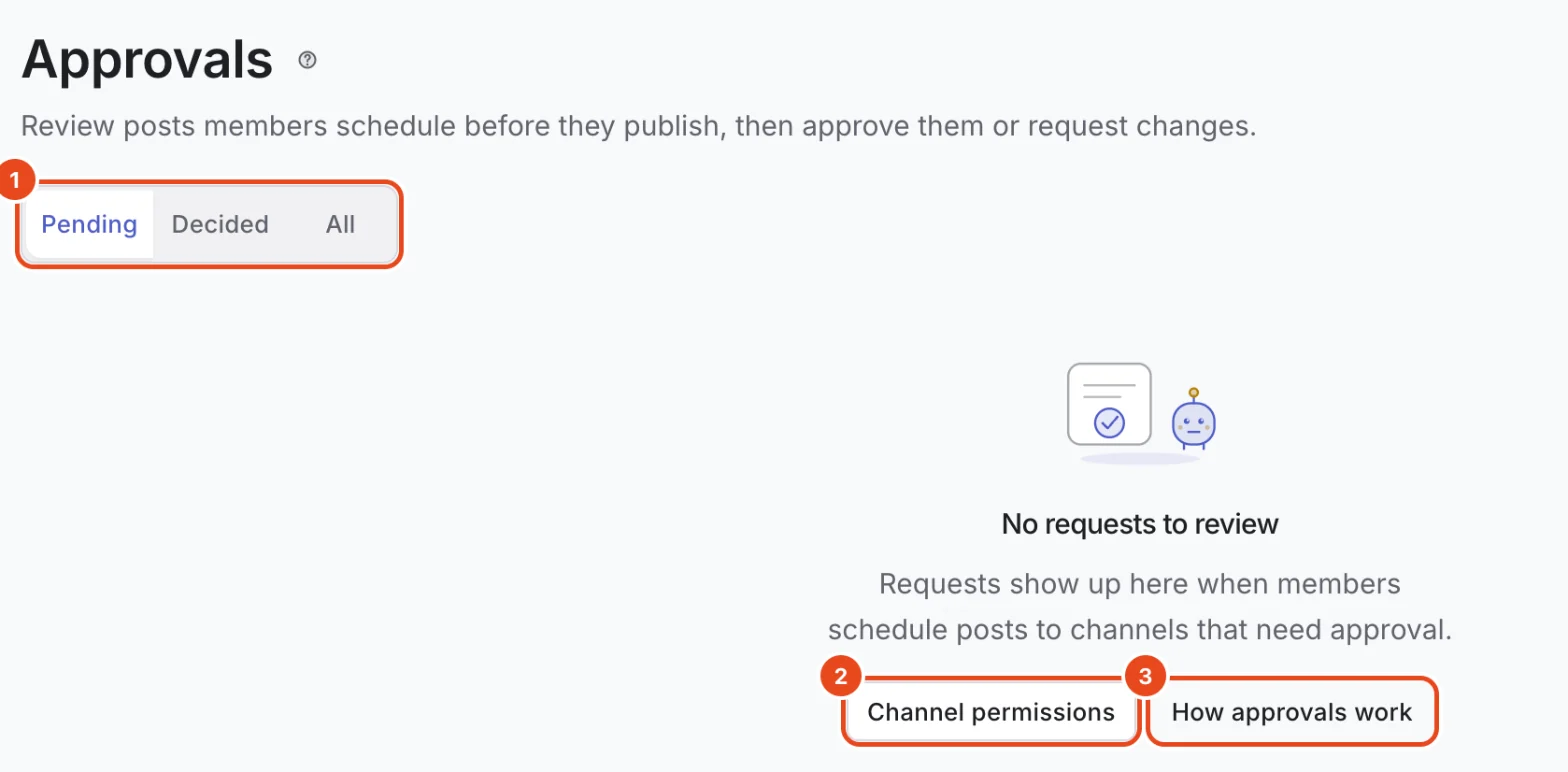
Each row shows the post, channels, requester and scheduled time. Press Approve or Request changes right in the row.
To look closer, open the request. In the Approval request window, choose Approve or Request changes under Decision.
If the post changed after the request was sent, you'll see The post changed after the request. Approving only covers the content as it was when the request was sent.
Approve schedules the post on each channel at the requested time. Request changes notifies the author.
Fix and resend, or withdraw
When changes are requested, the author edits the post and requests approval again.
Editing a post with a pending request marks that request Needs a new request. Send a new request with the updated post.
To take a request back, open it from Approvals and press Withdraw. Only the person who sent it can withdraw it.
Options at a glance
| Status | What it means |
|---|---|
| Pending | Waiting for a decision. |
| Approved | Scheduled on each channel at the requested time. |
| Changes requested | The author can fix the post and ask again. |
| Withdrawn | The requester took it back. |
| Needs a new request | The post was edited or archived after the request, so it can't be decided. |
Filter the list with Pending, Decided or All. Reviewers get a notification when a request comes in, and authors get one when it's approved or changes are requested.
Free and paid plans
| Item | Free | Pro | Team |
|---|---|---|---|
| Approval before posting | Not included | Not included | Included |
| Per-channel member access | Not included | Not included | Included |
Good to know
- Approval required is set per member and per channel. The same member can schedule directly on other channels.
- Requests don't use a scheduling slot while they wait for a decision.
- As the scheduled time gets close, the list shows how long is left, and Past scheduled time once it has passed.
- If another member decides first while you're looking, the request updates to the latest status.
Frequently asked questions
Can I leave a comment or a reason for rejecting?
No. There's no place for notes, only Request changes. Tell the author directly what to fix.
Can I choose who approves?
No. Anyone with Full access on every channel in the request can approve it. The owner can always approve.
I approved, but it says the channel's scheduling limit is reached.
That channel's schedule is full. Cancel another scheduled post, then approve again.
What happens to pending requests if I downgrade?
No one can approve or send new requests, but requesters can still withdraw theirs. Channels set to Approval required schedule posts without approval. If you move back to a plan with approvals, the settings come back.