
When to use it
- Your Instagram, Threads or YouTube profile only fits one link, but you have several places to point people to.
- You want customers to send booking requests or questions straight from your page.
- You want a page that shows up when people search your business on Naver or Google.
- You want to move the links you had on Littly, Linktree or Inpock Link.
How it works
Create a bio page
Open Bio page in the sidebar and press Create bio page.
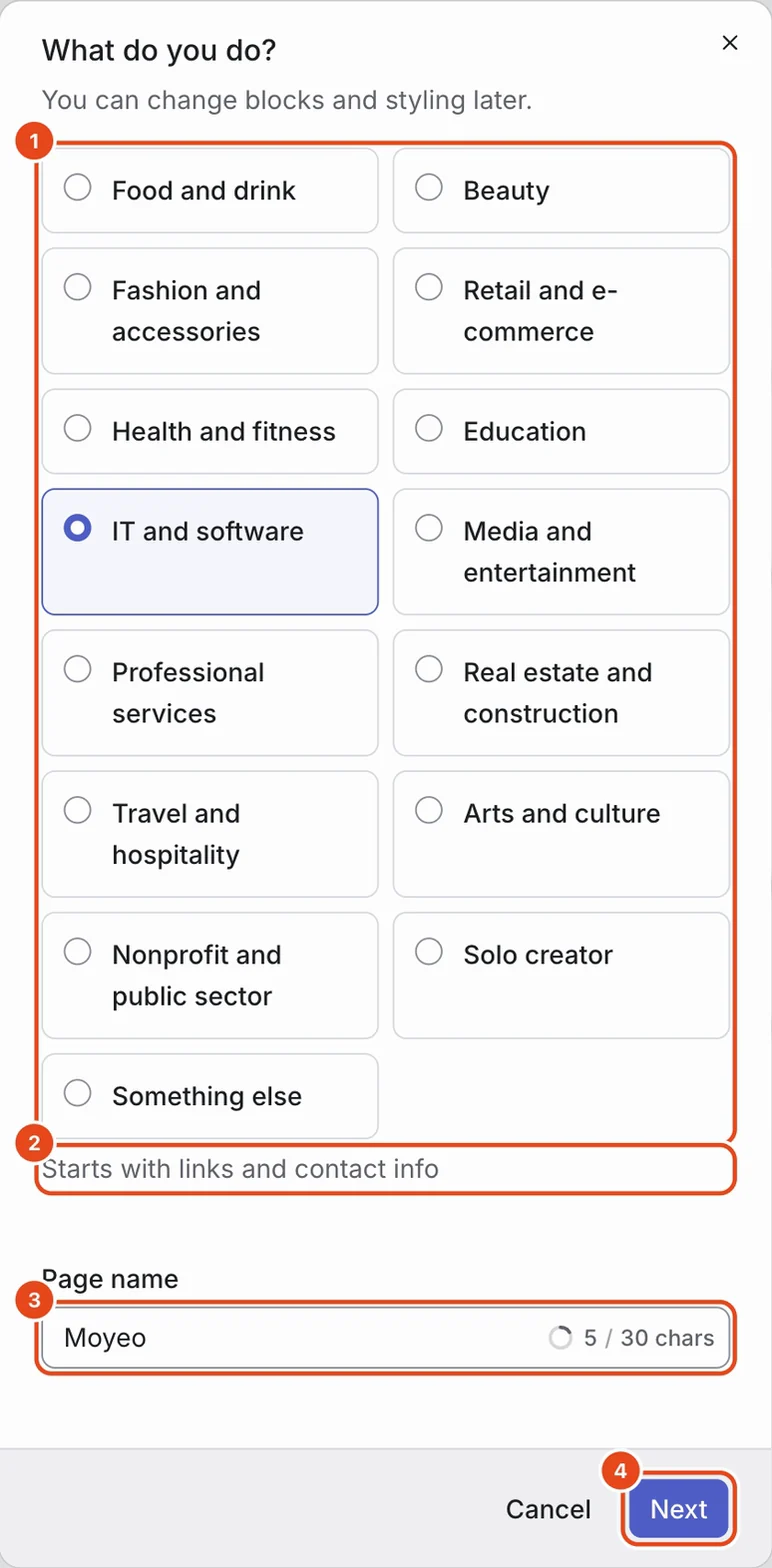
In What do you do?, pick your business type, name the page and press Next. Under the types, you'll see which blocks you start with.
In How can visitors reach you?, add your phone number, KakaoTalk channel ID, address and opening hours. Press Skip to do it later.
In Choose your address, pick what goes after moyeo.io/@. Use lowercase letters, numbers, periods and underscores, or tap one of the suggestions.
Press Publish to go live now, or Publish later to keep editing first.
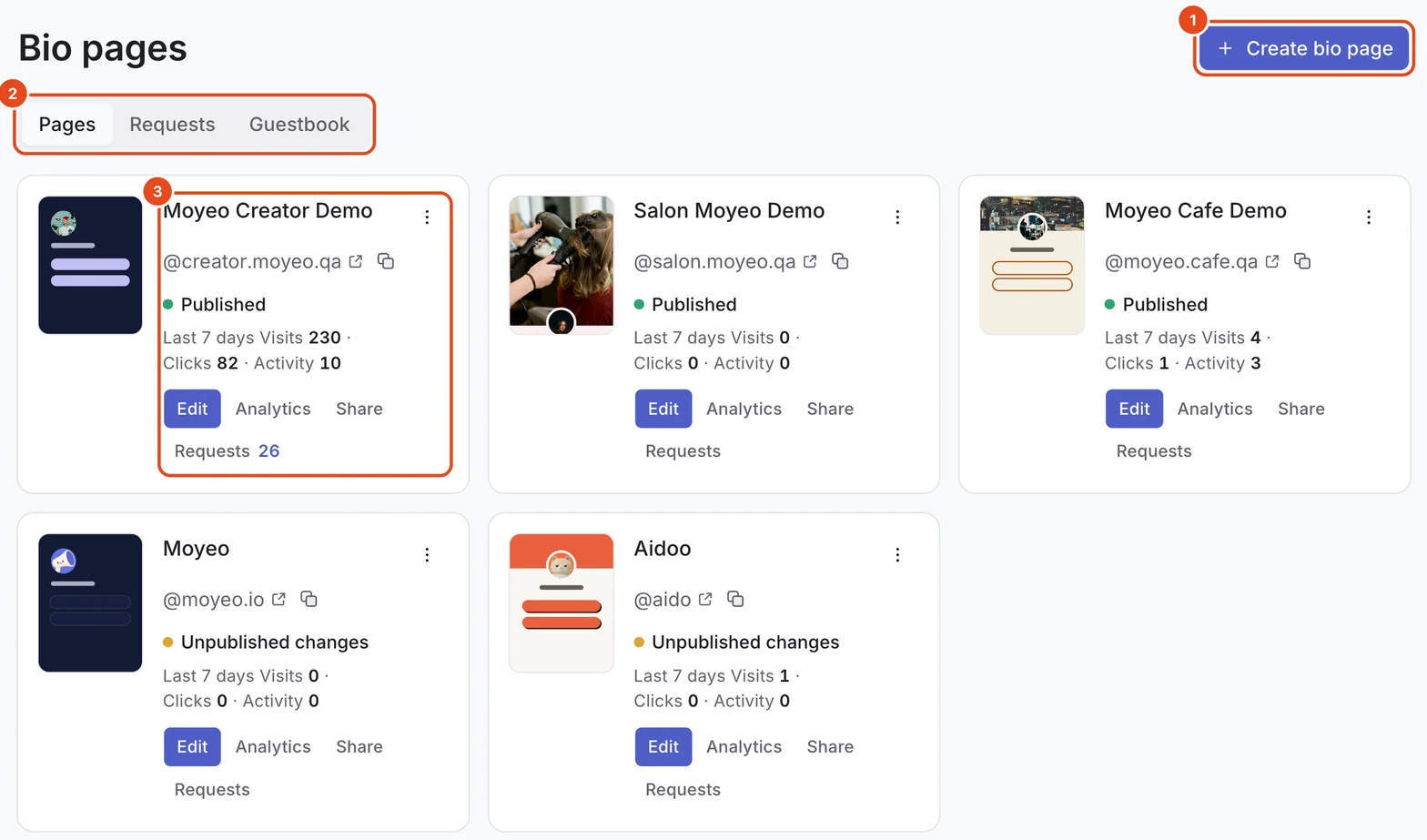
Your pages appear as cards. Each shows its address, status and visits, clicks and activity over the last 7 days, with Edit, Analytics, Share and Requests to jump in. The Requests and Guestbook tabs at the top gather entries from all your pages.

Add blocks
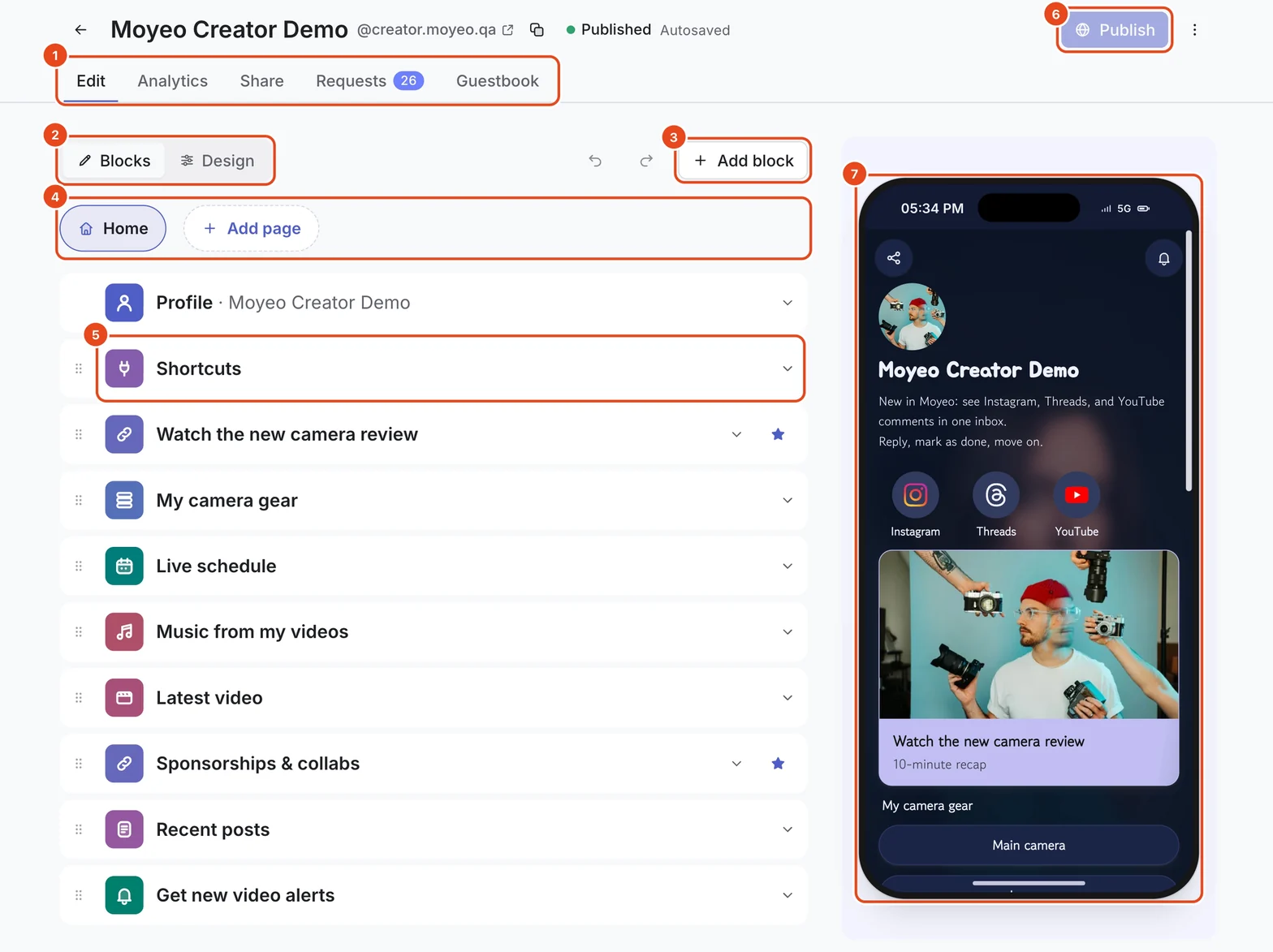
Opening a page takes you to Blocks under the Edit tab. Changes on the left show up in the phone preview on the right.
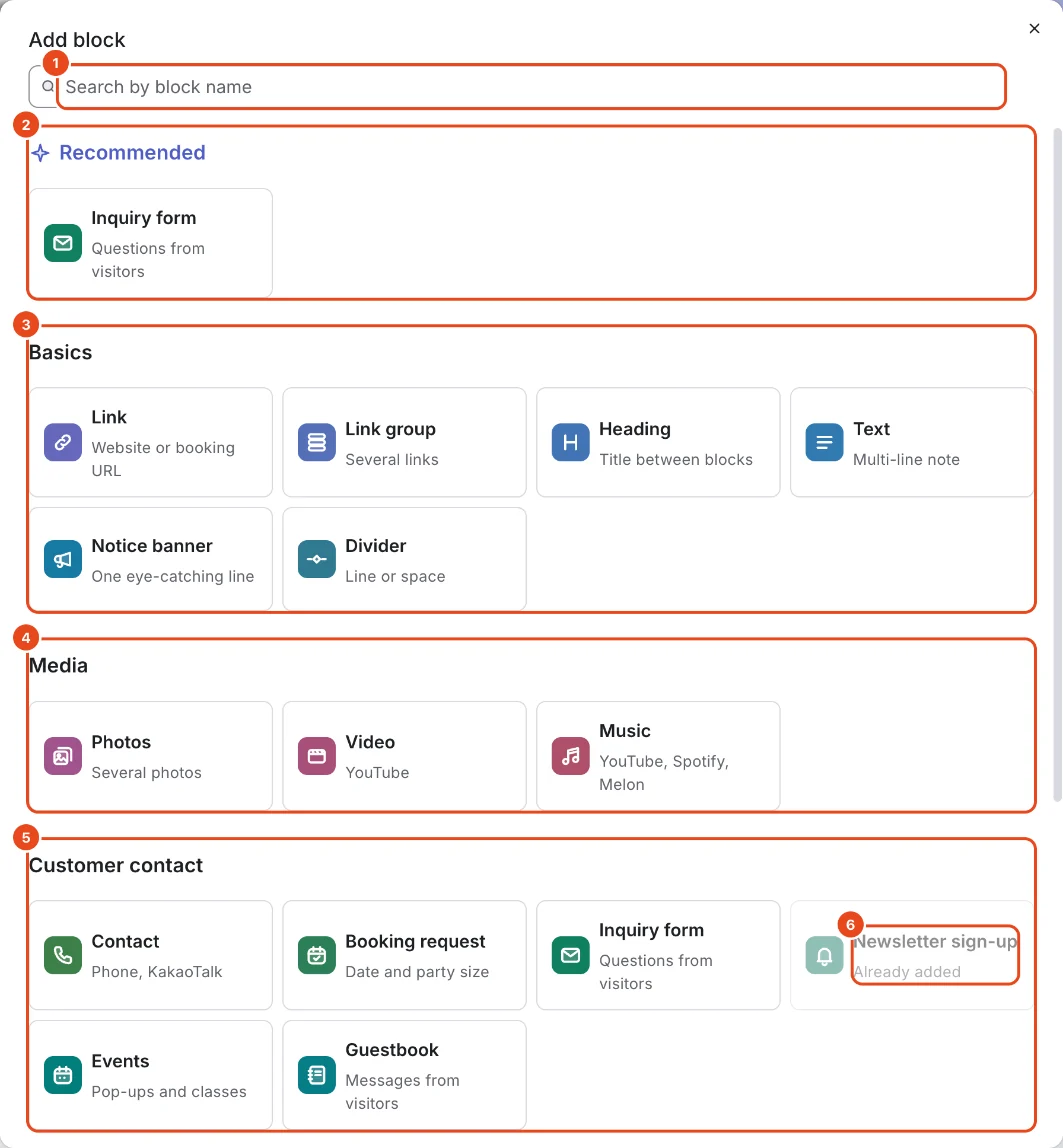
Press Add block to see blocks by category. Suggested at the top lists blocks that suit your business type, and you can search by name.
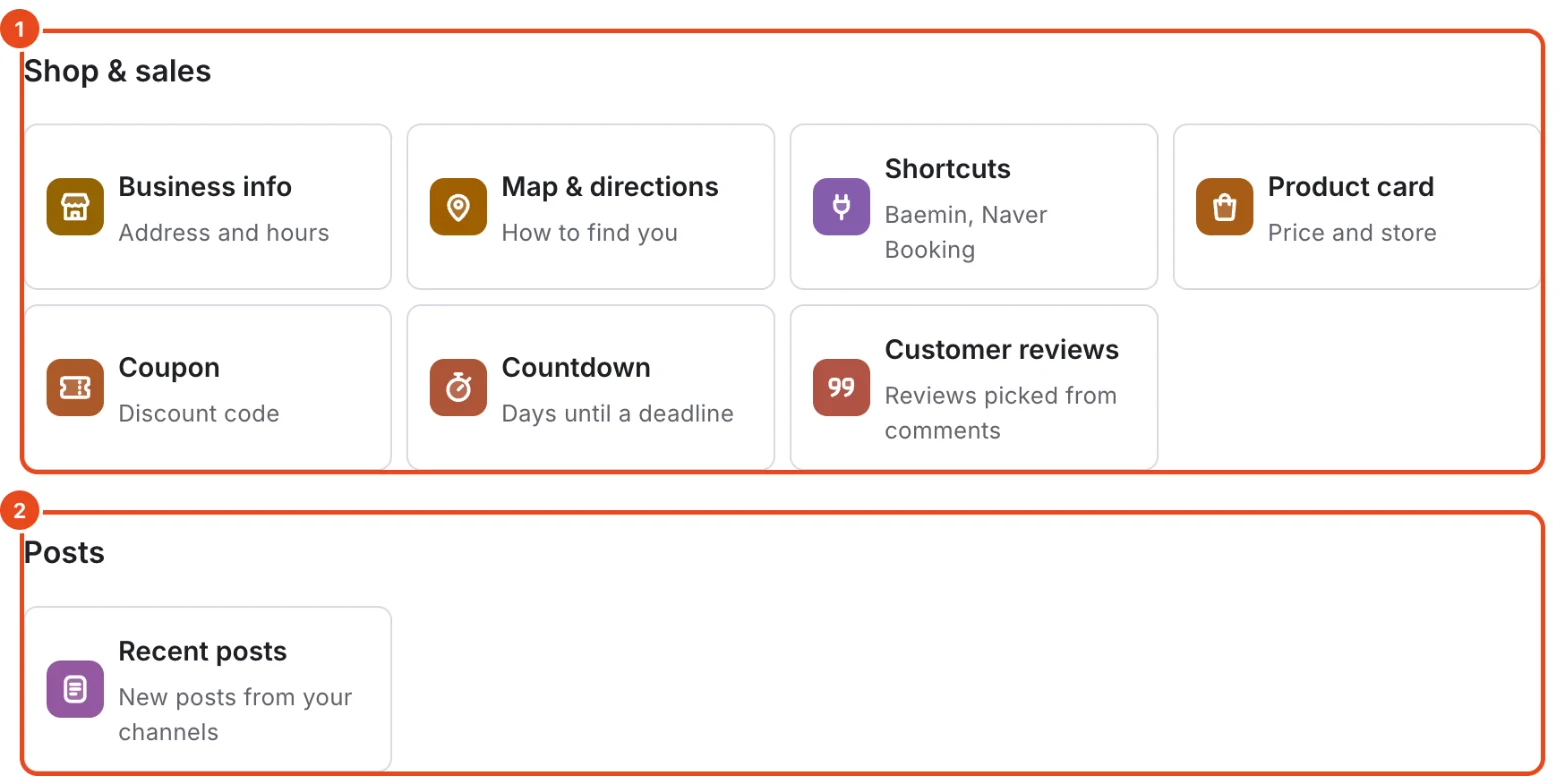
Scroll down for the Shop & sales and Posts categories. Press a block to add it to the page.
Tap a block row to fill it in and drag the handle on the left to reorder. The more menu (⋮) on each row lets you Duplicate, set a Visibility period or delete it.
To hide a block for a while, turn off Show to visitors on its row. The block stays where it is.


| Category | Blocks |
|---|---|
| Basics | Link, Link group, Heading, Text, Notice banner, Divider |
| Media | Photos, Video (YouTube), Music (YouTube, Spotify, Melon) |
| Customer contact | Contact, Booking request, Inquiry form, Newsletter sign-up, Events, Guestbook |
| Shop & sales | Business info, Map & directions, Shortcuts, Product card, Coupon, Countdown, Customer reviews |
| Posts | Recent posts |
Style your page
Press Design above the blocks.
Pick a Look to change the background, buttons and font together. Suggested looks are based on your profile photo's colors and your business type, and All looks has the rest.
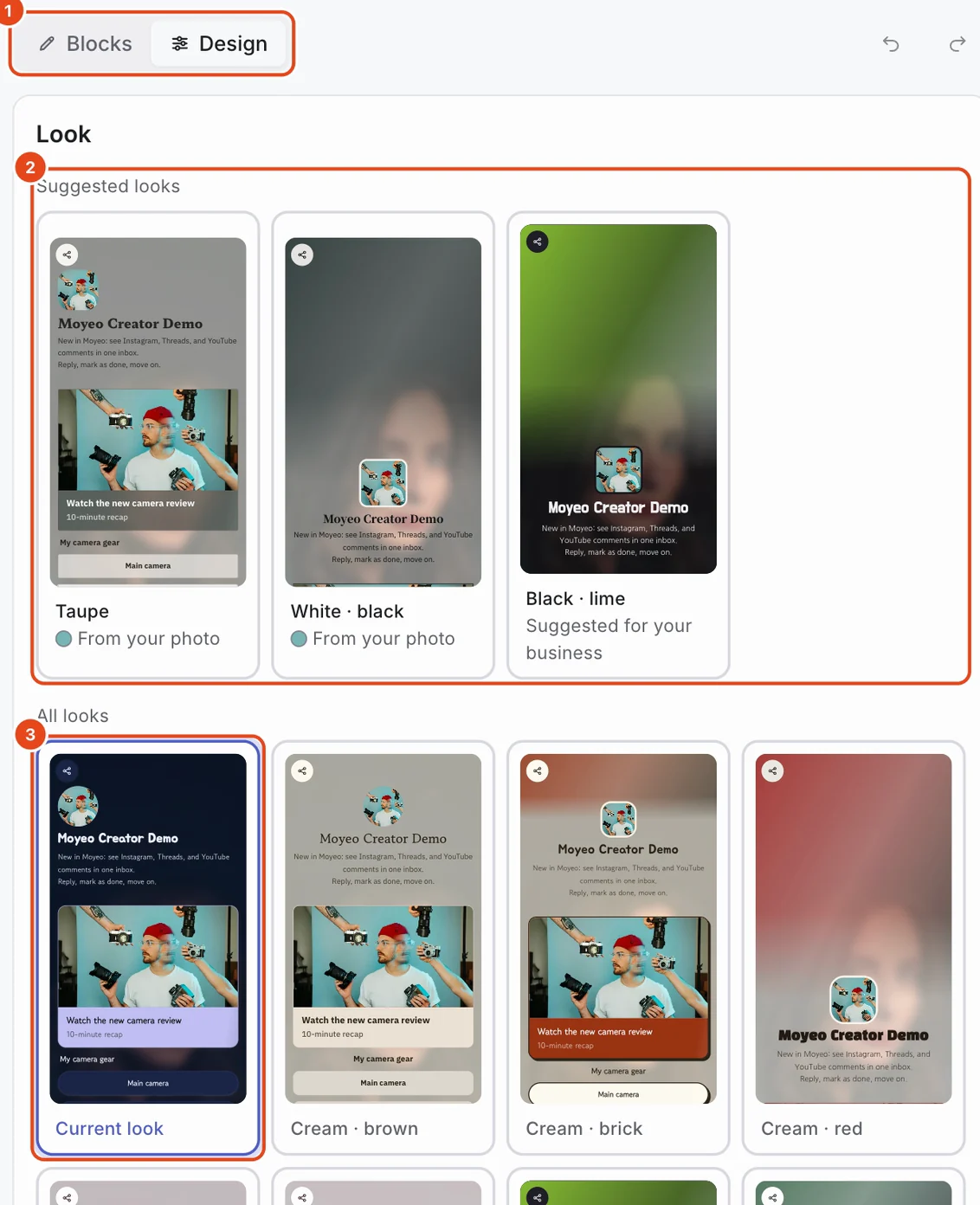
To fine-tune, change Background, Button color, Button shape, Button motion, Font, Header and Stickers one by one.

Publish
Your edits save automatically, but visitors only see them after you press Publish. The top of the screen shows Autosaved and the page status.
After you press Publish, visitors see the update shortly. If something needs fixing first, a message appears at the top and the block is outlined in red.
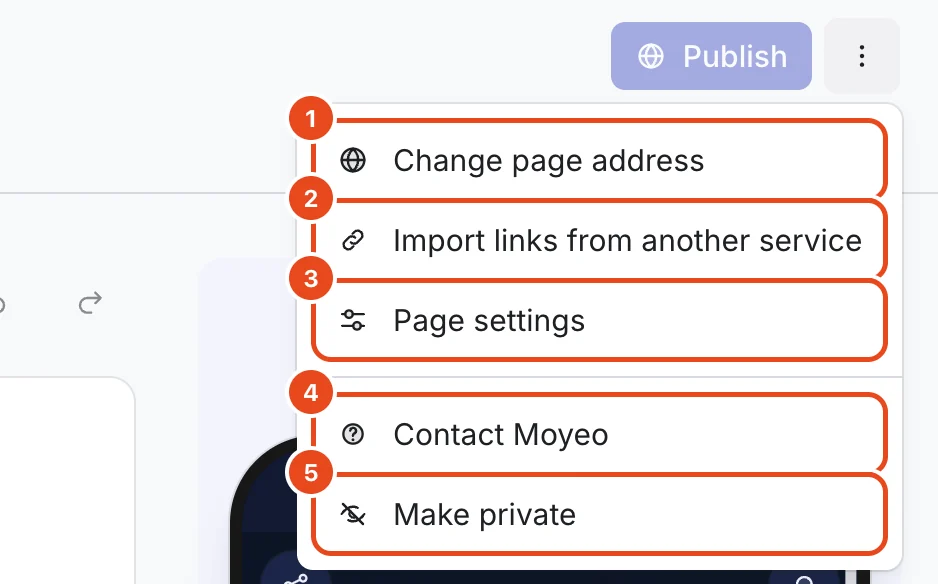
To take the page down for a while, choose Make private from the more menu (⋮). The content and address stay as they are.

Add more pages
Press Add page next to Home above the blocks.
Subpage adds a page under the same address, such as a menu or directions. Visitors see tabs like Home, Menu and Directions at the top.
New bio page creates a separate page with its own address, handy for an event or another location.
Page settings and search
Open Page settings from the more menu (⋮). Changes save right away.
Page language sets the language of buttons and notes visitors see. Share preview is the title and image shown when the link is sent in KakaoTalk or a message.
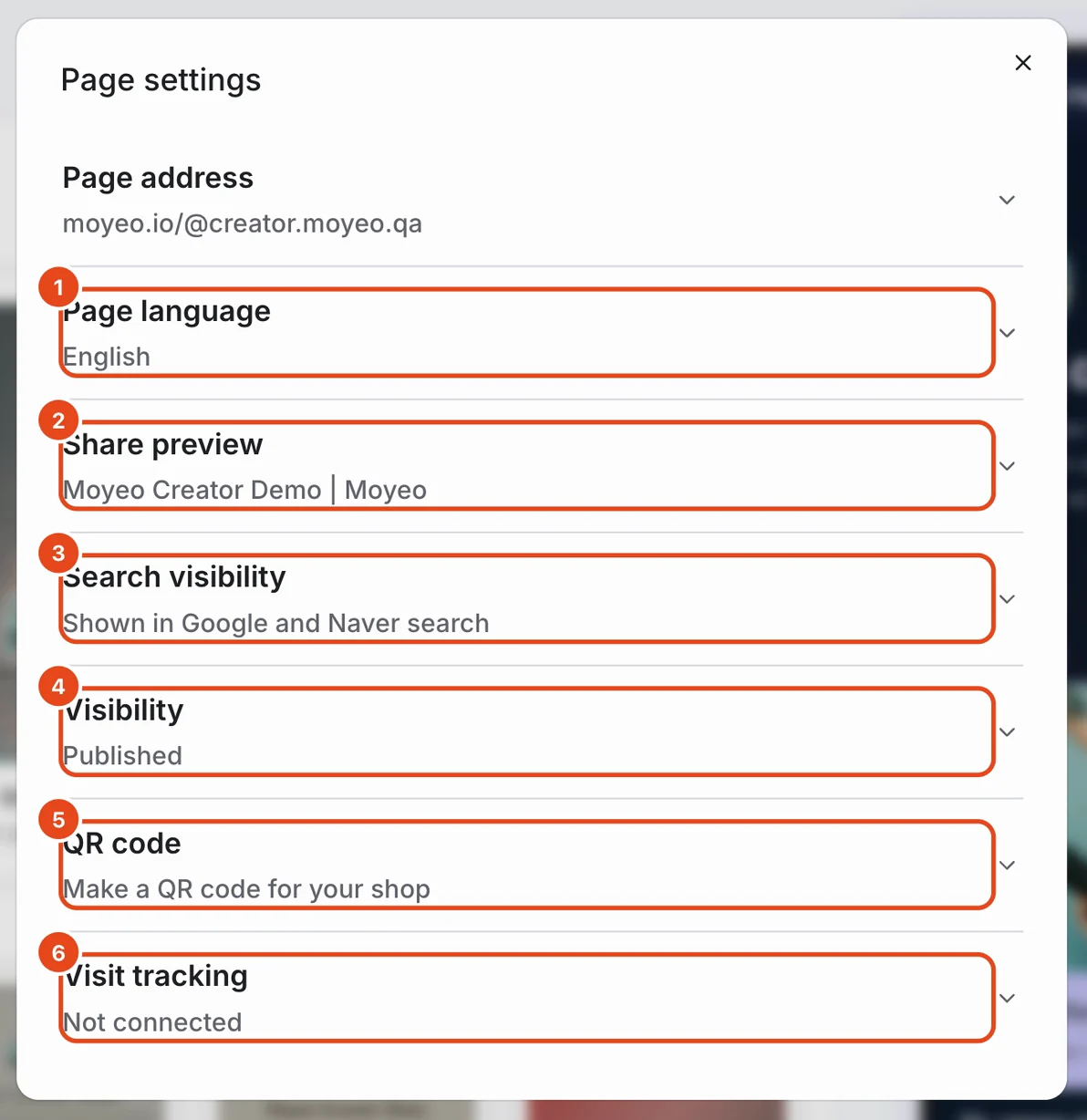
Expand Search visibility. Pages can show up on Naver, Google and AI search, even on the Free plan.
Enter your Area and Business type, then press Fill blanks with suggestions to fill any empty title, description and keyword fields.
Check the search result preview below. To stay out of search, turn off Show in search.

Take requests
Add a Booking request or Inquiry form block and customers can send requests right from your page. Booking requests collect a date, party size and contact details. No payment is taken.
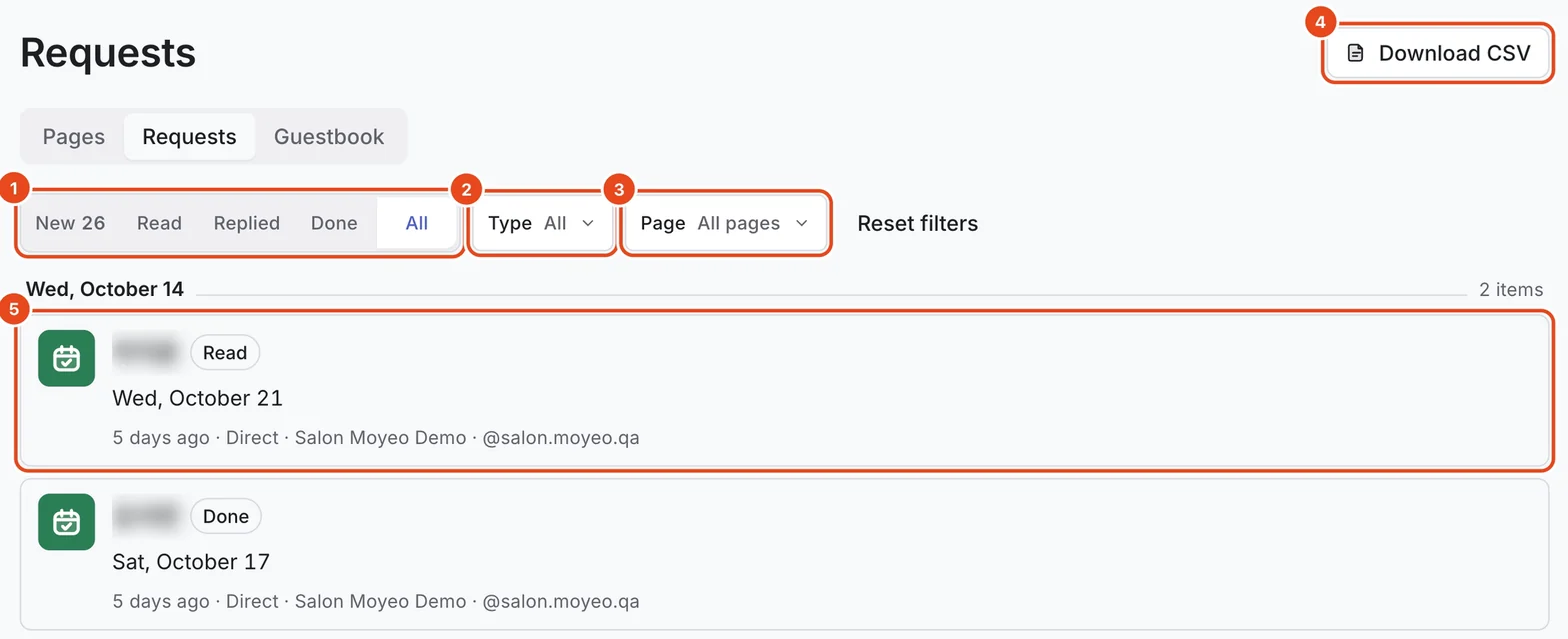
Requests land in the Requests tab, grouped by date. Switch between New, Read, Replied, Done and All, and filter by Type and Page.
Opening a request marks it as read and shows the contact details, booking date, where it came from and its history. For booking requests, use Call or Copy to reach the customer, then press Mark as done once you're finished.
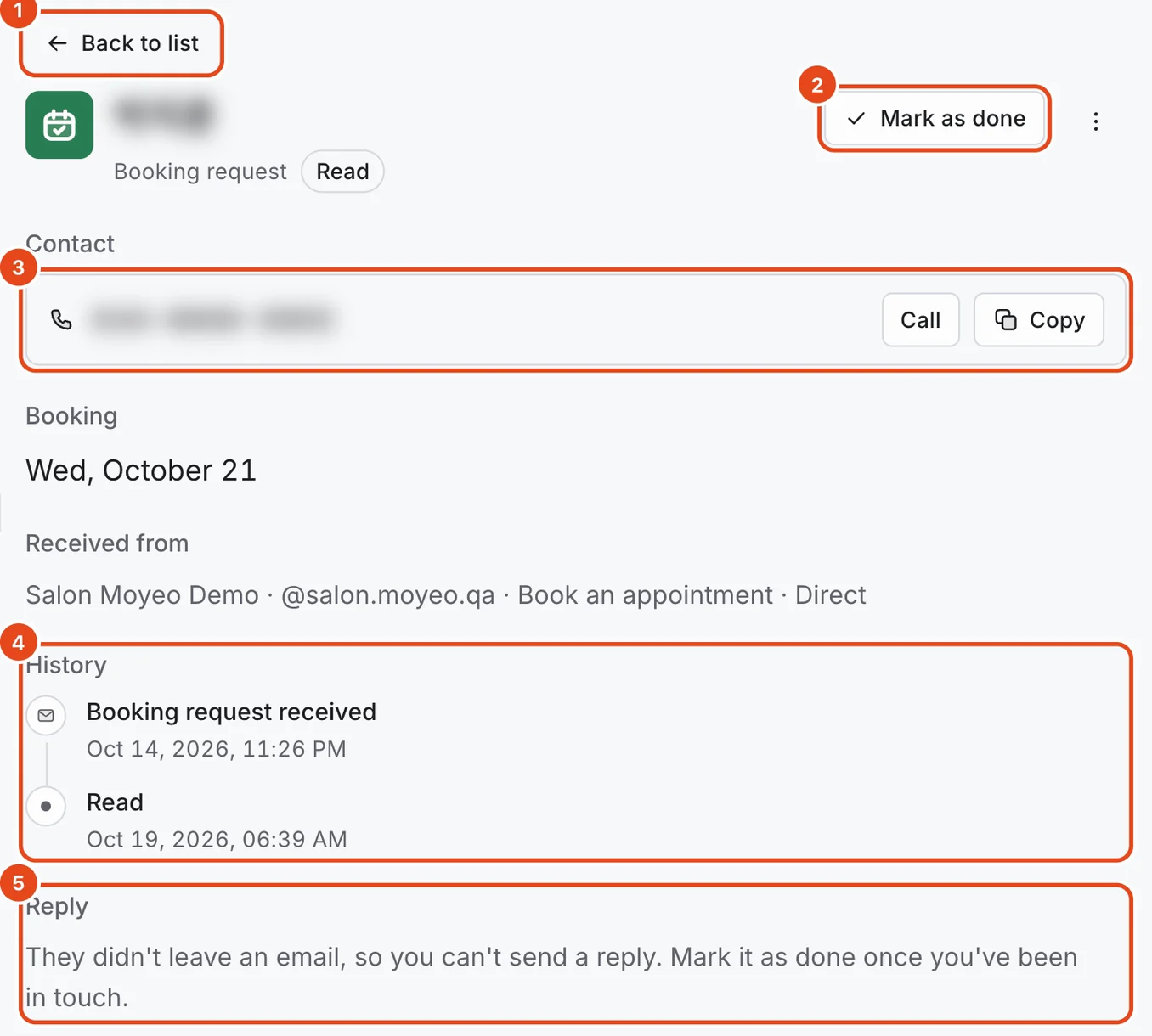
When a customer leaves an email address, use Reply to send an email. Customers can't reply to that email, so include your contact details.


Send a newsletter
Add a Newsletter sign-up block so customers can leave their email. They join your list after tapping the link in the confirmation email.
Press Newsletter at the top of a page's Requests tab. Recipients counts customers who confirmed by email and haven't unsubscribed. You'll also see Sent this month and the Subscriber trend.
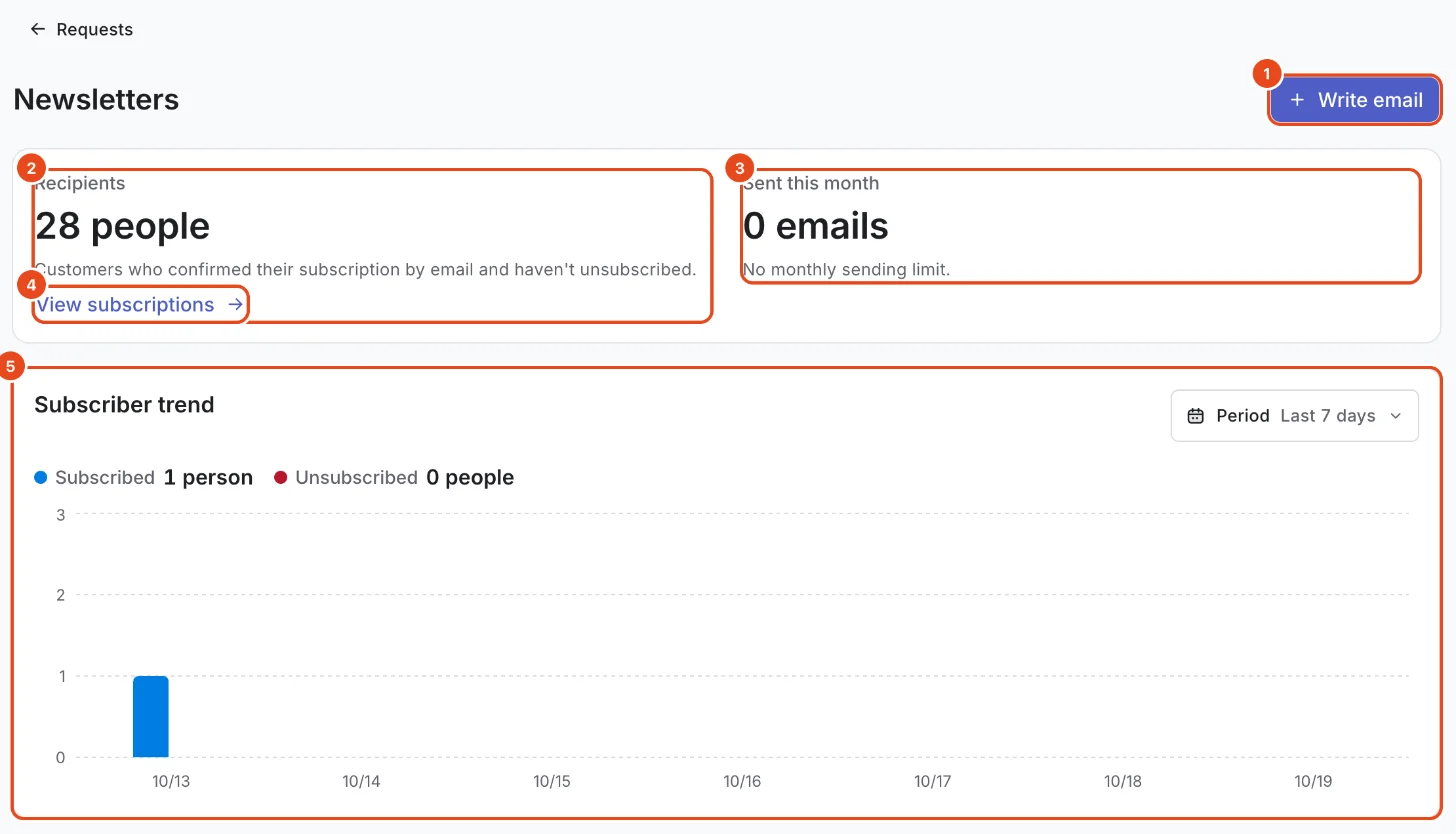
Press Write email to add a subject and message. Korean law requires an ad label, so (광고) is added to the start of the subject automatically.
Use Send test email to check it in your own inbox, then press Send. Once sending starts, you can't edit or cancel it.

Manage the guestbook
Add a Guestbook block so visitors can leave a short note.
Notes arrive in the Guestbook tab as Pending. Filter by Pending, Public, Hidden or All and by Page. Open a note and press Publish to show it on your page.
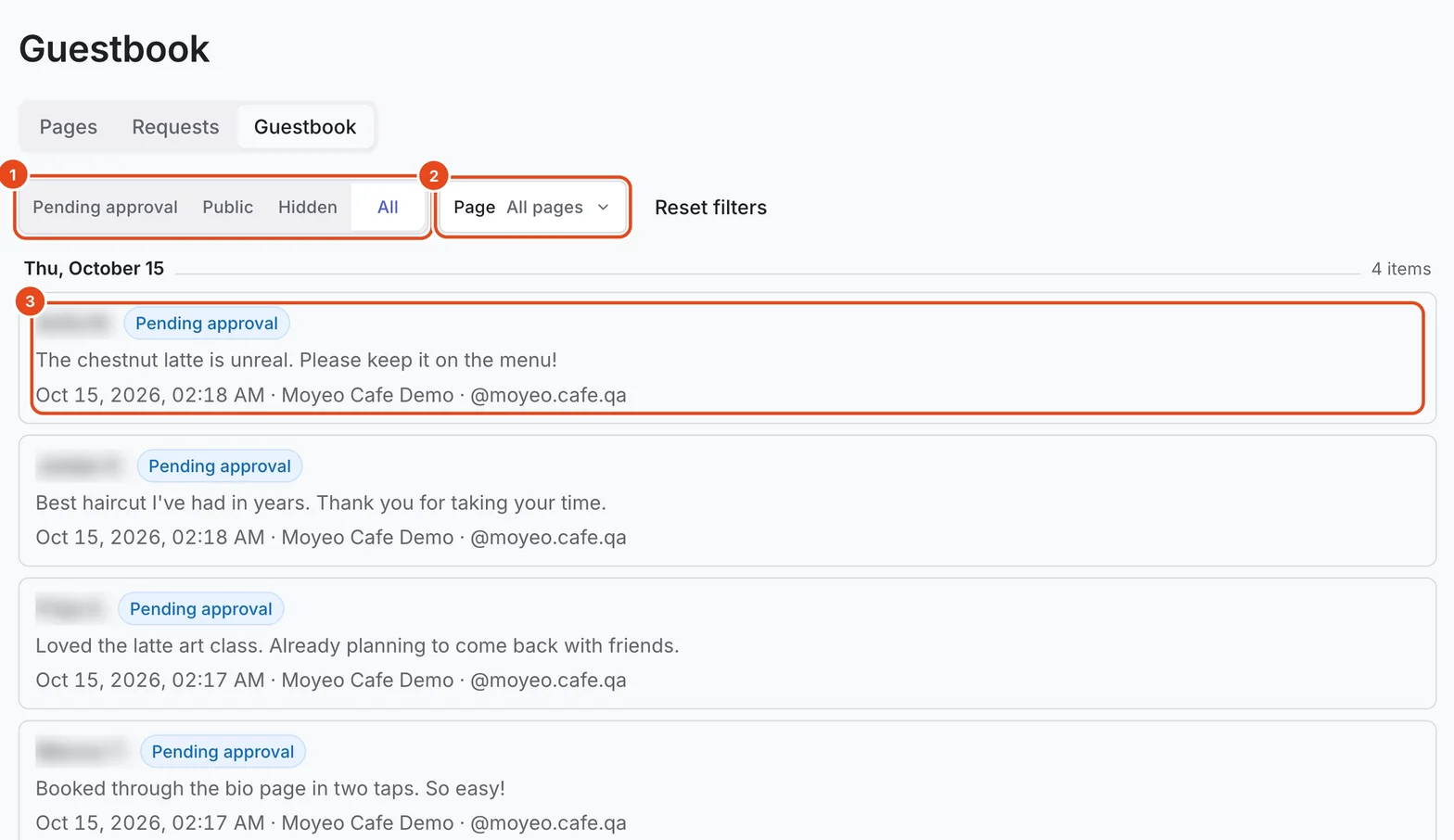
Press Hide to keep a note off the page. Hidden notes can't be published again and are deleted a few days later.

Your page shows the latest 20 approved notes.
Options at a glance
| Option | What it does | Good to know |
|---|---|---|
| Address | Sets your moyeo.io/@address. | Change it up to 3 times in 30 days. Old links forward to the new one. |
| Blocks | Stack links, photos, request forms and more. | Up to 100 across all pages. |
| Design | Changes background, buttons, fonts and stickers. | Included on the Free plan. |
| Add page | Creates a subpage or a new bio page. | How many you can make depends on your plan. |
| Search visibility | Sets the title, description and keywords for Naver, Google and AI search. | Turn it off to stay out of search. |
| Requests | Collects booking requests, inquiries and newsletter sign-ups. | Email replies only work when the customer left an email address. |
| Guestbook | Shows visitor notes after you approve them. | Notes stay hidden until you approve them. |
| Import links | Moves links over from Littly, Linktree or Inpock Link. | Only link titles and addresses are imported. |
Free and paid plans
| Item | Free | Pro | Team |
|---|---|---|---|
| Bio pages | 1 | 3 | 10 |
| Subpages per page | 1 | 5 | 10 |
| Booking and inquiry requests a month | 50 | 3,000 | 10,000 |
| Newsletter emails a month | 100 | 3,000 | 10,000 |
| Request replies and CSV download | Not included | Included | Included |
| Hide the "Made with Moyeo" badge | Not included | Included | Included |
| Your own logo | Not included | Included | Included |
When you reach the monthly request limit, the form closes for visitors and you get a notification. It reopens on the 1st of next month.
Good to know
- Edits save automatically, but visitors only see them after you press Publish. Unpublished changes in the list means there are edits that aren't live yet.
- A star on a block row marks a highlighted block, which stands out more on your page.
- The page language only changes the page's own buttons and notes. Your block content stays as you wrote it.
- Mark handled requests as done so the New count only shows what still needs you.
Frequently asked questions
I made changes but visitors still see the old page.
Edits are saved but not live yet. Press Publish at the top to show them to visitors.
What happens to old links if I change my address?
Visitors using the old address are forwarded to the new one for 30 days. Update your profile links in the meantime.
Can booking requests take payment?
No. They only collect the date and contact details. Reach out to the customer once you've checked the request.
If I delete a page, are its requests deleted too?
Yes. Content, requests, guestbook notes and analytics are all deleted for good. To take the page down temporarily, make it private instead.