
When to use it
- You want to add your bio page address to your Instagram, Threads or YouTube profile.
- You want to print a QR code on in-store signs or receipts.
- You want to know whether more visitors come from Instagram or Naver.
- You want to DM your bio page link to people who comment.
How it works
Copy your address
Open your bio page and press the Share tab. Only published pages can be shared, so you'll see Publish to share your link until you publish.
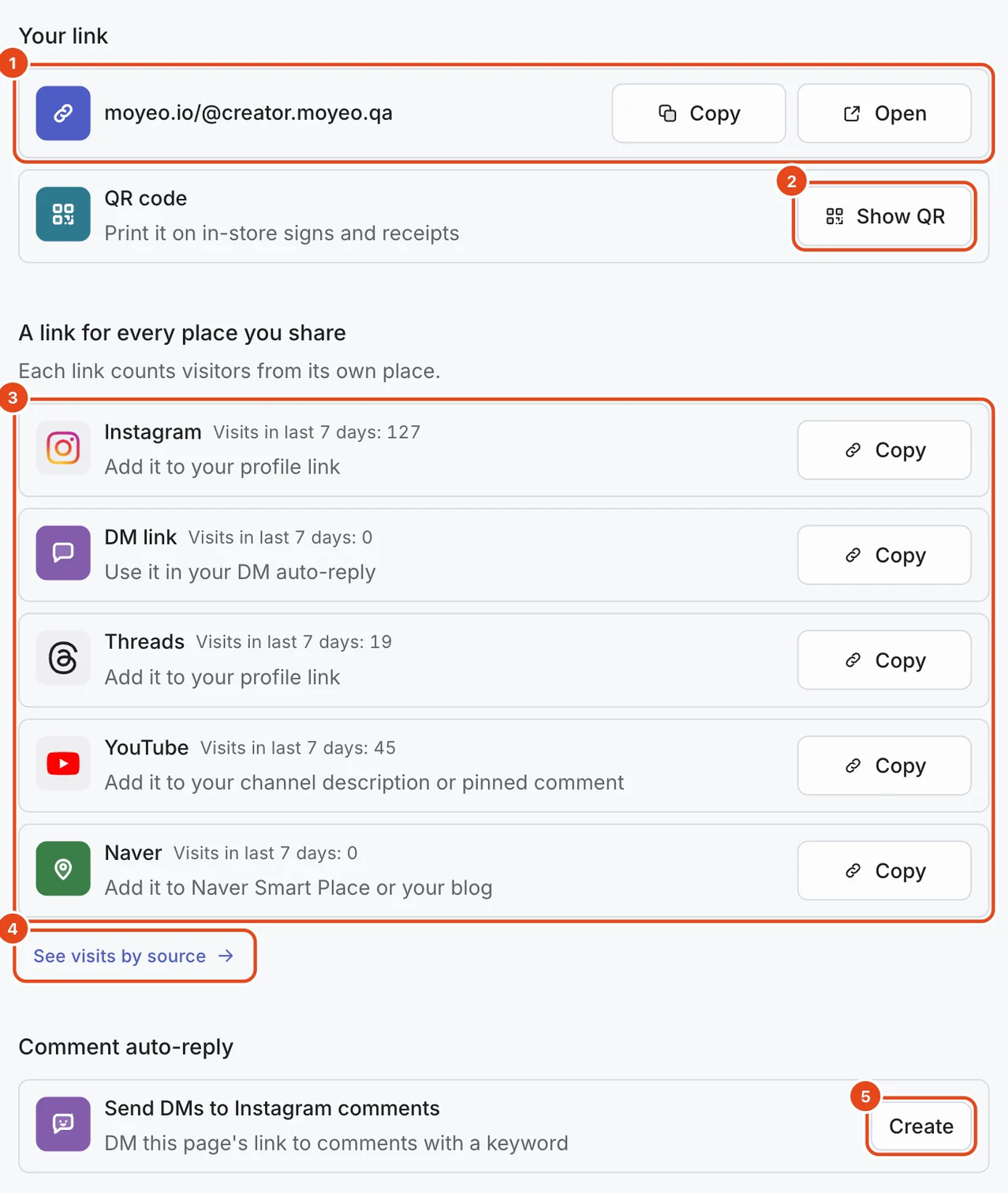
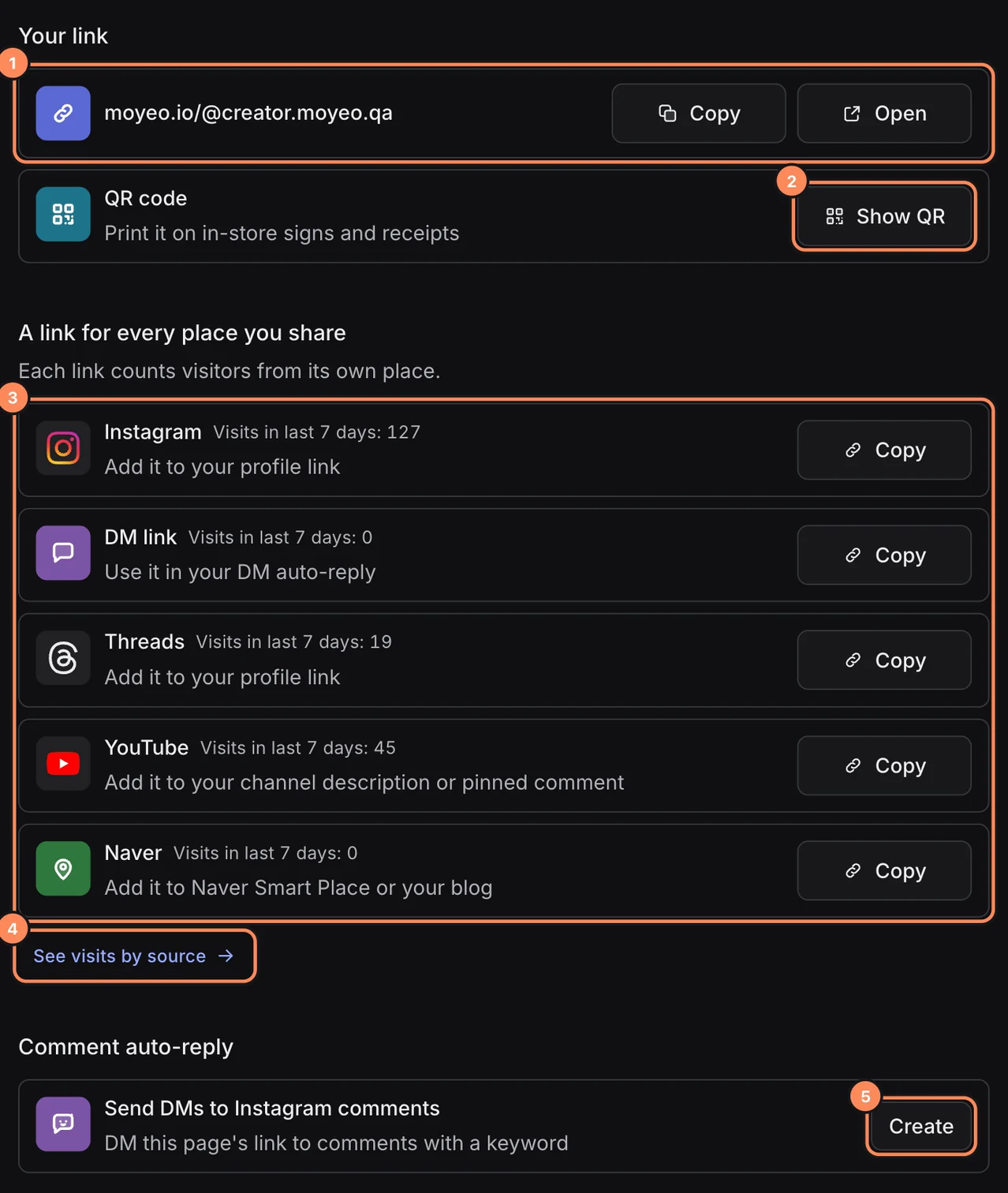
Under Your link, press Copy to copy your moyeo.io/@address. Open shows the page as visitors see it in a new tab.
Save a QR code
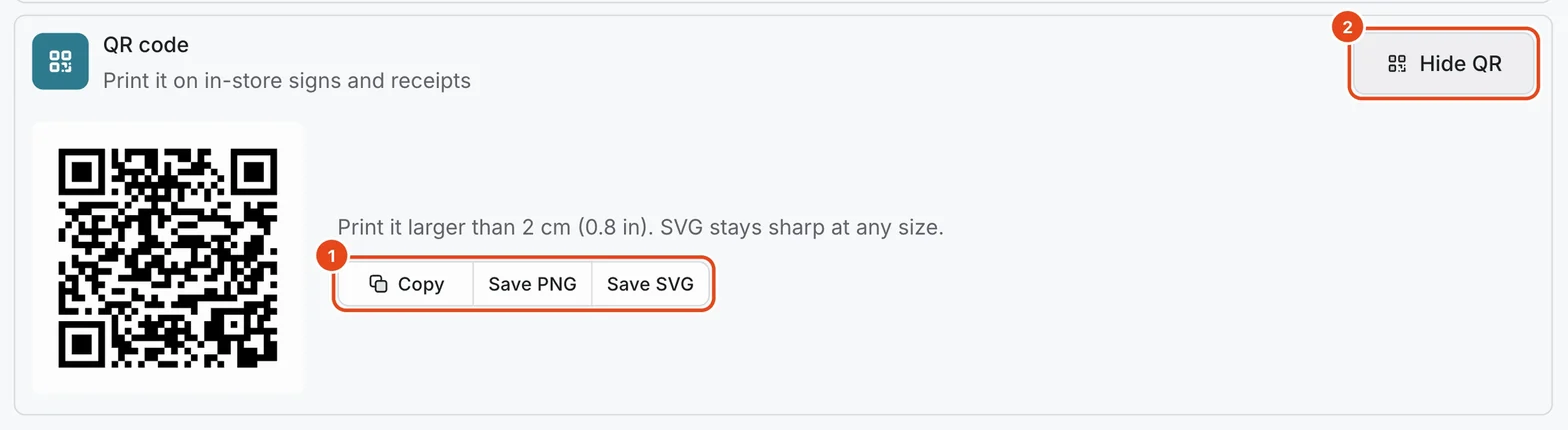
Press Show QR on the QR row to open it.
Download it with Save PNG or Save SVG and print it on in-store signs, receipts or posters. Print it larger than 2 cm (0.8 in), and use SVG for large prints so it stays sharp.

Use a different link for each place
Under A link for every place you share, press Copy on the row for where you'll put it. These are called share links.
Each row says where it goes. Put the Instagram and Threads links in your profile link, the YouTube link in your channel description or a pinned comment, and the Naver link in Smart Place or your blog.
Put the DM link in Instagram DMs or DM auto-replies. Each row also shows visits from the last 7 days.
Add a link to each post
In the New post window, turn on Bio page link and pick a page.
When the post goes out, Moyeo creates a share link for it and adds it to the end of the Threads post, the end of the YouTube description, or the Instagram first comment.
See which posts brought visitors in under the bio page's Analytics. Details are in Write and schedule a post.
DM your link to commenters
At the bottom of the Share tab, press Create on Send DMs to Instagram comments under Comment auto-reply.
Set a keyword, and anyone who comments with it gets this page's link by DM.
If you already have one, press View to open the list, or Create new to add another.
See Comment and DM auto-replies for the full setup.
Read your bio page analytics
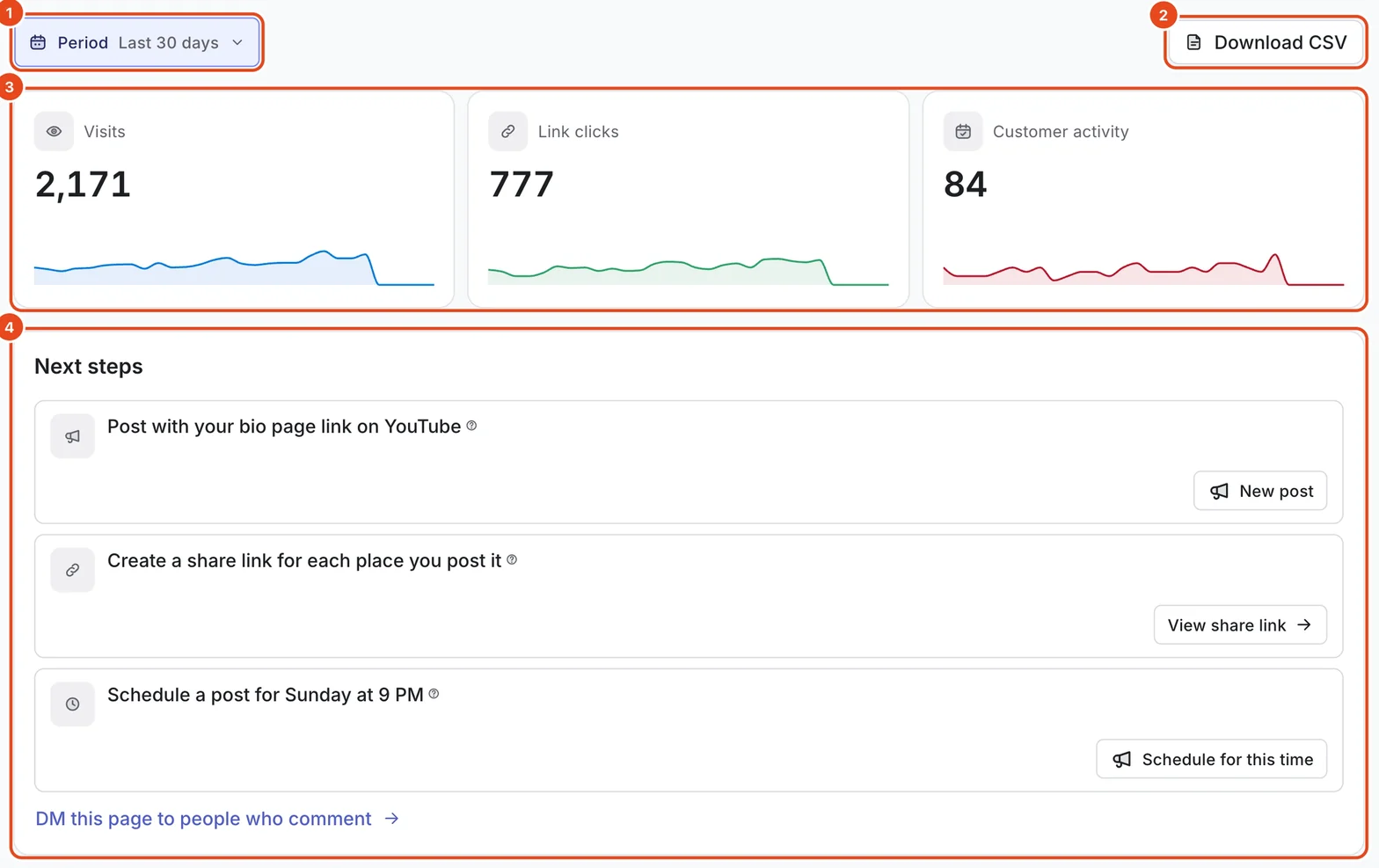
Open the bio page's Analytics tab. Pick the last 7, 30 or 90 days under Period, and press Download CSV to get the numbers as a file.
The cards at the top show Visits, Link clicks and Customer activity, and how much they changed from the previous period.
Next steps suggests what to try based on your numbers. Press a button to go straight there.

| Metric | What it means |
|---|---|
| Visits | How many times the page was opened. |
| Link clicks | How many times links and buttons on the page were pressed. |
| Customer actions | Bookings, inquiries, calls, newsletter sign-ups and other things visitors did. |
| Click rate | Of the times a block was on screen, how often it was pressed. |
| Action rate | The share of visits that led to a customer action. |
| Returning | Visits from the same browser coming back within 30 days. |
| Avg. time on page | How long visitors kept the page on screen. Time in other apps or tabs is excluded, up to 30 minutes a visit. |
| Visitor countries | Estimated from where each device connected. |
See visits by source
Press See visits by source on the Share tab, or scroll down the Analytics tab.
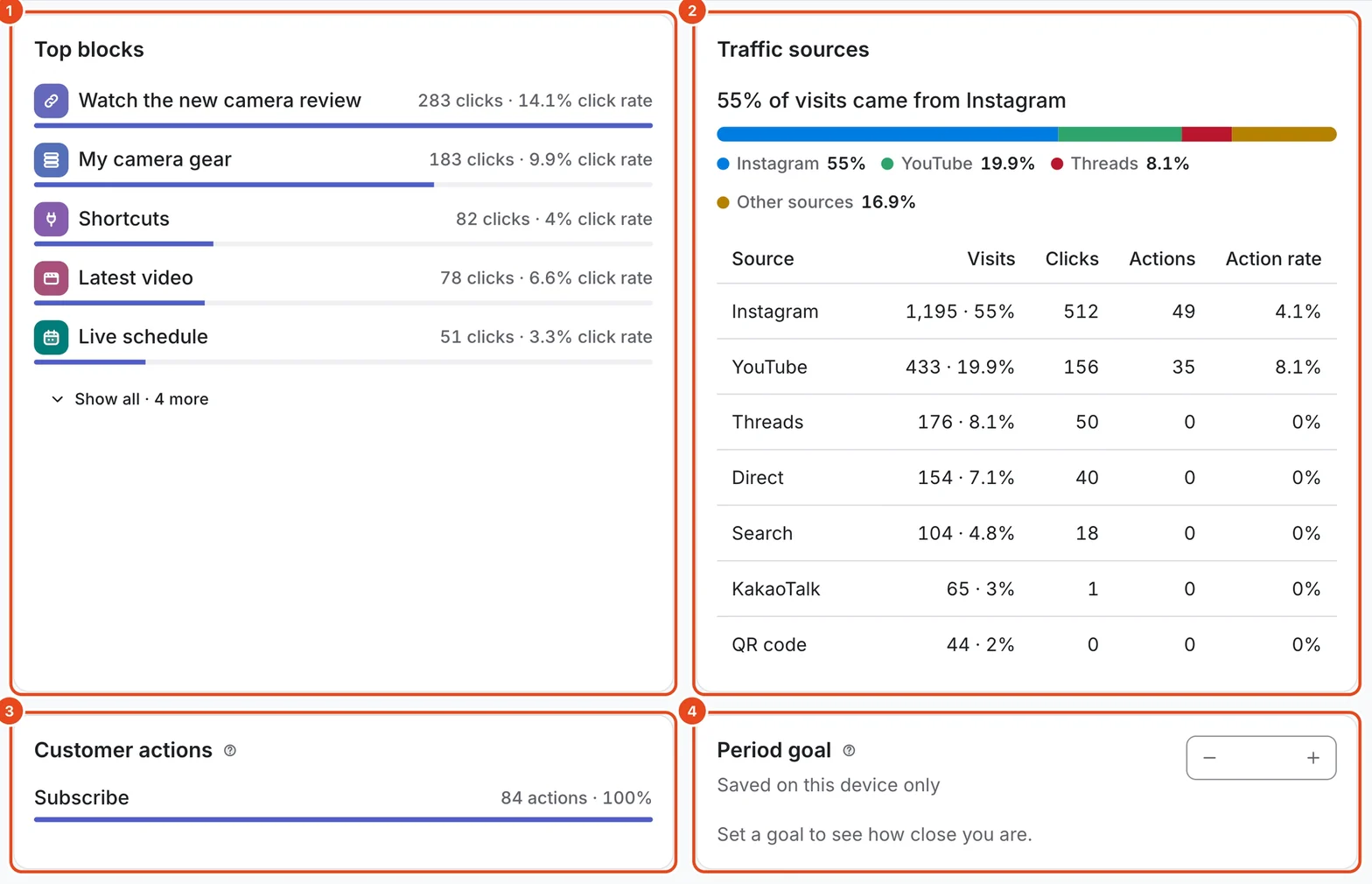
Top blocks shows how many times each block was pressed and its click rate.
Traffic sources shows visits, link clicks, customer actions and action rate by source, such as Instagram, Threads, YouTube, the DM link, Naver, QR and search.
Set a Period goal to see how close you are. The goal is saved on this device only.

| Source | Visits that came from |
|---|---|
| Instagram, Threads, YouTube | That channel's share link or app. |
| DM link | The DM link or a link in an auto-reply DM. |
| Naver | The Naver share link or Naver itself. |
| QR | Scanning your QR code. |
| Search, AI search | Search results or AI search answers. |
| Newsletter | A link in a newsletter you sent. |
| Direct | Typing the address directly, or a source we can't tell. |
Visits from KakaoTalk, Facebook, TikTok, X and Band are broken out too. Further down are Visit details, When visitors come, Visitors from posts and Block activity.
Options at a glance
| Option | What it does | Good to know |
|---|---|---|
| Your link | Copies or opens your moyeo.io/@address. | Published pages only. |
| QR | Saves a QR code as PNG or SVG. | QR visits are counted separately. |
| A link for every place you share | Copies share links for Instagram, DMs, Threads, YouTube and Naver. | Each row shows visits from the last 7 days. |
| Bio page link (posts) | Adds a share link to each post. | Turn it on in the New post window. |
| Comment auto-reply | DMs this page's link to people who comment. | Instagram only. |
| See visits by source | Shows visits by traffic source in Analytics. | How far back you can look depends on your plan. |
Free and paid plans
| Item | Free | Pro | Team |
|---|---|---|---|
| Analytics viewing period (days) | 7 | 730 | 730 |
| Visit details, visits per post, clicks per block | Not included | Included | Included |
| Link DMs per month | 50 | No limit | No limit |
Good to know
- Every share link opens the same page. Using a different link in each place lets you see where visitors come from.
- Profile link clicks in channel analytics are reported by the channel and include clicks on other links in your profile, so they can differ from bio page visits.
- Changing the period also changes the comparison with the previous period.
- With only a few visits, rates swing a lot. Try a longer period to see the trend.
Frequently asked questions
I can't copy links on the Share tab.
The page isn't published yet. Press Publish, then copy again.
Do I have to replace the address on my profile with a share link?
No, the page opens either way. But to see visits by channel, it's best to use that channel's share link.
Are links shared by visitors counted separately?
When visitors share your page with its share button, they share your plain address. Those visits are counted by where they came from, such as KakaoTalk or Direct.
If I open the QR code again, does the old one stop working?
No. The QR code is created the first time you open it and keeps the same link. QR codes you've already printed keep working.